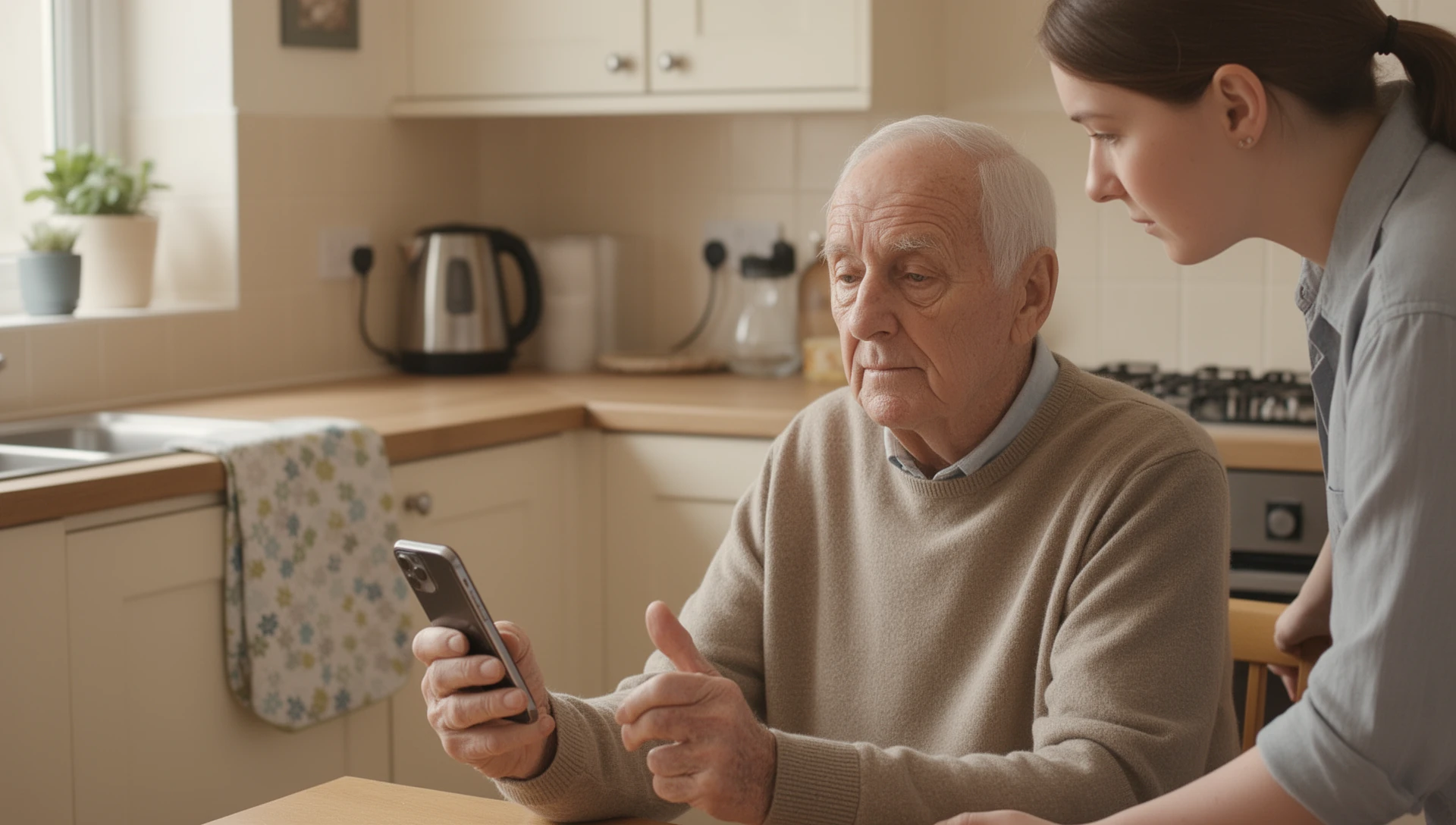
If the difficulty is navigating Android rather than holding or hearing the phone, BIG Launcher can be a better choice than buying a Doro Aurora A30. You keep the handset you already know, arrange large buttons around your own contacts and apps, and can add BIG Phone and BIG SMS with fewer unwanted actions. You can try that approach before paying for replacement hardware.
Here we compare the UK Doro Aurora A30, an Android smartphone, rather than Doro’s keypad phones. The A30 has a simplified interface of its own; its physical controls, audio features and assistance service are reasons to buy it that a launcher cannot reproduce.
Keep your phone, contacts and familiar apps
Installing BIG Launcher changes the home-screen interface on the Android you already have. Your photos, accounts and installed apps remain there, so simplifying the menu does not require a new handset or device-to-device migration. If you are setting up the phone for your mum or dad, our guide to a simple smartphone for seniors shows what to change and how to test it.
This is a practical advantage when the current Android already has a comfortable screen, useful camera, suitable sound and familiar hardware buttons. It also lets you choose a compatible phone for those qualities instead of choosing one particular senior-phone model for its interface. A launcher does not extend an old phone’s security-update support, so keep that part of the hardware decision separate.
Build the menu around specific people and actions
BIG Launcher lets you assign an app, contact, direct call or SMS destination to a large button. Labels, contact photos, layouts and contrast themes help you adapt it to what you need to see and select.
A first screen might show Phone, Messages and your most-used apps. A Family button can open a second screen of photo contacts; a separate screen can hold less-used apps. Use visible Go to screen buttons, optional swipes or both. You can also hide unwanted entries from BIG Launcher’s application list.
Doro’s Easy Interface likewise offers selected apps, an organised app list and navigation by arrows or swipes. Its manual says home-screen changes require deliberate actions rather than ordinary long presses.
Remove the particular actions that cause trouble
For accidental dialling, deletion or an overcrowded call screen, consider these settings in BIG Launcher, BIG Phone and BIG SMS:
- Accidental dialling: leave the confirmation enabled before a BIG Launcher contact button places the call.
- Unwanted deletion: disable deletion separately for contacts, call history and messages in BIG Phone and BIG SMS.
- Too many controls during a call: choose which BIG Phone controls remain visible and add confirmation before ending the call.
- Difficulty timing a tap: use Short and long press to let a prolonged touch activate the intended button rather than requiring a quick tap.
BIG Phone and BIG SMS are separate installations and need the relevant Android default-app roles. Configure the call and message controls around the actions you want to keep, rather than adding every available option.
Protect the arrangement once it works
BIG Launcher keeps button editing separate from ordinary use. In the full version, open ⋮ → Preferences → Preferences menu, enable Protect menu and set Password. That protects Preferences and Set buttons while leaving the everyday buttons available. In the full version, you can also turn on Protect system settings and hide the notification bar with Full screen, but this is still not a complete lock of Android, and it does not prevent another app from changing shared data.
When the Doro Aurora A30 is the better purchase
Choose the A30 when you need its physical Home and answer/end controls, Doro ClearSound, hearing-aid compatibility or rear Secure Button. Response by Doro can alert configured responders and share the latest known location; it requires an internet connection and the relevant app, accounts and responder setup.
If the present phone is difficult to hold, too quiet or otherwise physically unsuitable, changing its launcher will not fix that hardware. Doro combines its own simplified interface with hardware and assistance features in one device.
Try the software change before replacing the phone
- Choose three everyday tasks, such as calling a family member, reading a text and opening the camera.
- Install BIG Launcher and assign those actions through ⋮ → Set buttons. In the free edition, use the editable right-column buttons; all-button editing and password protection require the full version.
- Add BIG Phone or BIG SMS if the difficulty includes call or message controls. Try a short call or reply with a willing contact.
- Decide whether the remaining difficulty is in the interface or in the handset itself. Buy new hardware for a hardware need, rather than assuming it is necessary for a simpler menu.
Try a simpler interface on the phone you have
If the handset works for you, start with BIG Launcher and build the few everyday actions you want to reach without searching.
