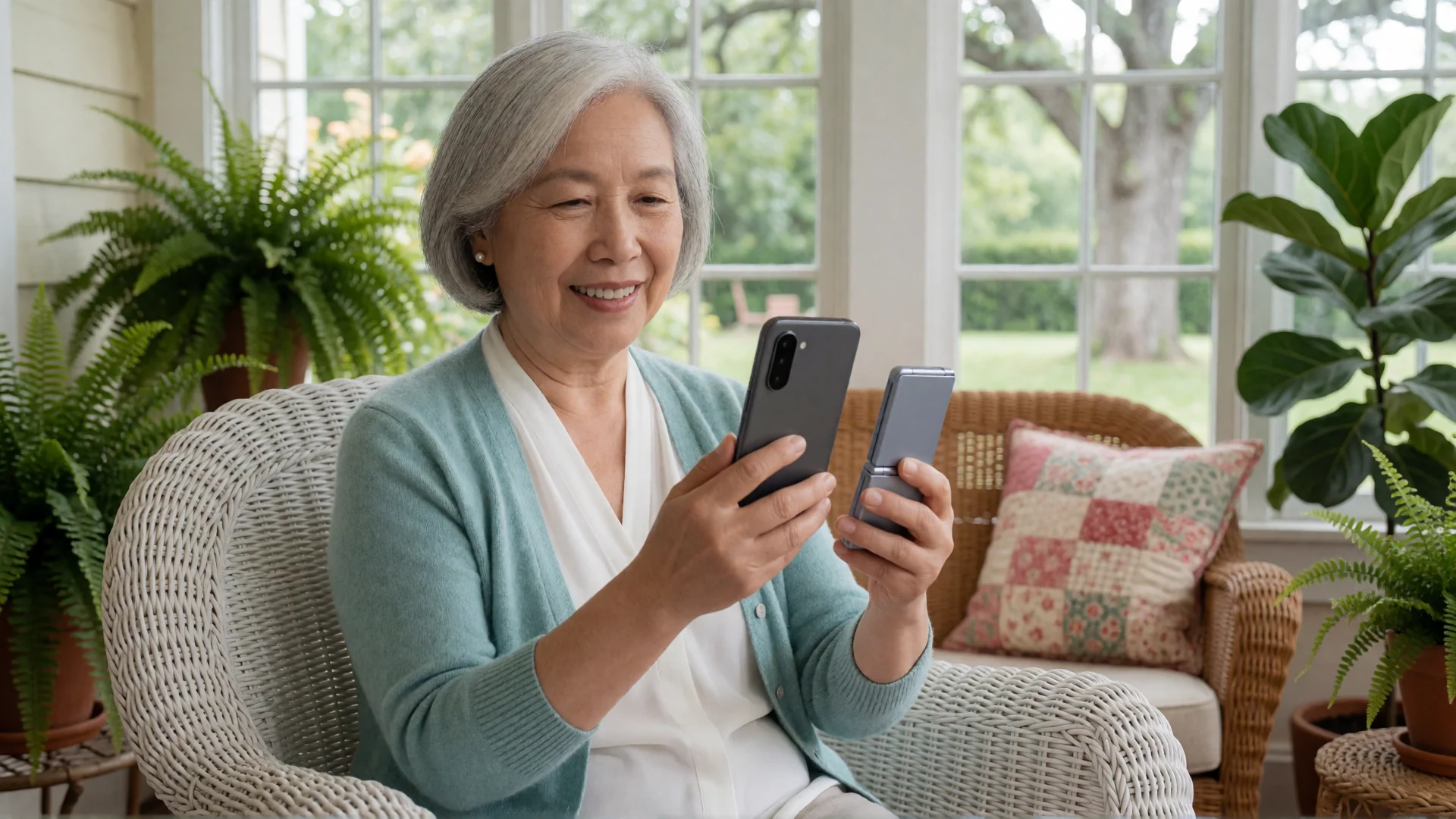
Looking for a flip phone for seniors, maybe for your mom or dad? For some people, a flip phone is exactly the right phone. For others, a simple smartphone is the better fit, because it can do what the rest of the family does on their phones: WhatsApp, photos and video calls.
Here is how to tell which one your parent needs, and how to make an Android smartphone simple if that turns out to be the better choice.
Short answer: Choose a flip phone if your parent mainly makes and answers calls, wants keys they can feel, or doesn’t want a smartphone at all. Choose a simple Android smartphone if the family keeps in touch on WhatsApp or by sharing photos. WhatsApp supports Android phones with Android 6.0 or newer and iPhones with iOS 15.1 or newer (iOS 15.5 or newer from November 30, 2026), and it’s no longer available on phones running KaiOS.
To make an Android phone simple, install BIG Launcher. The app replaces the home screen with large buttons, six of them in the standard layout, and needs Android 6.0 or newer. A long press doesn’t open a settings menu and a drag doesn’t move a button, so nothing gets moved or deleted by accident. That’s true in the free version too, which has no time limit.
When a flip phone is the better choice
A flip phone is the right pick if your parent:
- mostly makes and answers calls and sends an occasional text;
- wants number keys they can feel (no app can turn a touchscreen into real keys);
- doesn’t want a smartphone at all.
If your parent needs an emergency-response service with live operators, look for a phone and plan that include one. BIG Launcher has an SOS button, but it isn’t a monitored service and shouldn’t be the only way to get help in an emergency.
One thing to check before you buy, if the family uses WhatsApp: which operating system the flip phone runs. According to the WhatsApp Help Center, WhatsApp supports Android phones with Android 6.0 or newer and iPhones with iOS 15.1 or newer (from November 30, 2026, iOS 15.5 or newer). WhatsApp is also no longer available on devices running KaiOS. A flip phone that runs neither Android nor iOS can’t use WhatsApp.
When a simple smartphone is the better choice
A smartphone makes more sense if your parent wants to be part of what the family shares:
- WhatsApp. If the family group chat, the photos and the video calls all happen in WhatsApp, your parent’s phone has to run it. WhatsApp supports Android phones with Android 6.0 or newer.
- Photos. Seeing pictures of the grandkids on a bigger screen, and taking a few of their own.
- A phone that’s already there. If your parent has a working Android phone with Android 6.0 or newer, you can make it simpler before you buy anything.
The catch is the standard home screen: small icons, a search bar, and icons that open a menu when they’re pressed a little too long. That’s the part BIG Launcher replaces.
How BIG Launcher makes an Android phone simple
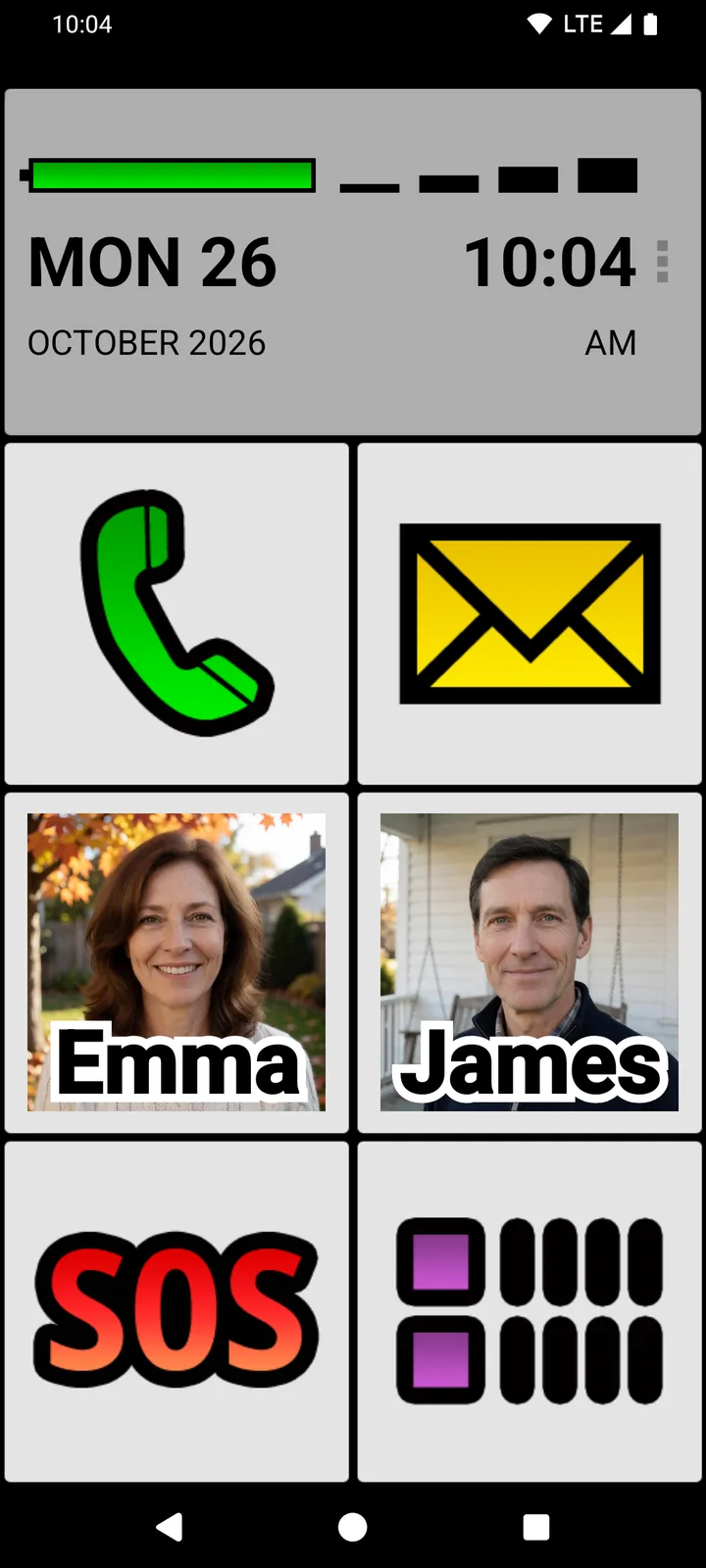
BIG Launcher is an app that replaces the home screen of an Android phone. Instead of rows of small icons, your parent sees large buttons; the standard layout has six: Phone, Messages, Camera, Gallery, SOS and the app list. Contacts, photos and apps stay on the phone.
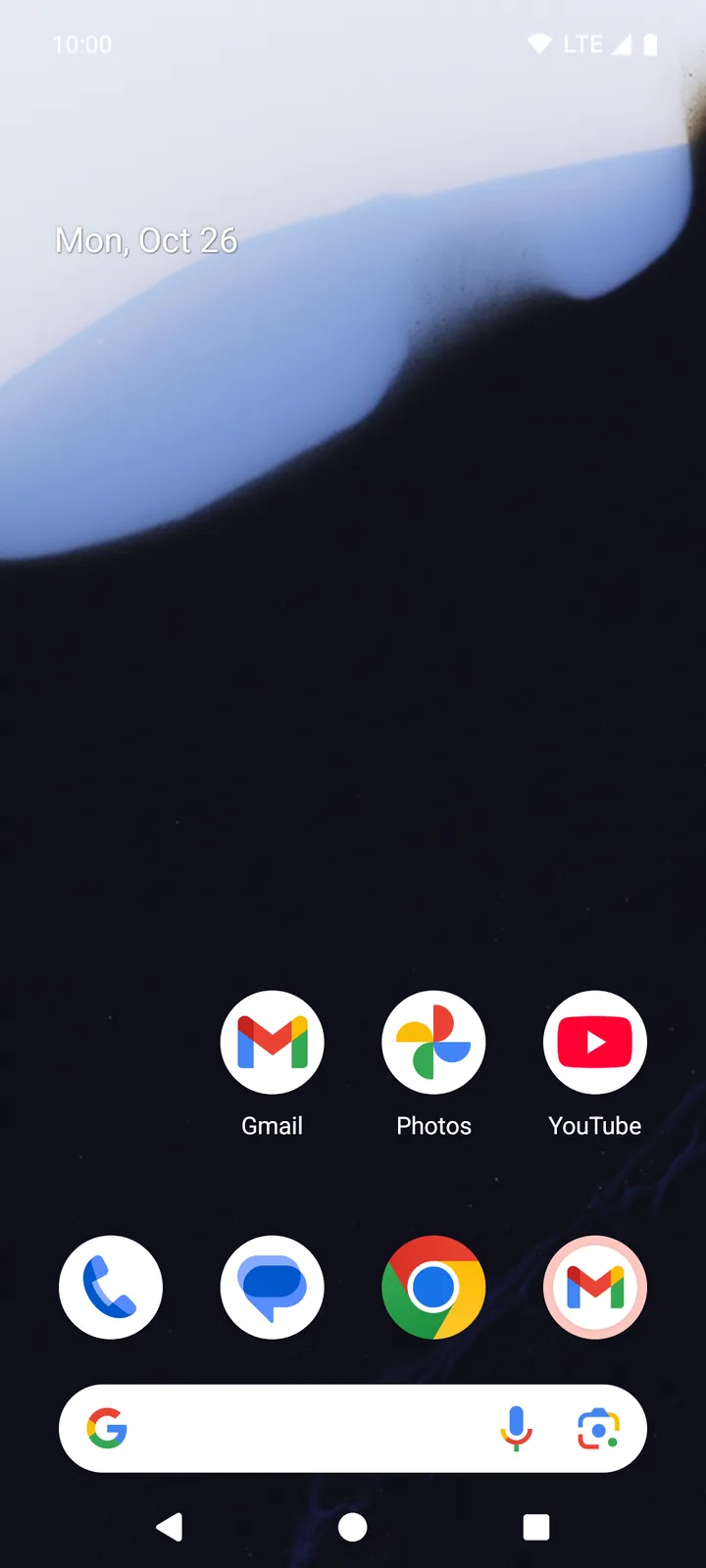
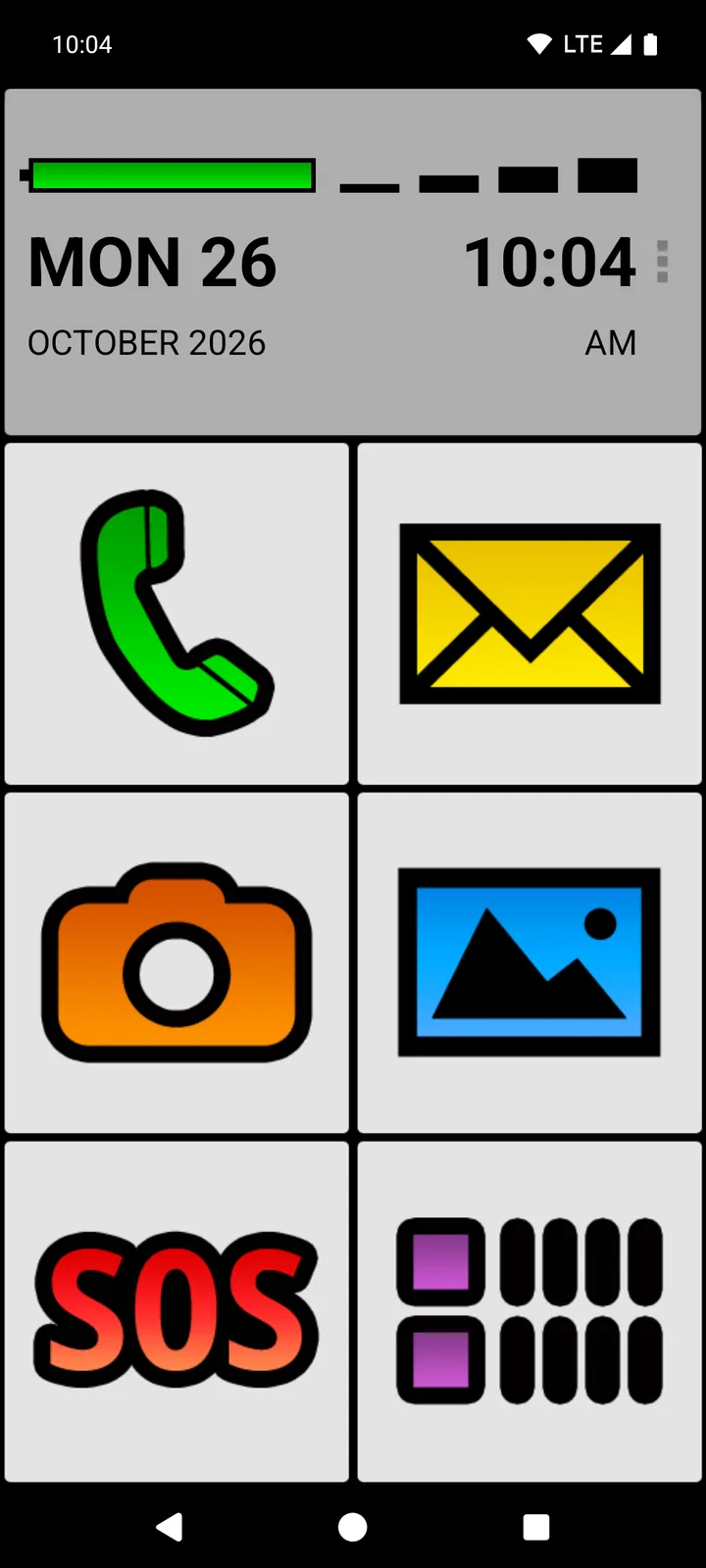
- Nothing moves by accident. A long press on a button doesn’t open a settings menu, and pressing and dragging doesn’t move a button or add a screen. You make changes separately, through the three dots (⋮) next to the clock. This works in the free version too.
- Easy to read. Large text, high-contrast themes and a very large battery indicator right on the home screen.
- Family on big buttons. Put the people your parent calls most on their own buttons. With Contact details, the person’s photo shows on the button if the contact has one.
- WhatsApp on a button. A button can open WhatsApp, or open the chat with one person directly.
- Only the apps they need. Hide the apps your parent doesn’t use from the app list, or hide the app list completely and keep just the home-screen buttons. Hidden apps stay installed.
- Settings protected (full version). Turn on Protect menu, and a prompt appears before the settings open. Add a password if you want to be the only one who can change them.
BIG Launcher is free to try, with no time limit, on an Android phone with Android 6.0 or newer, whether that’s the phone your parent already has or a new one. Even in the free version, a long press or a drag won’t move a button.
How to set up a simple Android phone
The steps are the same on a phone your parent already has (Android 6.0 or newer) and on a new one. Steps 1 to 4 work with the free versions; step 5 needs the full version of BIG Launcher.
1. Install BIG Launcher
Install BIG Launcher from Google Play and open it. Tap the green check mark on the first two screens. A short setup wizard then asks for the language, text size and theme. Last, it asks whether items in the call history, messages and contacts may be deleted. If you keep “Don’t allow”, the delete option isn’t offered. That protects against deleting something by mistake, but it isn’t a backup. You can change all of this later in Preferences.
2. Make it the home screen
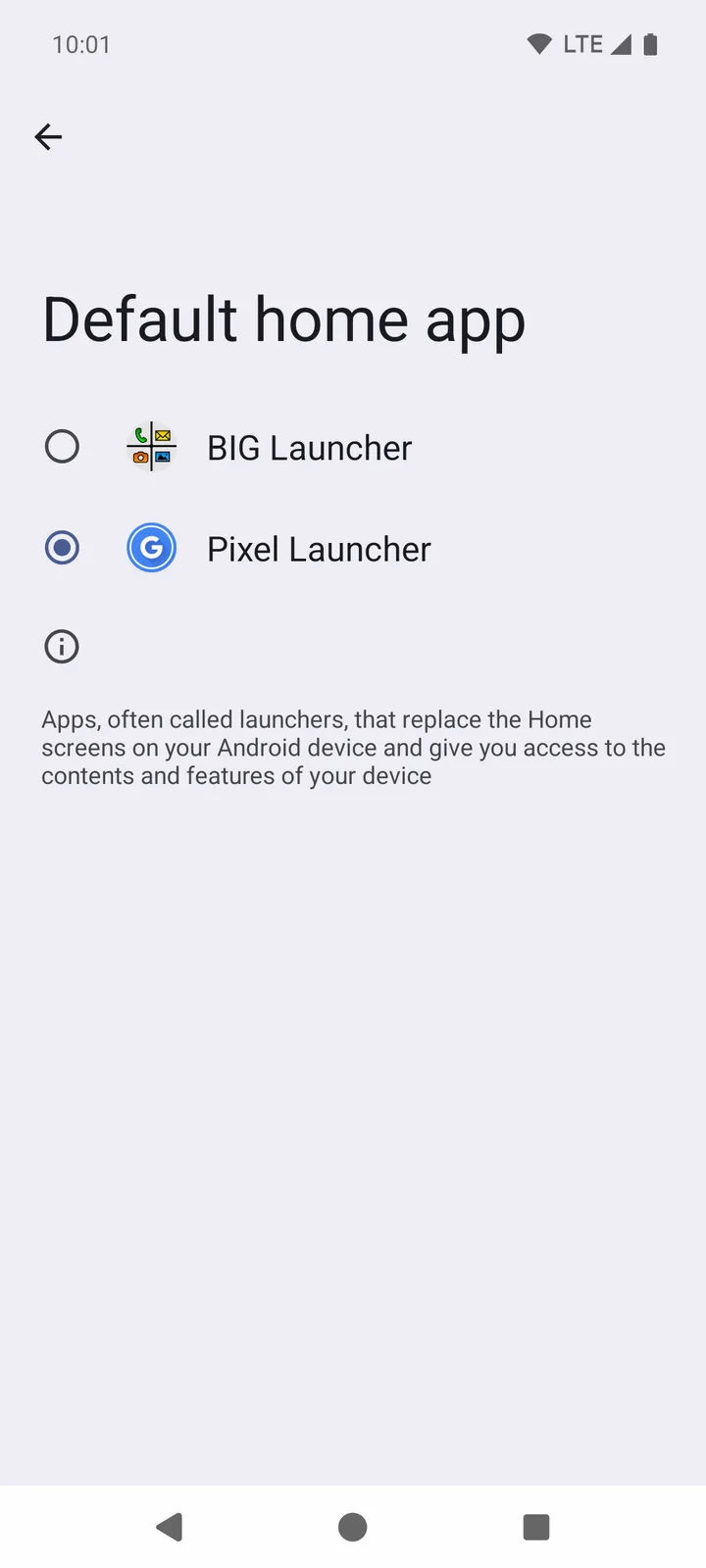
For BIG Launcher to appear when your parent presses Home, set it as the home app in Android’s settings:
- Open Settings and tap Apps → Default apps → Home app.
- On the Default home app screen, select BIG Launcher. The change applies right away.
The names can differ a little from one phone brand to another. Some phones also ask which home app to use when you press Home; if yours does, choose BIG Launcher.
3. Put family members on large photo buttons
- On the home screen, tap the three dots (⋮) next to the clock and choose Set buttons.
- Tap the button that should show a person. In the free version, you can change the buttons in the right-hand column; on a left-hand button, you’ll see “Available in full version”.
- Choose Contact details to open that person’s contact card, or Direct call/SMS so the button calls or texts one number. Then pick the person.
The first time, BIG Launcher asks for access to the contacts: tap OK, then Allow. With Contact details, the person’s photo shows on the button if the contact has one. You can also turn on a confirmation before a contact is dialed, so a stray tap doesn’t start a call.
To put WhatsApp on a button, choose External Shortcut instead, then WhatsApp’s entry and the person. The button then opens the chat with them. WhatsApp has to be installed and set up on the phone first.
4. Calls and texts in large type: BIG Phone and BIG SMS
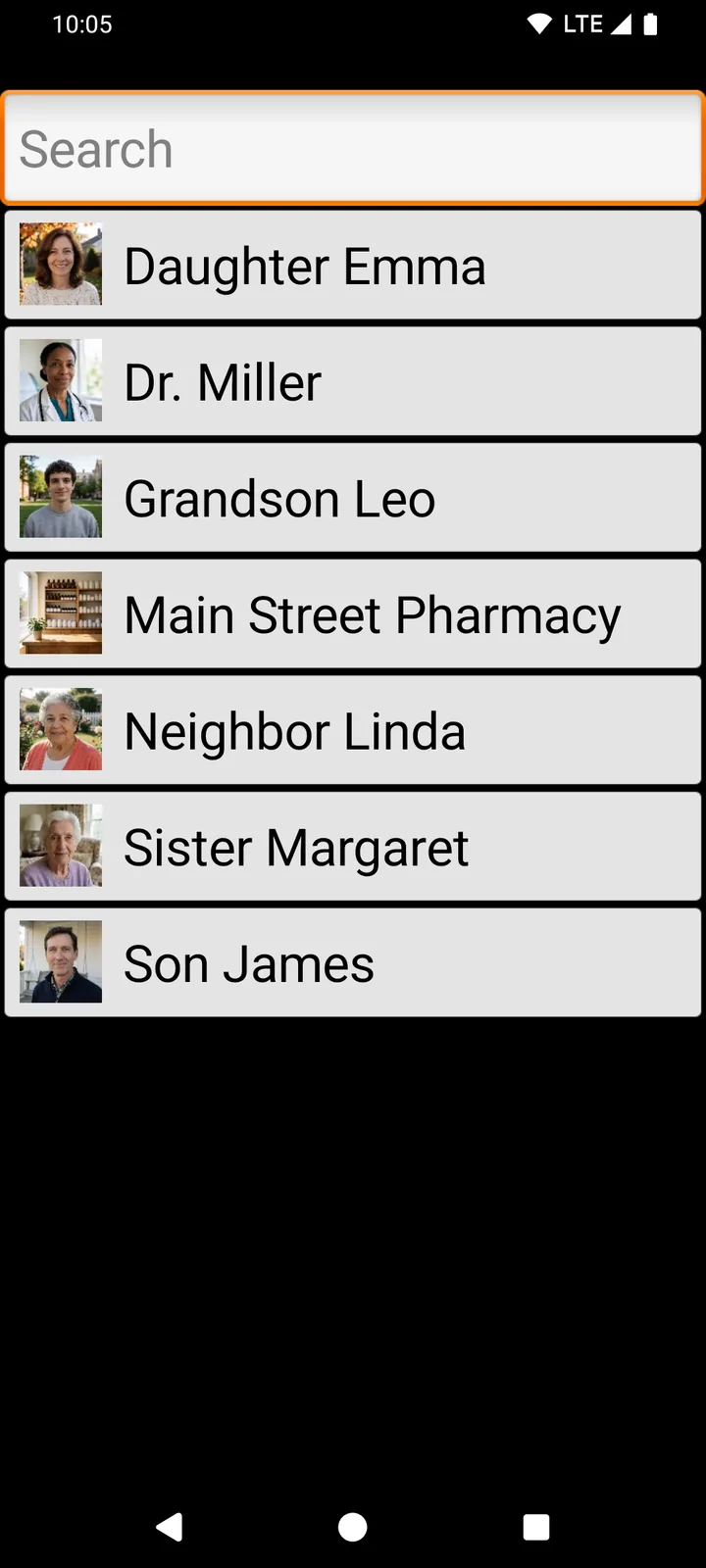
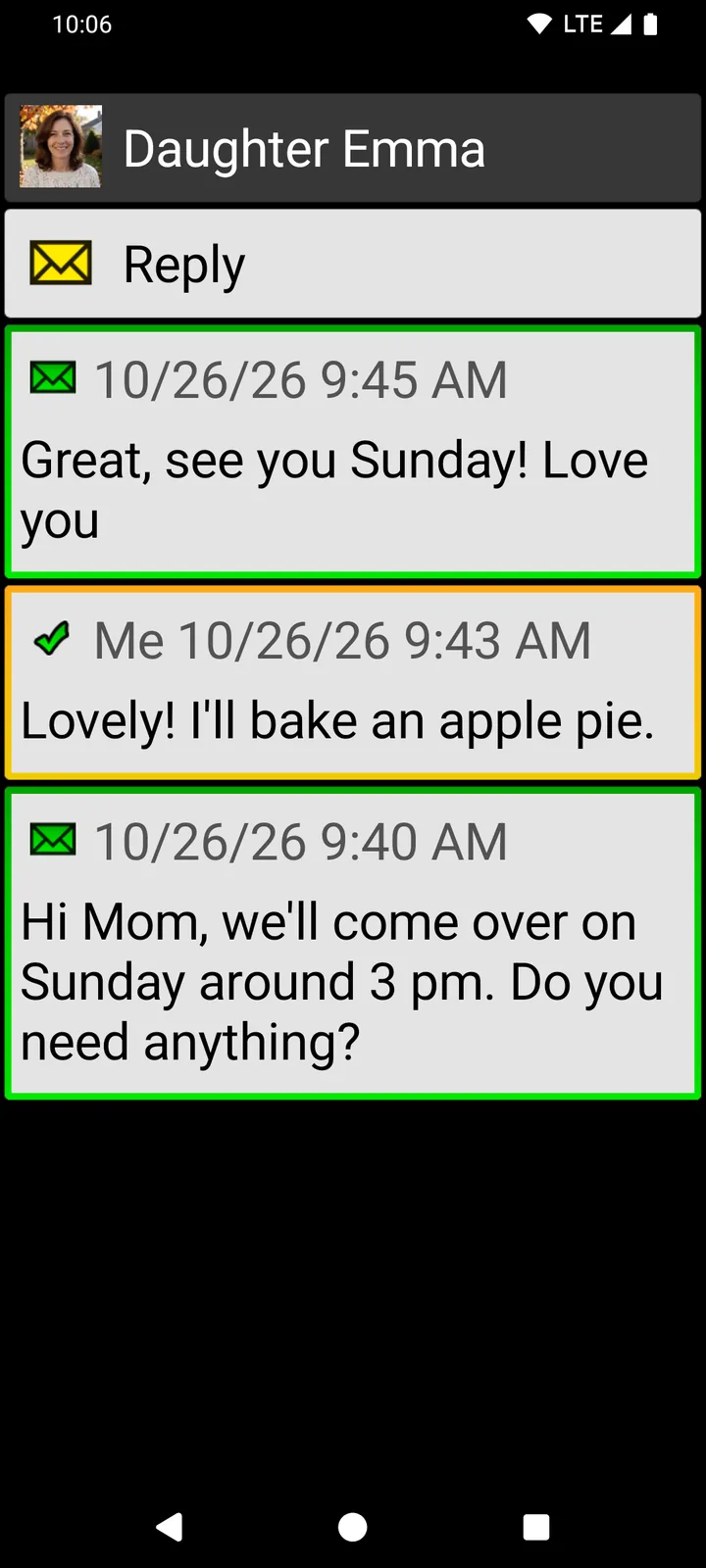
For calls and text messages in large type, install BIG Phone and BIG SMS. They’re separate apps from Google Play. Set up BIG Launcher first, then open BIG Phone and BIG SMS from it once, so they take over its settings. In BIG Phone, you can also choose to have calls start on the loudspeaker.
On first start, BIG Phone and BIG SMS explain that they replace the phone’s own calling and messaging apps. Android then asks “Set BIG Phone for Seniors as your default phone app?” and “Set BIG SMS for Seniors as your default SMS app?” Each time, select BIG Phone for Seniors or BIG SMS for Seniors in the list, then tap Set as default. Both apps have free versions with limits, listed under what BIG Launcher costs.
5. Protect the settings (full version)
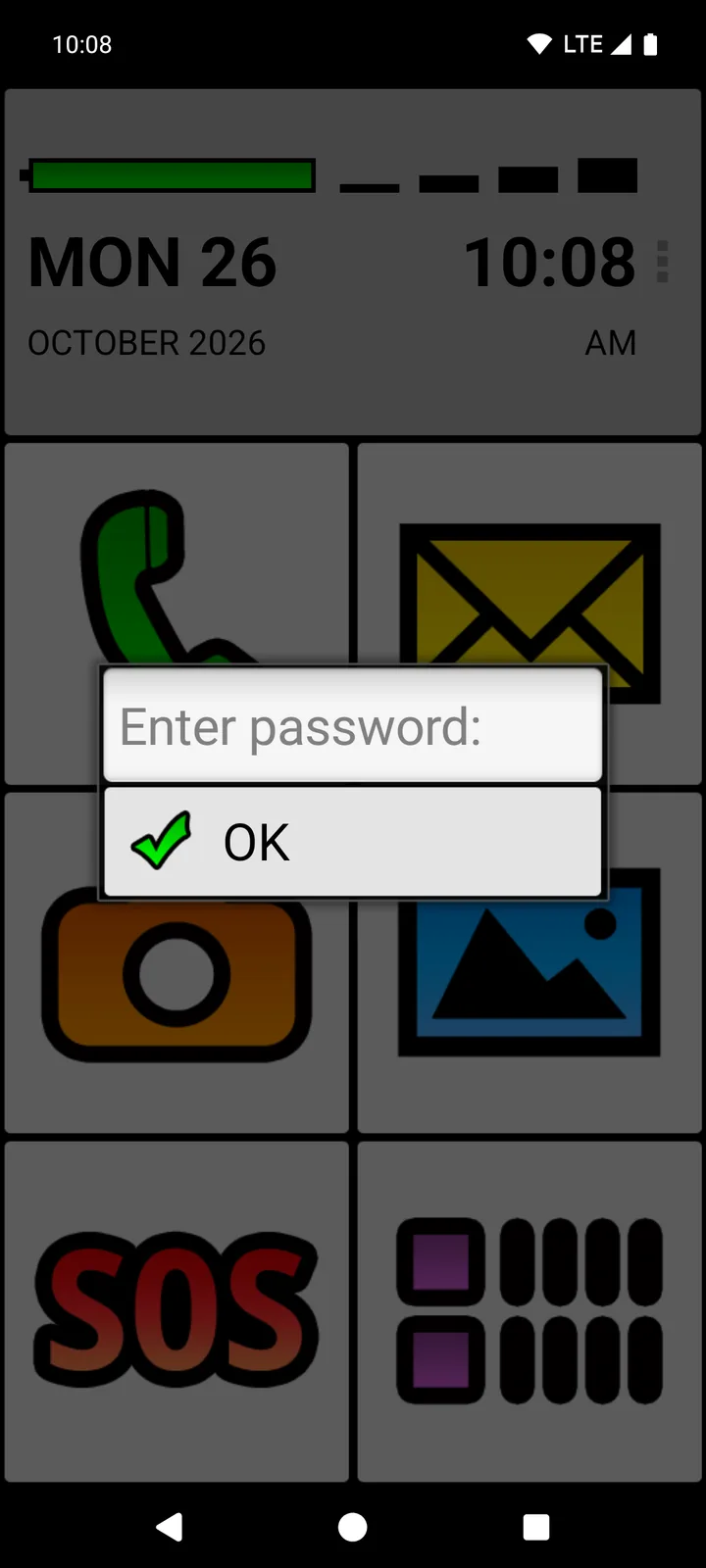
So nobody changes the setup by accident through the menu, protect BIG Launcher’s settings. This needs the full version; in the free version, tapping Protect menu only shows “Available in full version”.
- Tap ⋮ → Preferences → Preferences menu.
- Turn on Protect menu. It then shows ✓ Yes.
From then on, BIG Launcher asks for the password before Preferences or Set buttons open. If you haven’t set a password, tapping OK at “Enter password:” is enough. For some people, that extra step is all the protection they need.
If you want to be the only one who can change the settings, also set a password: tap Password at the end of the same section, enter it and tap OK. Keep it somewhere safe, because it can’t be recovered. If you do forget it, email [email protected] before you clear the app’s data or reinstall it; reinstalling resets the setup.
The protection covers BIG Launcher’s own settings, not all of Android.
Checklist: before you hand over the phone
- Check the Android version: BIG Launcher needs Android 6.0 or newer, the same minimum that WhatsApp supports on Android.
- Put in the SIM card. To set up WhatsApp, the phone must be able to receive a text or a call, so register it with the number your parent will use.
- Install BIG Launcher and make it the home app (steps 1 and 2).
- Save the most important contacts with a photo and put them on buttons (step 3).
- Install BIG Phone and BIG SMS and make them the default apps (step 4).
- Protect the settings, and write down the password if you set one (step 5, full version).
- Practice together: call someone, read and answer a text, and go back to the home screen.
What does BIG Launcher cost?
BIG Launcher has a free version with no time limit. You can change the right-hand column of buttons and add up to 5 extra screens; password protection for the settings isn’t available, and the app shows an occasional upgrade reminder. The full version unlocks all buttons, unlimited screens and settings protection.
BIG Phone and BIG SMS are free too, with limits. The free BIG Phone shows only the 5 most recent calls, and the keypad is turned off during a call. The free BIG SMS shows only the 5 most recent conversations, and after you’ve sent 20 messages, it adds a link to biglauncher.com to every new text.
You can buy the full version of one app, or BIG Apps Suite PREMIUM, which includes the full versions of BIG Launcher, BIG Phone, BIG SMS and BIG Notifications. New BIG Apps Suite PREMIUM customers get a 7-day yearly trial. You buy in the app under ⋮ → Preferences → Buy/refresh the full version, and Google Play shows the final price before you pay. All plans are on the pricing page.
Flip phones for seniors: common questions
Is a flip phone for elderly parents better than a smartphone?
It depends on what your parent wants to do. For calls, an occasional text and keys they can feel, a flip phone is the simpler choice. If the family stays in touch on WhatsApp or shares photos, a smartphone is the better choice, and an Android phone with BIG Launcher keeps it simple: large buttons, family members on photo buttons and a home screen that doesn’t change by accident.
Can a flip phone use WhatsApp?
Only if it runs an operating system that WhatsApp supports. The WhatsApp Help Center lists Android 6.0 or newer and iOS 15.1 or newer (iOS 15.5 or newer from November 30, 2026), and WhatsApp is no longer available on devices running KaiOS. A flip phone that runs neither Android nor iOS can’t use WhatsApp.
Can I put BIG Launcher on a flip phone?
Yes, if the flip phone runs Android 6.0 or newer and has Google Play. BIG Launcher, BIG Phone and BIG SMS can be used with arrow keys instead of the touchscreen; in BIG Launcher, first turn off Use swipe to navigate screens under Preferences → Screens’ options. Check on the phone itself that its arrow keys, select key and typing work as expected. Our guide to using an Android phone with a keyboard, D-pad or switch has the details.
Is BIG Launcher free?
Yes. The free version has no time limit, and even there a long press or a drag doesn’t move a button. Changing every button and protecting the settings need the full version. The details are under what BIG Launcher costs.
Can we go back to the normal home screen?
Yes. Open Settings → Apps → Default apps → Home app and select the previous home app. Or, in BIG Launcher’s Preferences, tap Clear BIG Launcher as default launcher; if Android then asks which home app to use when you press Home, choose the previous one.
Does BIG Launcher work on an iPhone?
No. BIG Launcher is only for Android phones with Android 6.0 or newer.
Try it before you buy a new phone
Install BIG Launcher free on your parent’s current phone, if it runs Android 6.0 or newer, or on a new Android phone, and let them use it for a few days. If it isn’t right, switch back to the previous home screen.
BIG Launcher is rated 4.3 ★ on Google Play from 8,000+ reviews and has more than 2 million downloads. It’s available in 70 languages and won the Vodafone Smart Accessibility Awards.
