A tablet for seniors is an easy gift to buy, especially before the holidays. Whether it actually gets used comes down to two questions: does a tablet fit what your mom or dad wants to do with it, and is it set up so they can manage without calling you for help?
Short answer: A tablet is a good fit for looking at photos, reading and video calls with family at home. For phone calls, texts and being reachable away from home, a phone is the better choice: a Wi-Fi-only tablet can’t make calls or send texts over a cellular network.
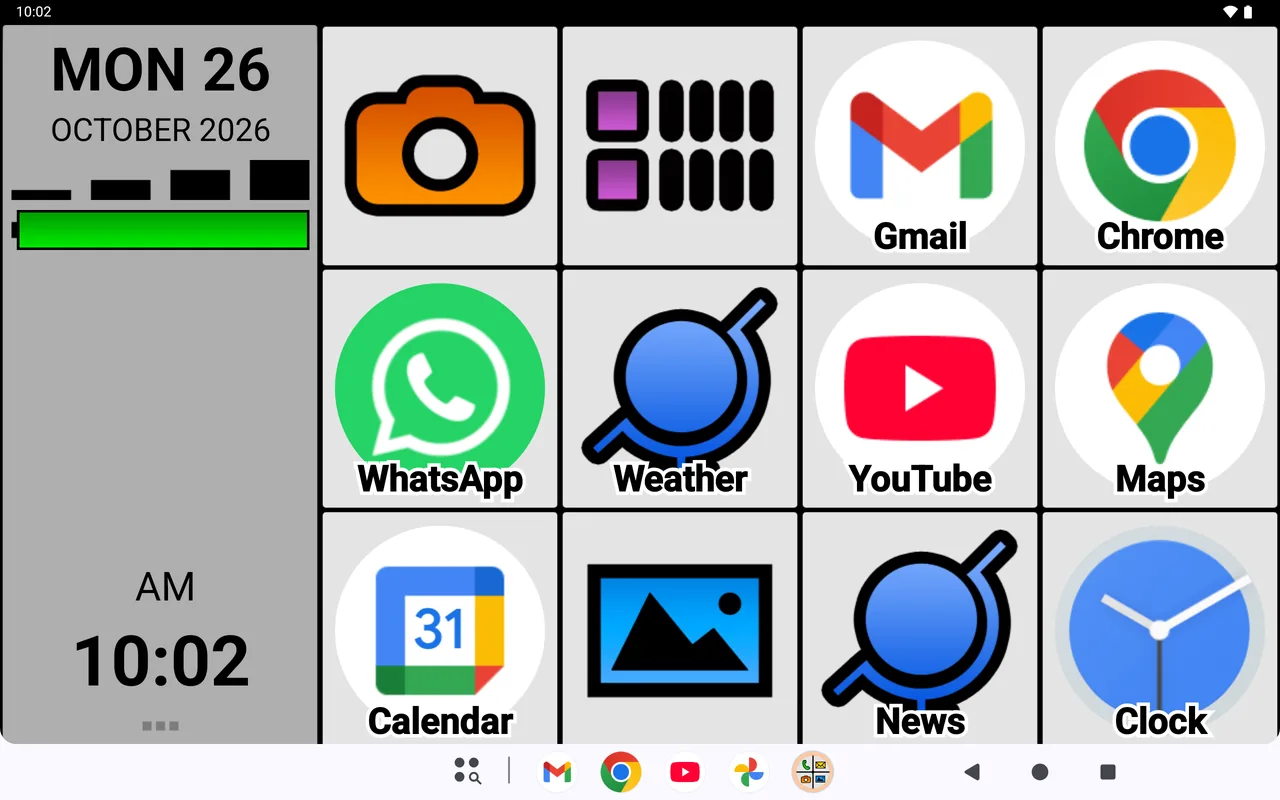
On an Android tablet, BIG Launcher replaces the home screen with large buttons: six after installation, or 12 if you switch the layout. A long press doesn’t open an edit menu and dragging doesn’t move anything, even in the free version, which has no time limit. BIG Launcher needs Android 6.0 or newer; there is no iPad version.
Tablet or phone: which is right for your parent?
It depends on what the device is for.
When a tablet is a good fit
- It will mostly be used at home, in an armchair or at the kitchen table, on the home Wi-Fi.
- Your parent likes to look at family photos and videos, which appear bigger on a tablet than on a phone.
- They enjoy reading, for example the news online or recipes.
- Video calls with the family are part of the plan: faces appear larger, and in a case with a stand the tablet stays upright on the table by itself.
- They already have a phone for calls and for when they’re out.
When a phone is the better choice
- Your parent needs to be reachable away from home. A tablet usually stays in the house.
- They make calls and send texts regularly. A Wi-Fi-only tablet can’t do either. If you’re looking at a tablet with cellular service, check the manufacturer’s specifications to see whether it can also make calls and send texts.
- They need a way to get help in an emergency. BIG Launcher’s SOS button relies on the device’s calling and texting functions; on a tablet without them it can neither call nor send a text. Even on a phone, the SOS button shouldn’t be the only way to call for help.
- They want to start using WhatsApp. According to the WhatsApp Help Center, new accounts can’t be set up on devices that only connect to Wi-Fi. The questions at the end explain how WhatsApp can still work on a tablet.
Often the best answer is both: a phone for calls and for when they’re out, and a tablet at home. BIG Launcher can be used on both, as long as they run Android 6.0 or newer. For the phone side, see our guide on how to make an Android phone easier for an older parent.
What BIG Launcher changes on an Android tablet
BIG Launcher is a launcher: an app that replaces the tablet’s home screen, the screen you see after tapping the Home button. Instead of many small icons, your parent sees large buttons. Photos, apps and everything else on the tablet stay as they are.
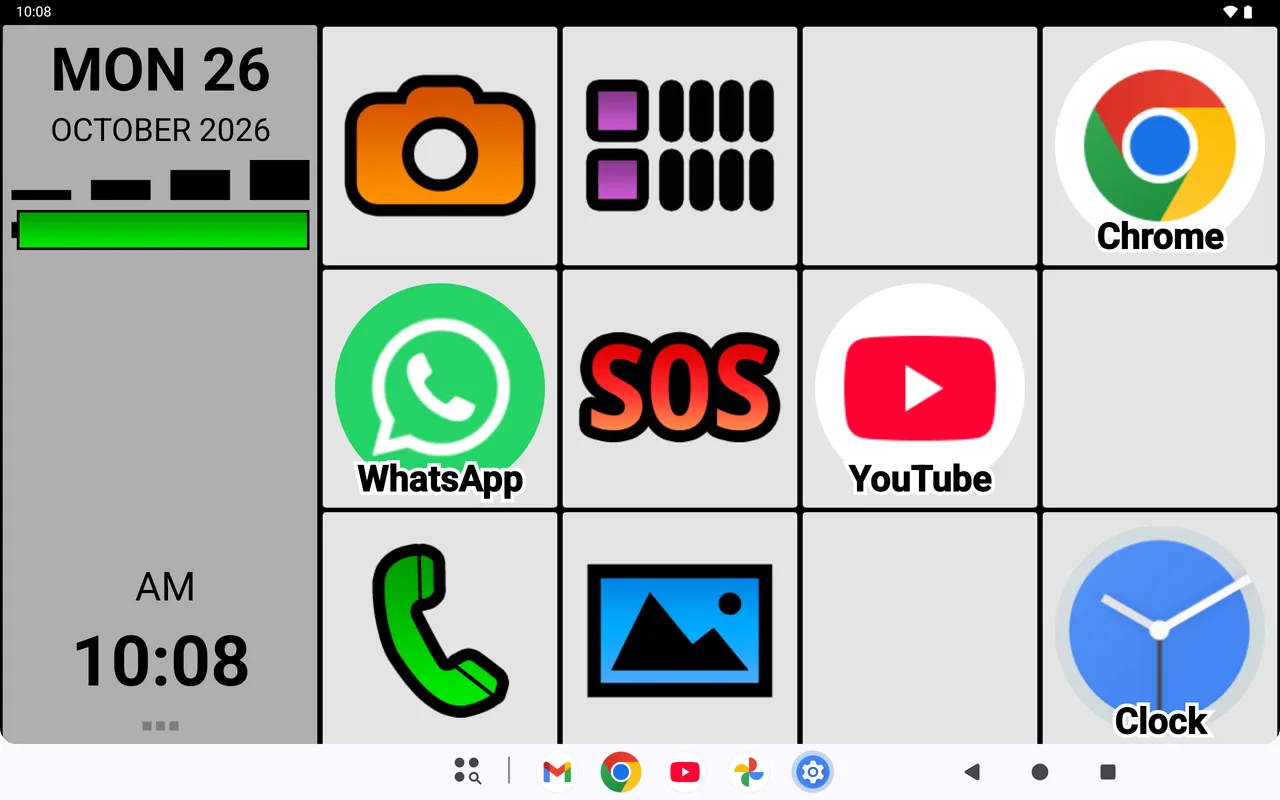
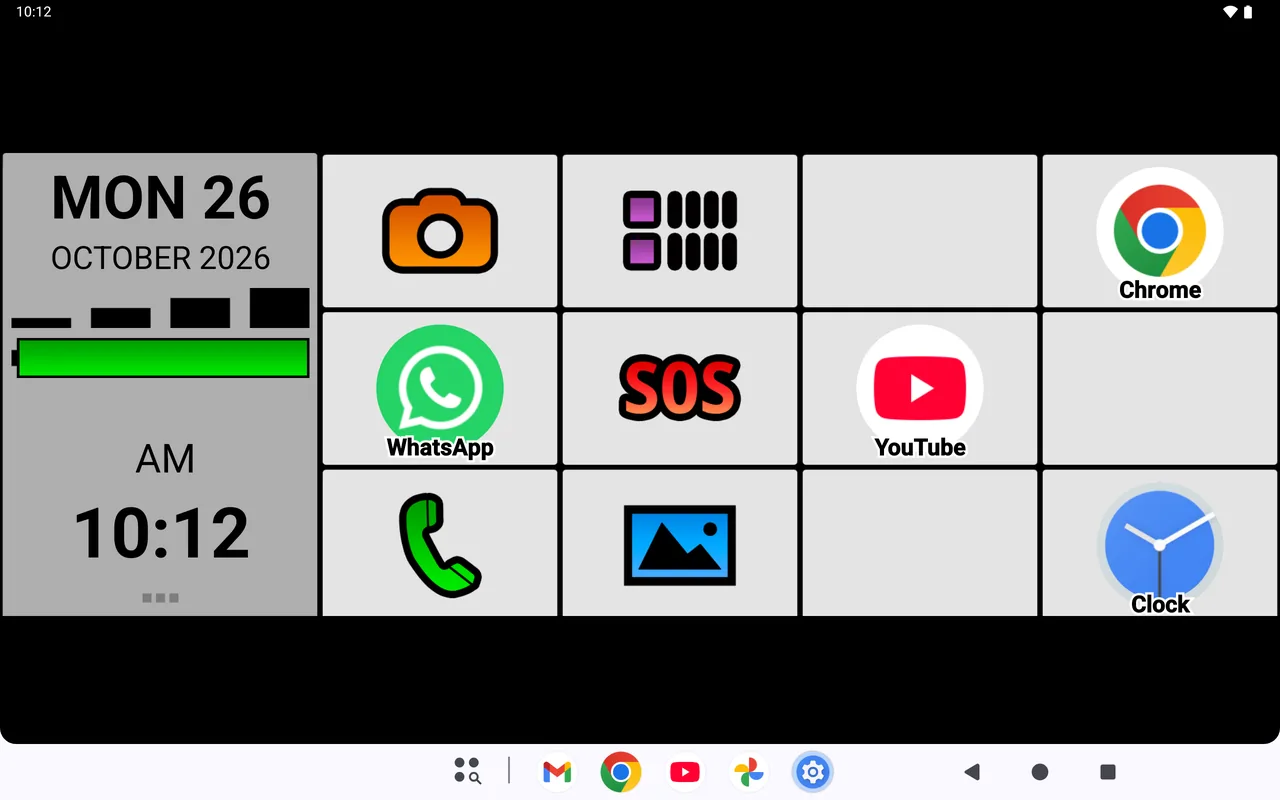
- Big buttons, in landscape and portrait. After installation, BIG Launcher shows the same six buttons as on a phone: Phone, Messages, Camera, Gallery, SOS and Applications (the app list). In landscape, the date, time, signal and battery indicators sit in a column on the left, with the buttons beside them; in portrait, the indicators are at the top and the buttons below them. The “3×5” layout (step 4) gives you 12 buttons: three rows of four in landscape, four rows of three in portrait.
- Buttons don’t move by accident. A long press on a button doesn’t open an edit menu, and pressing and dragging doesn’t move anything or create a new screen. Setup happens separately, through the menu. That’s true in every version, including the free one. In the full version you can also protect the settings, with a password if you like.
- Only what your parent actually uses. Put the things they use most on the buttons: their photos, the video-calling app, a favorite website or a clock. Apps they don’t need can be hidden from BIG Launcher’s app list; they stay installed.
- Indicators that suit a Wi-Fi tablet. A large battery indicator shows the charge level right on the home screen. The signal indicator can be switched to Wi-Fi, so it shows the strength of the Wi-Fi network instead of a cellular signal.
- Edges that ignore touches. If you like, BIG Launcher adds black borders where touches don’t register. In portrait they run along the left and right edges; in landscape they sit at the top and bottom.
BIG Launcher doesn’t change what happens inside other apps: the browser and the video-calling app look the way those apps are designed. What BIG Launcher simplifies is getting there. Your parent opens those apps from large buttons and gets back to the familiar home screen with the Home button.
BIG Launcher is free to try, with no time limit. The tablet needs Android 6.0 or newer. Even the free version keeps every button where it is when someone presses too long or drags.
Wi-Fi-only tablet: Phone, Messages and SOS
The Phone, Messages and SOS buttons rely on the device’s calling and texting functions. A Wi-Fi-only tablet doesn’t have them, so these buttons can’t make calls or send texts on it.
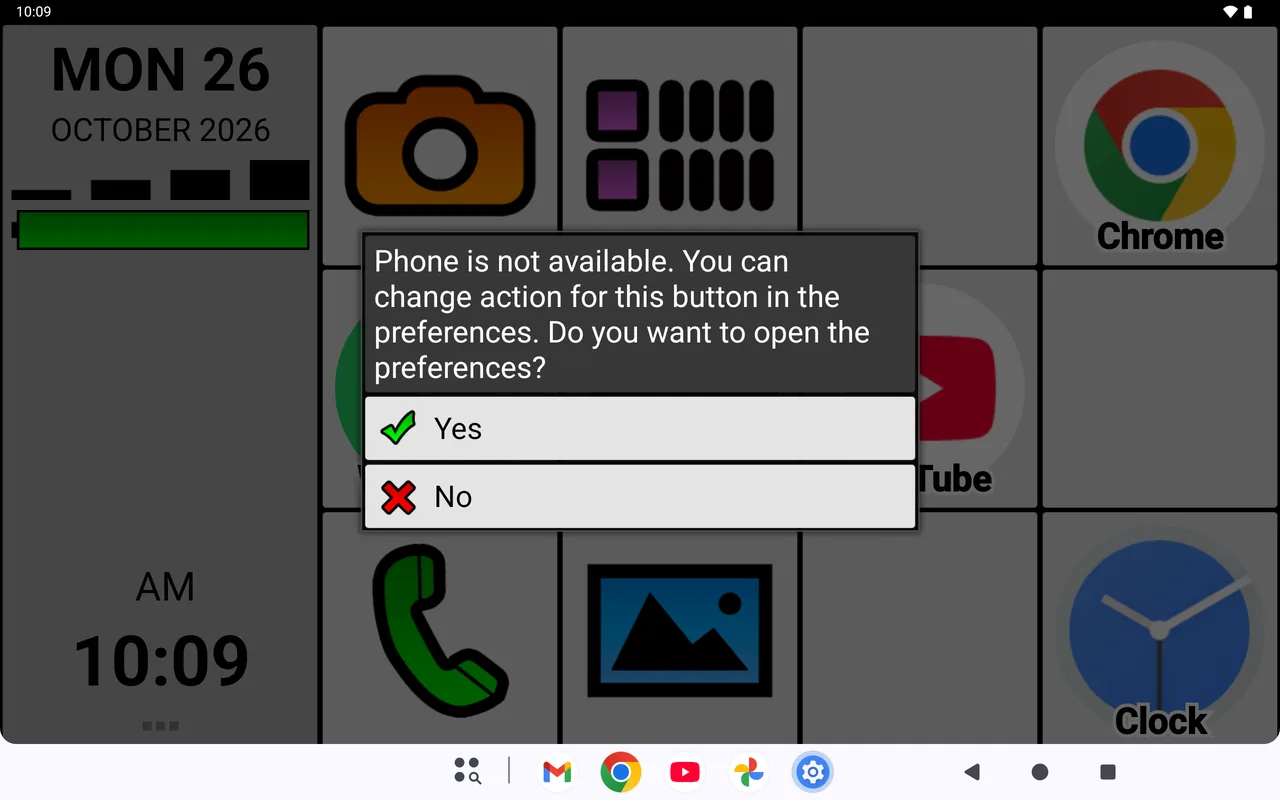
The first time you tap one of these buttons, BIG Launcher shows this message: “Phone is not available. You can change action for this button in the preferences. Do you want to open the preferences?” Tap “Yes” to open BIG Launcher’s preferences, or “No” to close the message. It appears only once for each button.
After that, Phone opens BIG Launcher’s phone menu, and Messages opens a screen with only “Download and install the messages app” and a note about BIG SMS. Neither screen can make a call or send a text on the tablet. The companion apps these screens recommend, BIG Phone and BIG SMS, also need the device’s calling and texting functions.
So give these buttons something that works on the tablet, or clear them (step 4). You can do that for Messages in the free version; Phone and SOS can only be changed in the full version.
How to set up a tablet for seniors, step by step
Here’s how to turn a tablet with Android 6.0 or newer into an easy tablet for your parent with BIG Launcher, ideally before you hand it over. Everything except step 7 works in the free version, although the free version lets you change only every other button: six in the 12-button layout (step 4).
1. Get the tablet ready
Turn the tablet on and go through Android’s setup. Connect it to the Wi-Fi network it will use at your parent’s home, and sign in with the Google account your parent will use. You need that account to install apps from Google Play.
If the tablet is a gift, ask for your parent’s Wi-Fi name and password beforehand, or connect the tablet to their Wi-Fi when you hand it over.
2. Install BIG Launcher
Install BIG Launcher from Google Play and open it. Confirm the first screens with the green check mark. A short setup wizard then asks for the language, text size and theme. Pick a text size your parent can read without effort. The last question, which appears even on a tablet that can’t make calls, asks whether items in the call history, messages and contacts may be deleted. You can leave the default, “Don’t allow”. You can change all of this later in the preferences.
3. Make it the home screen
To make BIG Launcher appear when you tap the Home button, set it as the home app in Android’s settings:
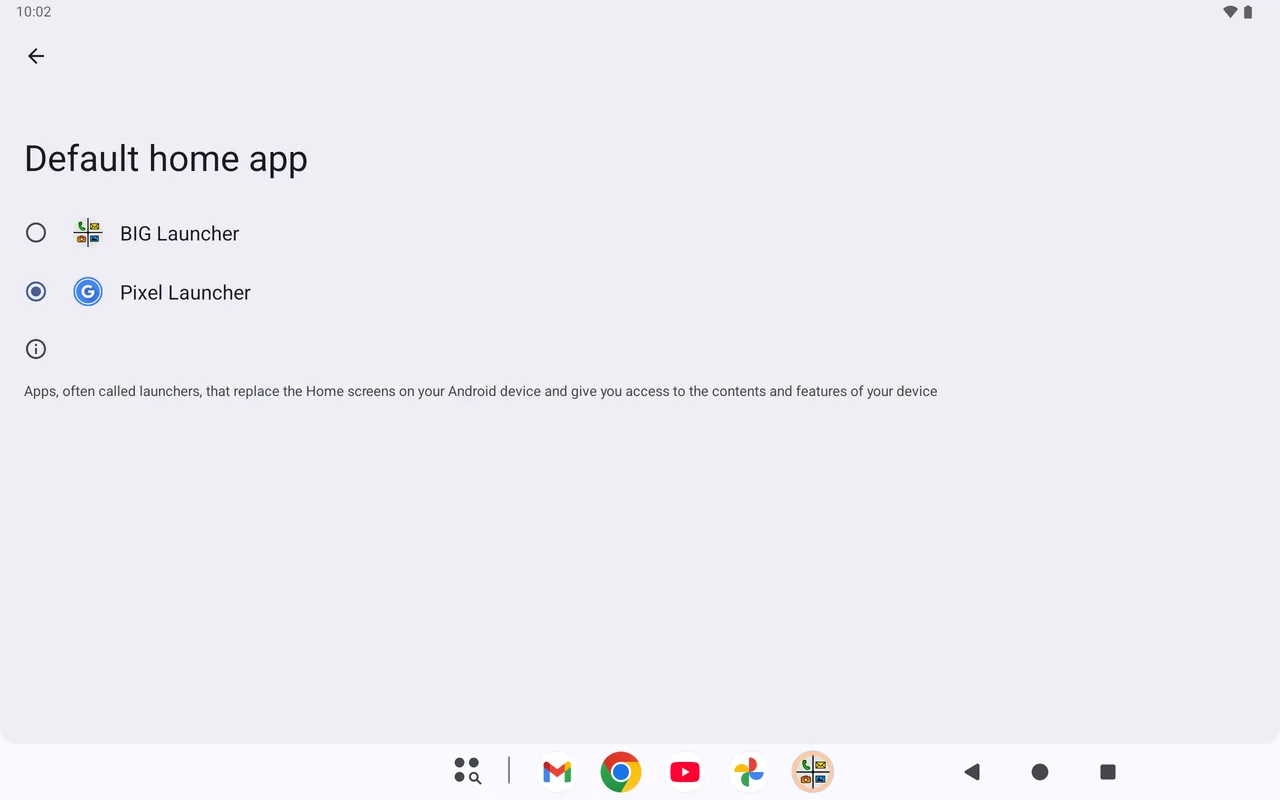
- Open Android Settings and tap “Apps” → “Default apps” → “Home app”.
- On the “Default home app” screen, choose BIG Launcher. The change takes effect right away.
Depending on the manufacturer, these menu names can differ slightly. On some devices, Android may instead ask which app to use when you tap the Home button; if it does, choose BIG Launcher.
4. Set up the buttons
- A tablet’s larger screen has room for more buttons. On the home screen, tap the three dots by the clock (below it in landscape, to its right in portrait), then “Preferences” → “Customize buttons and screens” → “Home” → “Set layout”. Choose “3×5” for 12 buttons; this works in the free version too.
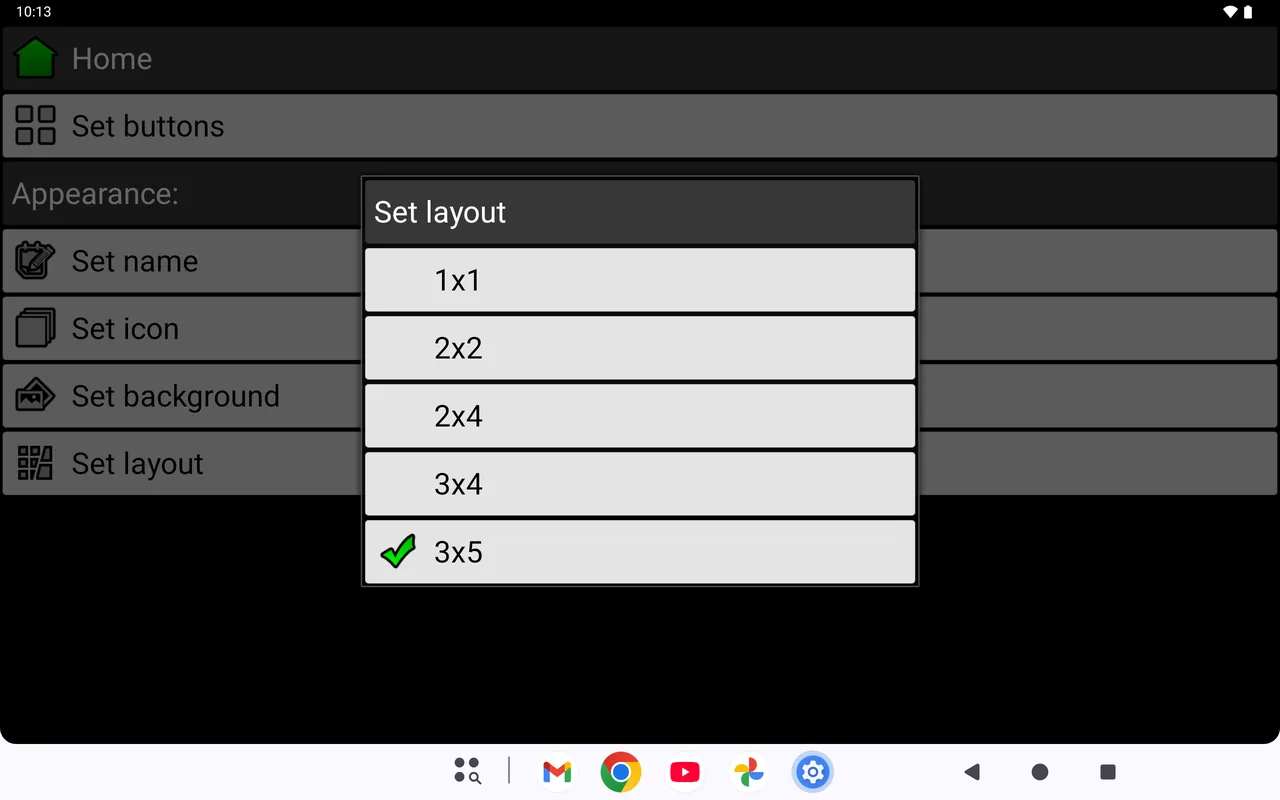
The “Set layout” dialog. After installation, “2×4” (six buttons) is selected; here “3×5” (12 buttons) is checked. - Go back to the home screen with the Home button, tap the three dots again and choose “Set buttons”.
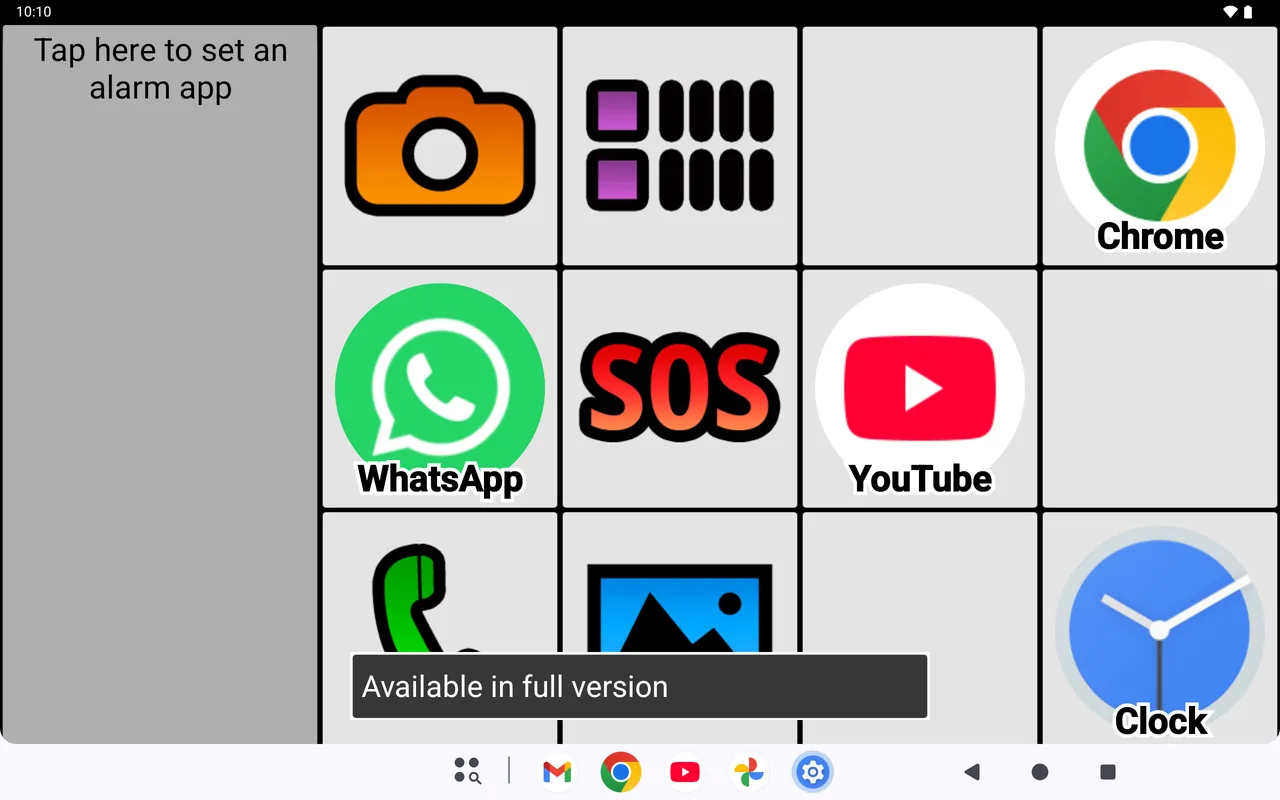
- Tap the button you want to change. In the free version you can change every other button, including Messages, Gallery and Applications; in the 12-button layout, that makes a checkerboard pattern. The others, including Phone, Camera and SOS, show the message “Available in full version”.
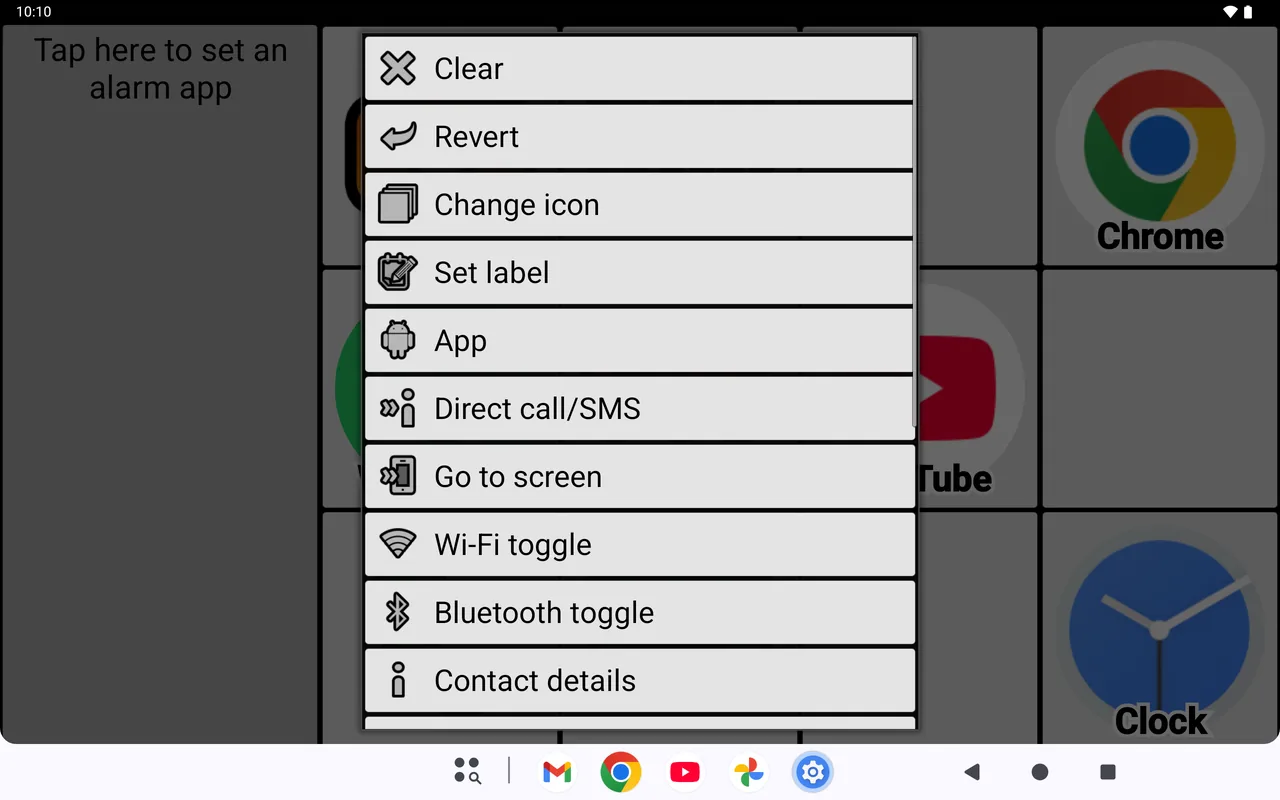
- Choose what the button should do:
- “App” opens an app, for example the one for video calls or email.
- “Website shortcut” opens a website, such as the local weather or news.
- “External Widget” shows a widget right on the button, for example a clock. If Android asks “Create widget and allow access?”, tap “Create”.
- “Go to screen” leads to another screen with its own buttons. The free version allows up to five additional screens.
- “Clear” leaves the button empty.
After you choose an app, BIG Launcher may ask for notification access, so the button can blink when that app gets a notification. If you don’t need that, tap “Dismiss”.
5. Hide apps your parent doesn’t need
Tap the three dots → “Preferences”, then in the “Functionality” section tap “Applications” → “Allowed applications”. Tap each app that shouldn’t appear in BIG Launcher’s app list; it’s marked “(disabled)”. This works in the free version too, and the apps stay installed.
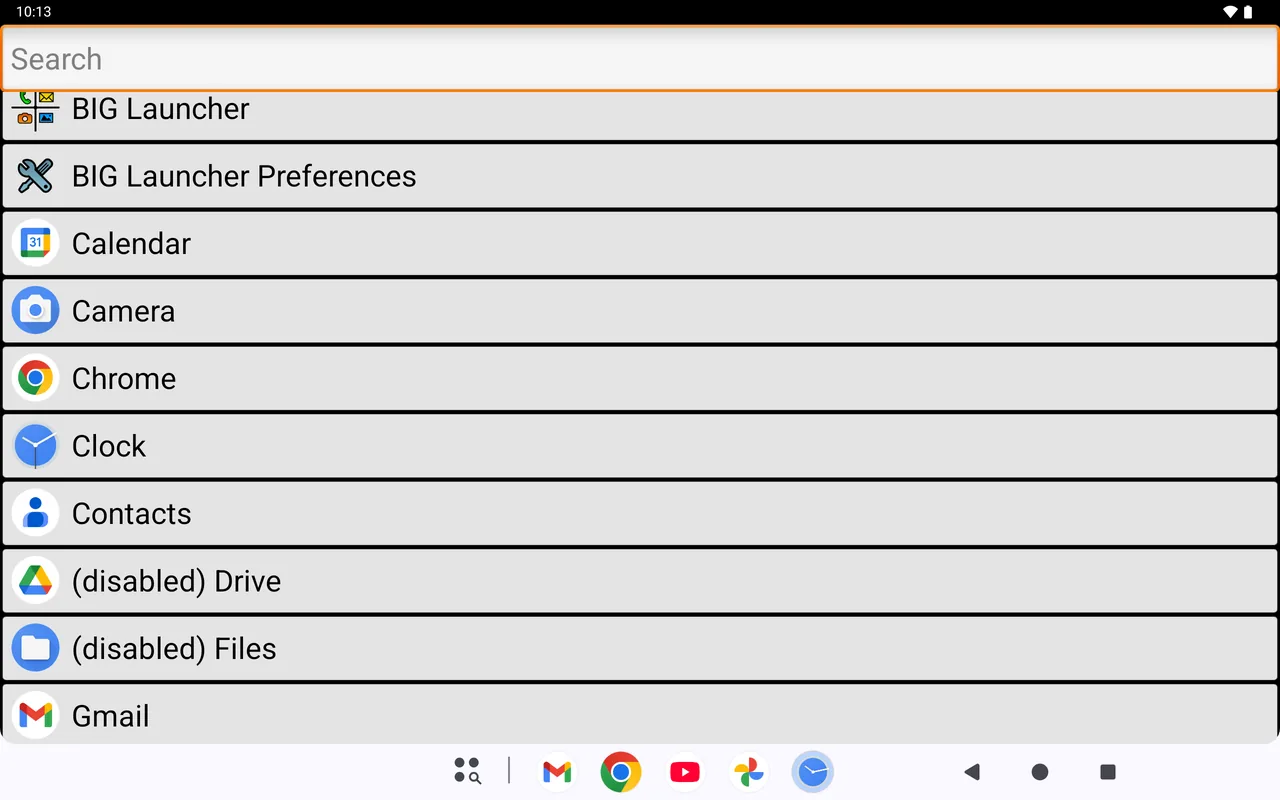
If the tablet shows the Android taskbar at the bottom, a bar with a few app icons and the navigation buttons, it can stay visible under BIG Launcher. Its leftmost button opens a list of all apps, including the ones hidden in BIG Launcher. So hiding tidies up BIG Launcher’s app list; it doesn’t lock any apps.
6. Adjust the indicators and edges
Under the three dots → “Preferences” → “Appearance” you’ll find two settings that are useful on a tablet. Both work in the free version.
- “Signal indicator”: on a Wi-Fi-only tablet, choose “Wi-Fi”. The signal indicator then shows the Wi-Fi strength. With the default, “Phone”, its bars stay red on such a tablet.
- “Safe borders size”: choose a width between 0 and 15 percent. Touches in the black borders are ignored. In portrait they’re on the left and right, in landscape at the top and bottom. The wider the borders, the smaller the buttons.
7. Protect the settings, with an optional password (full version)
To keep anyone from changing things through the menu by mistake, protect BIG Launcher’s settings. This is a full-version feature; in the free version, tapping “Protect menu” only shows “Available in full version”.
- Tap the three dots → “Preferences” → “Preferences menu”.
- Turn on “Protect menu”. It now shows “✓ Yes”.
From then on, BIG Launcher asks for the password before the preferences or “Set buttons” open. If you haven’t set a password of your own, just tap “OK” at the “Enter password:” prompt. For some families, that prompt alone is enough protection against accidental changes.
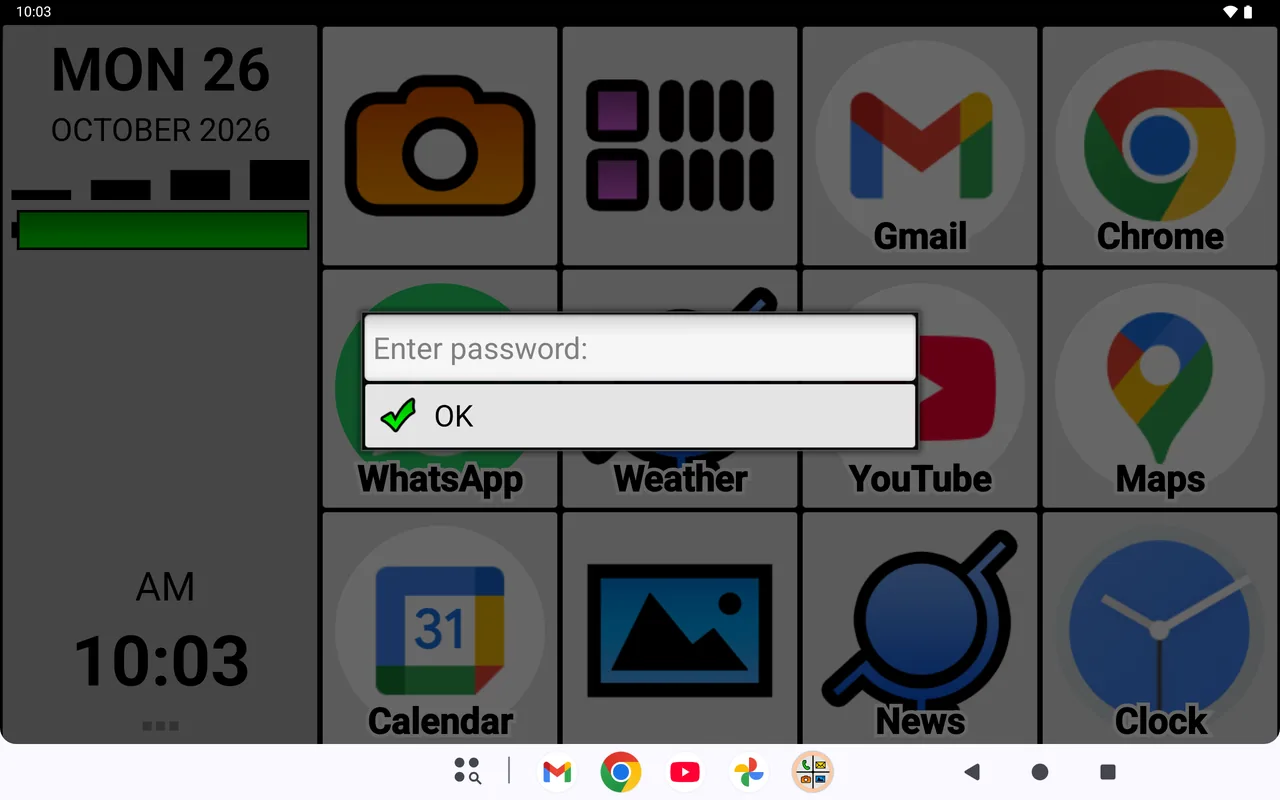
If nobody but you should be able to open the settings, also set a password: tap “Password” at the bottom of the same section and enter one. Keep it somewhere safe, because it can’t be recovered. If you do forget it, email [email protected] before clearing the app’s data or reinstalling BIG Launcher; reinstalling resets the setup.
The protection covers BIG Launcher’s setup, not all of Android.
Giving a tablet as a gift: set it up first, then try it together
If the tablet is a holiday gift, set it up before the big day. Then you can show how it works right when it’s unwrapped.
- Buttons that really get used. Ask beforehand what the tablet is for: photos, video calls, the news, the weather. Those go on the big buttons; everything else stays in the app list or gets hidden.
- No buttons that lead nowhere. If the tablet has no calling functions, change the Messages button, and with the full version Phone and SOS as well (step 4). In the free version, the 12-button layout also leaves three buttons empty; tapping them does nothing, and only the full version can fill them.
- Try it together. Let your parent do each task once on their own: unlock the tablet, tap a button, get back to the home screen with the Home button.
- Don’t forget charging. Show where the charging cable goes. The large battery indicator on the home screen shows the charge level.
What does BIG Launcher cost?
You can try BIG Launcher for free, and the free version isn’t time-limited. Even in the free version, a long press doesn’t open an edit menu and dragging doesn’t move a button. You can change every other button (three of six, or six of 12 in the 12-button layout) and add up to five additional screens. The app occasionally reminds you about the full version.
The full version lets you change every button, including Phone, Camera and SOS. It also removes the limit on additional screens and lets you protect the settings, with or without a password. You don’t need BIG Phone or BIG SMS on a tablet that can’t make calls or send texts; unlocking BIG Launcher is enough there. You buy it in the app under the three dots → “Preferences” → “Buy/refresh the full version”; Google Play shows the final price before you buy. All plans, including BIG Apps Suite PREMIUM, are on the pricing page.
Tablet for seniors: common questions
What’s the best tablet for seniors?
For BIG Launcher you need an Android tablet with Android 6.0 or newer; there’s no BIG Launcher for the iPad. We don’t recommend a specific model here. What matters more is what the tablet is for: for photos, reading and video calls at home, a Wi-Fi tablet is enough. If it should also make calls and send texts, check that the manufacturer’s specifications list both. Also check that the tablet isn’t too heavy to hold comfortably.
Can seniors video chat on an Android tablet?
Yes. Video calls over the internet run in a video-calling app, and you can put that app on a large button in BIG Launcher; your parent then starts the call in the app. If the family uses WhatsApp, the WhatsApp Help Center says an Android tablet can be linked to the WhatsApp account on a phone. You still need the phone to register the account and link the tablet. The tablet then works without the phone being online, but it logs out if the phone isn’t used for over 14 days. To use the tablet as the main device, the account has to be registered on the tablet itself, and WhatsApp doesn’t support setting up new accounts on devices that can only connect to Wi-Fi. On a big button (“App” → “WhatsApp”), a tap opens the app.
Can you make phone calls on a tablet?
Over a cellular network, only if the manufacturer says the tablet supports calls; a Wi-Fi-only tablet can’t. On such a tablet, BIG Launcher shows “Phone is not available” the first time you tap the Phone button. BIG Phone and BIG SMS, our apps for calls and texts in large print, also need the device’s calling and texting functions. Video calls over the internet are different: they run in the video-calling app, which you can put on a large button.
Is there a BIG Launcher for the iPad?
No. BIG Launcher is only available for Android and needs Android 6.0 or newer.
Can I go back to the old home screen?
Yes. Open Android Settings, go to “Apps” → “Default apps” → “Home app” and choose the previous home screen again; the change takes effect right away. Menu names can differ slightly by manufacturer.
Set up the tablet and try it for a few days
Install BIG Launcher for free, put two or three important apps on big buttons and let your parent use the tablet that way for a few days. If it’s not a good fit, switch back to the previous home screen.
On Google Play, BIG Launcher is rated 4.3 stars from 8,000+ reviews and has more than 2 million downloads. It’s available in 70 languages and won the Vodafone Smart Accessibility Awards.
