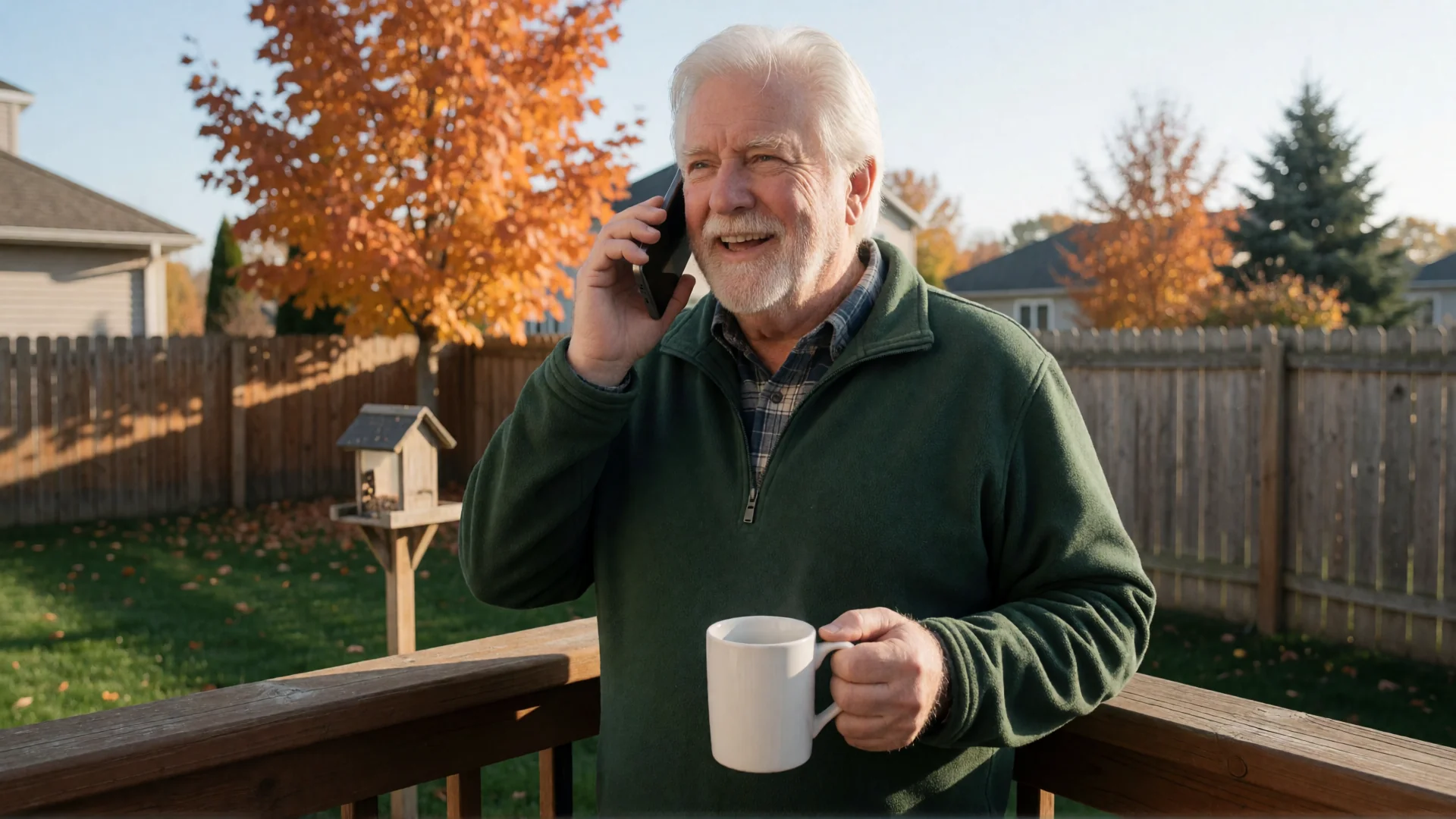
Many lists of apps for seniors suggest adding more apps: games, health apps, medication reminders. But if your mom or dad already struggles with small icons, crowded menus or accidental taps, every new app makes the phone harder to use, not easier. The most helpful app for elderly parents is often the one that changes the phone itself.
This guide is for the family member who sets up the phone. Older adults setting up their own phone can follow the same steps.
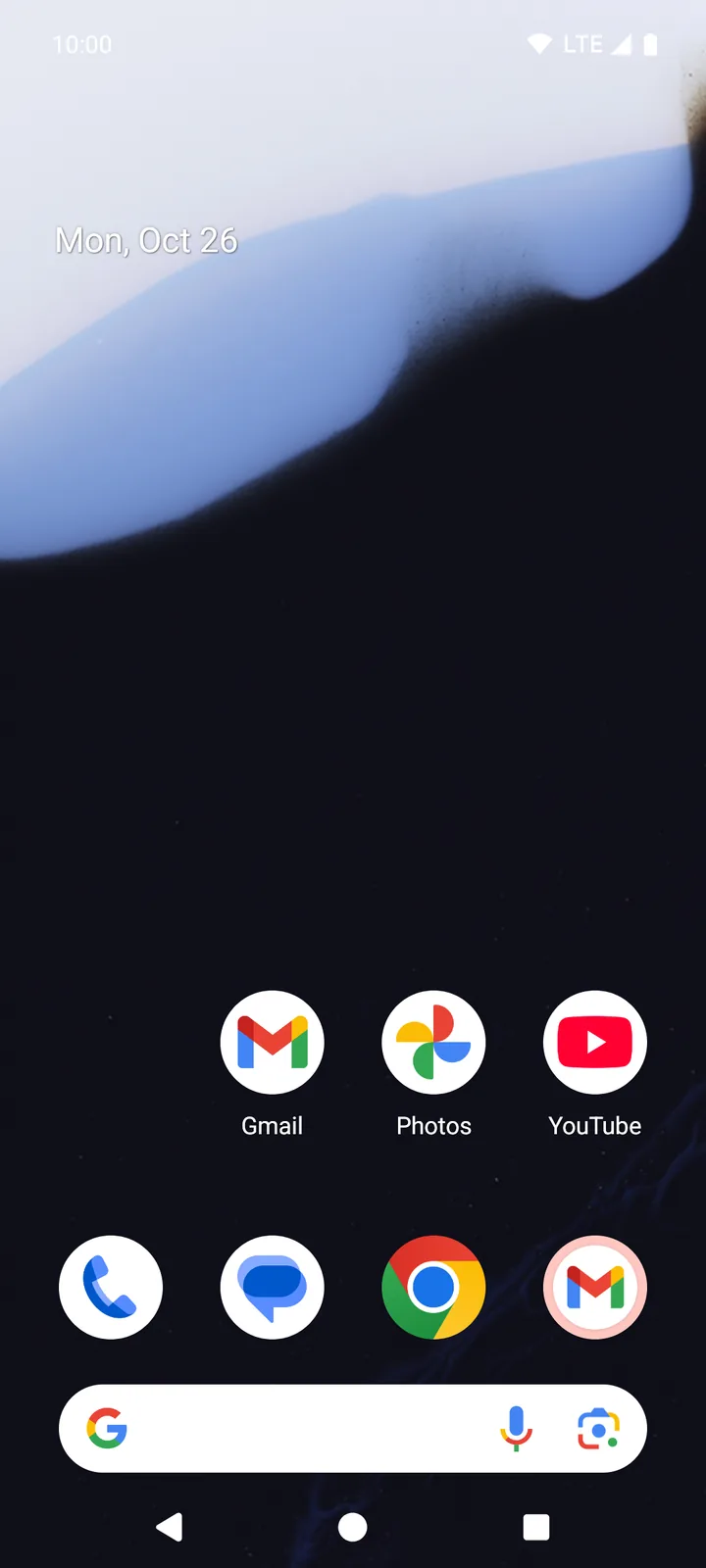
Quick answer: Start with the four jobs every phone has to do well: the home screen, calls, text messages and notifications. On Android, BIG Launcher replaces the home screen with large buttons, BIG Phone and BIG SMS show calls and texts in large print, and BIG Notifications shows notifications enlarged on a full screen. Then put the few apps your parent really uses on big buttons and hide the rest. All four apps have free versions with no time limit. They need Android 6.0 or newer; there is no iPhone version.
Apps for seniors: start with these four jobs
Each BIG app does one everyday job in large print. They are separate apps on Google Play, so you install only the ones your parent needs.
1. The home screen: BIG Launcher
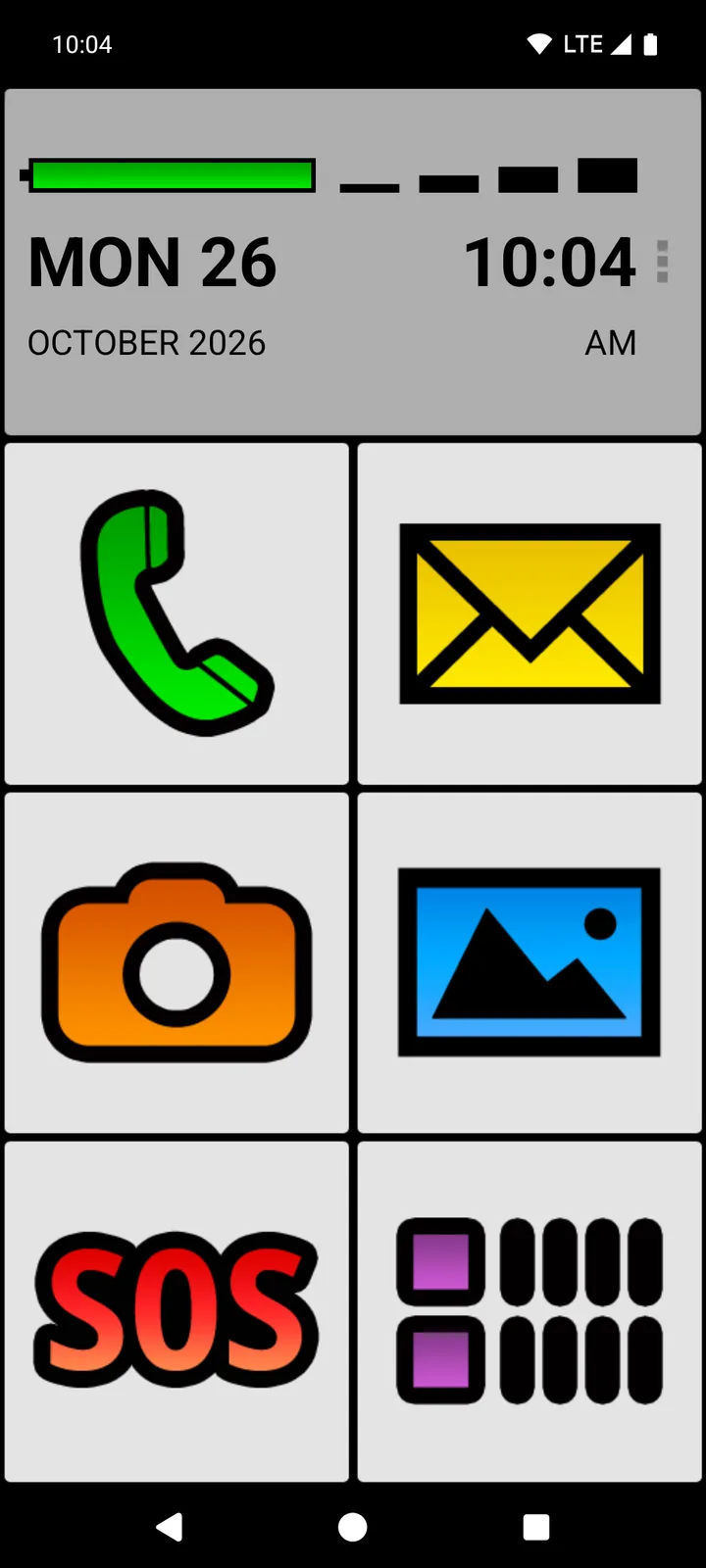
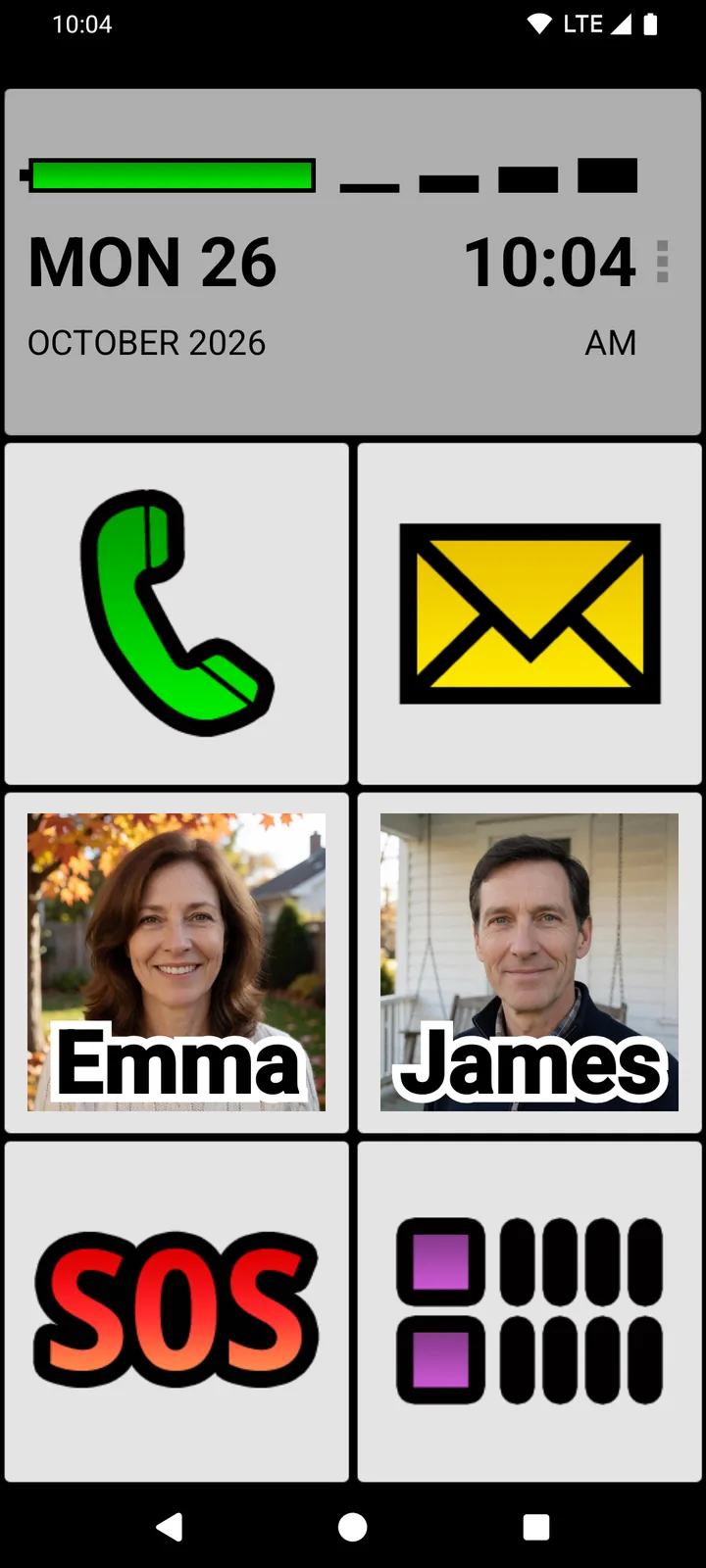
BIG Launcher is a launcher, an app that replaces the phone’s home screen. Instead of rows of small icons, your parent sees six large buttons: phone, messages, camera, photos, SOS and the list of apps. You choose the text size during setup, and high-contrast themes are available. A very large battery indicator sits at the top of the home screen, so nobody has to hunt for the tiny icon in the status bar.
Everyday use and setup are kept apart. A long press on a button doesn’t open an editing menu, and dragging doesn’t move a button, so nothing on the home screen gets moved or deleted by accident. That is true in the free version too.
BIG Launcher is free to try, with no time limit, on the phone your parent already has, if it runs Android 6.0 or newer. Even in the free version, every button stays where you put it.
2. Calls: BIG Phone
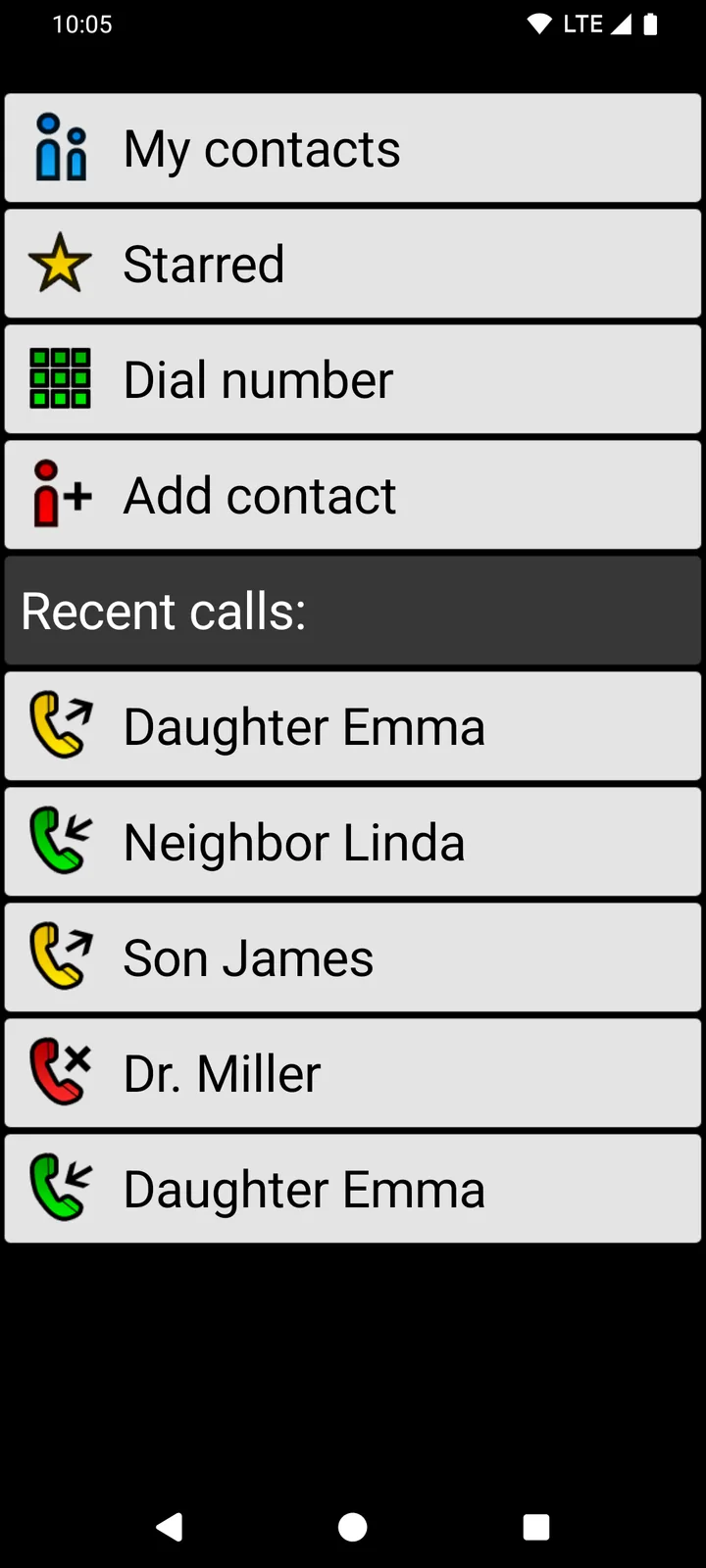
BIG Phone replaces the phone app. Its main screen has large buttons for My contacts, Starred, Dial number and Add contact, with recent calls listed below in large text. If your parent hears better on speakerphone, open BIG Launcher’s Preferences → Phone → Default audio device for calls and choose Speaker. To call, your parent taps a contact, then the number, then Call in a short menu, so a stray tap doesn’t start a call. You can switch that menu off, but keeping it is safer. The free version shows the 5 most recent calls; the other limits are listed under costs.
3. Text messages: BIG SMS
BIG SMS replaces the messaging app for texts. Conversations appear in large print with the newest message at the top, and a big Reply button opens a simple editor. Your parent types with the keyboard they already use. BIG SMS can receive and open picture messages (MMS), but it can’t send new ones. The free version shows only the 5 most recent conversations, and after 20 sent messages it adds a link to biglauncher.com to every new text.
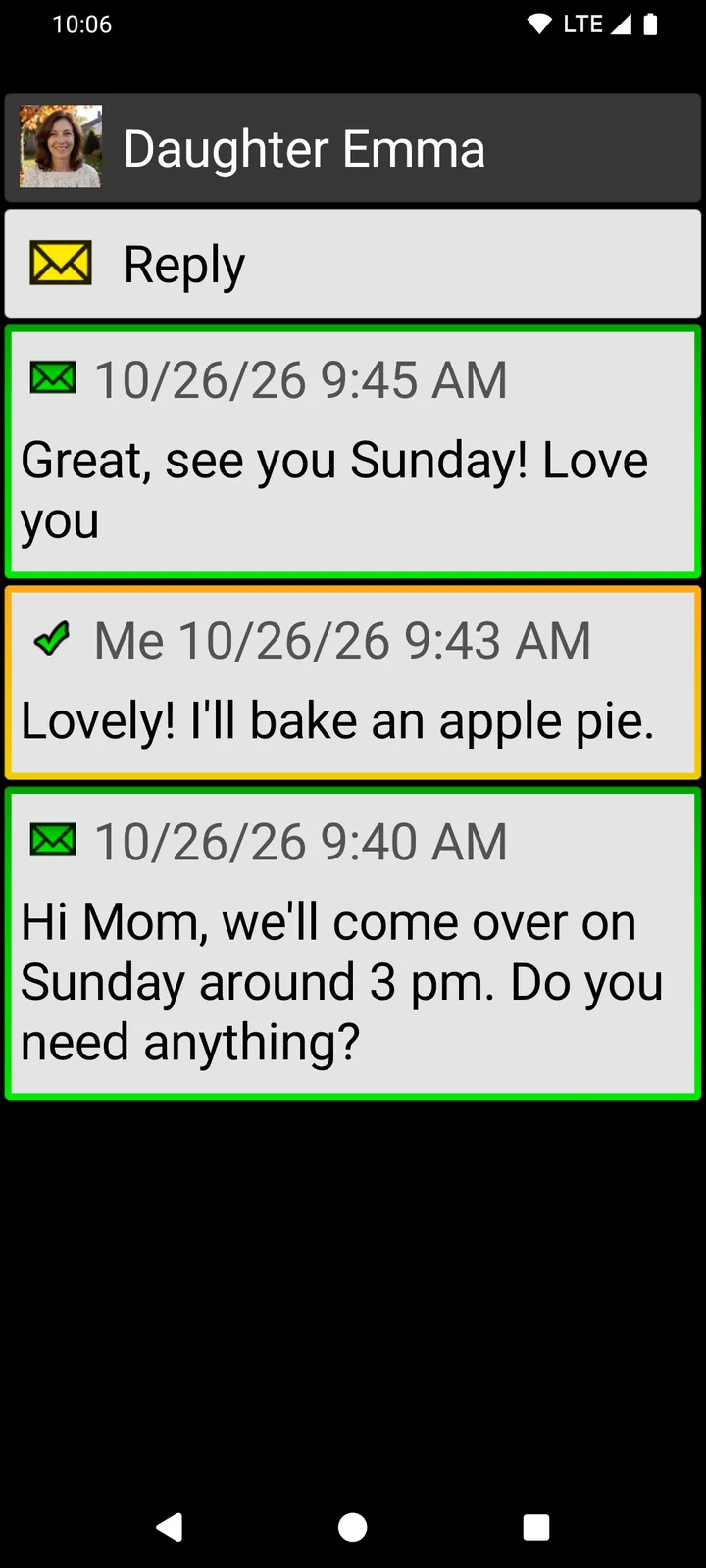
The first time you open BIG Phone and BIG SMS, Android asks whether each one should become the default phone or SMS app: tap Set as default. Set everything up in BIG Launcher first, then open BIG Phone and BIG SMS from its Phone and Messages buttons. They can take over BIG Launcher’s settings, so all three apps look the same.
4. Notifications: BIG Notifications
Android notifications can be small and easy to miss. BIG Notifications shows them enlarged on a full screen, with big buttons for the actions a notification offers. When a message notification has a Reply button, your parent can type the answer in a large text box. BIG Notifications also works on its own, without BIG Launcher. How to set it up: read and reply to Android notifications in large text.
Put the apps your parent uses on big buttons
Next, ask what your parent actually uses in a normal week. It’s usually a short list: the people they call, the camera and photos, maybe one chat app. Give each one its own button. Tap the three dots (⋮) next to the clock, choose Set buttons and tap the button you want to change. In the free version you can change the buttons in the right-hand column; the full version lets you change all of them.
- Family: choose Contact details to open the person’s details, or Direct call/SMS to call or text one number. If the contact has a photo, it shows on the button. More on photo buttons for family calls.
- An app: choose App and pick it, for example the video-calling app the family already uses.
- A WhatsApp chat: choose External Shortcut, then WhatsApp, then the person. The button opens that chat. WhatsApp supports Android phones running 6.0 or newer, the same as BIG Launcher.
Everything else can stay in the list of apps, or you can hide it there: open Preferences → Applications → Allowed applications and tap the apps your parent never uses. Hidden apps stay installed; they only disappear from BIG Launcher’s list. Step by step: show only the apps you need on an Android home screen.
Set up the apps in this order
Step 1: Install BIG Launcher
Install BIG Launcher from Google Play and open it. After two notices, a setup wizard asks for the language, text size and theme, and whether call history, messages and contacts may be deleted. If you keep “Don’t allow”, the delete option is gone. That prevents accidental deletions, but it is not a backup. You can change every answer later.
Step 2: Make it the home screen
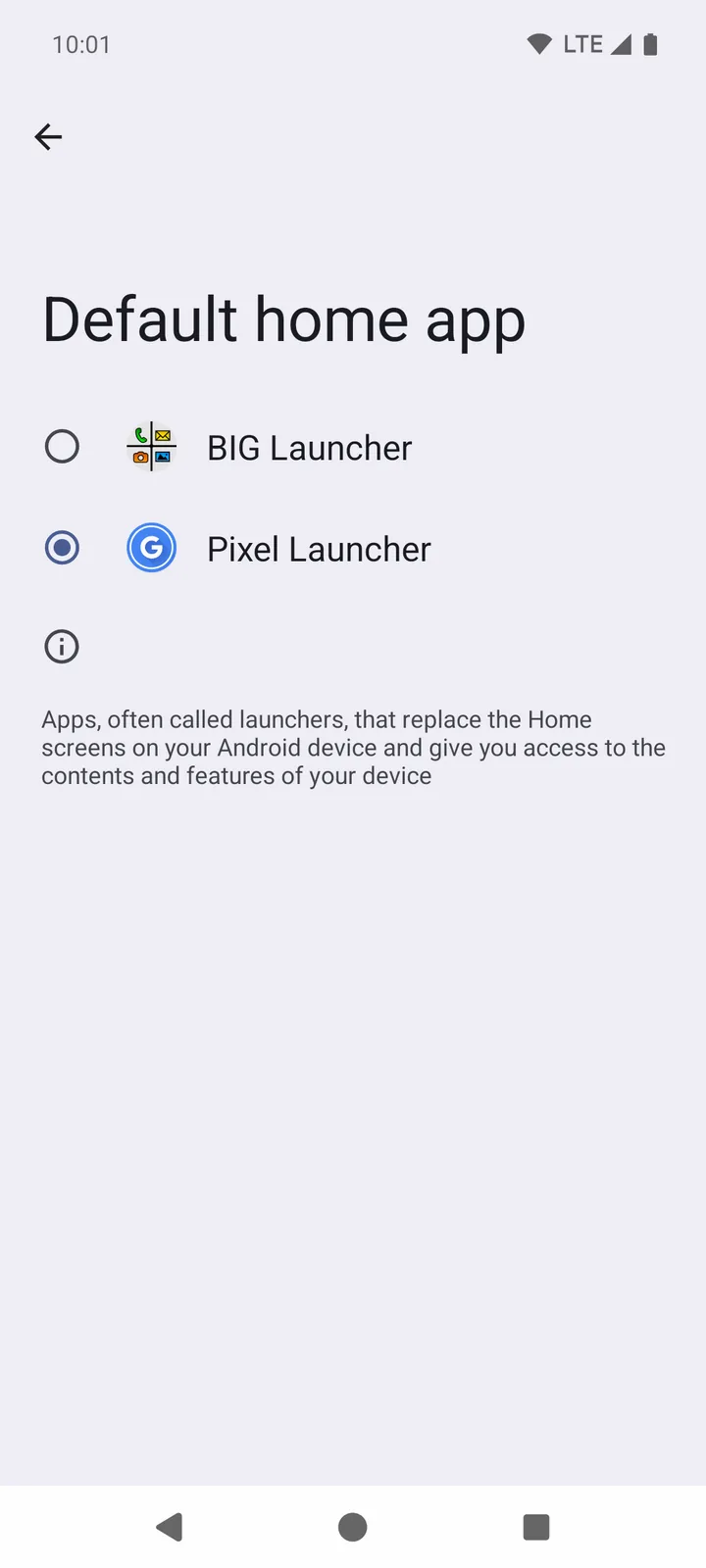
Open Android Settings → Apps → Default apps → Home app and choose BIG Launcher. The change applies right away. Menu names differ a little between phones, and some phones ask which home app to use when you press Home.
Step 3: Put people and apps on buttons
Add the family members, the camera and any chat app your parent uses, as described above. If that chat app is WhatsApp, follow our step-by-step WhatsApp guide for seniors.
Step 4: Add BIG Phone, BIG SMS and BIG Notifications
Install BIG Phone and BIG SMS, open them from BIG Launcher’s Phone and Messages buttons, and tap Set as default when Android asks. If notifications are hard to read, add BIG Notifications.
Step 5: Protect the setup (full version)
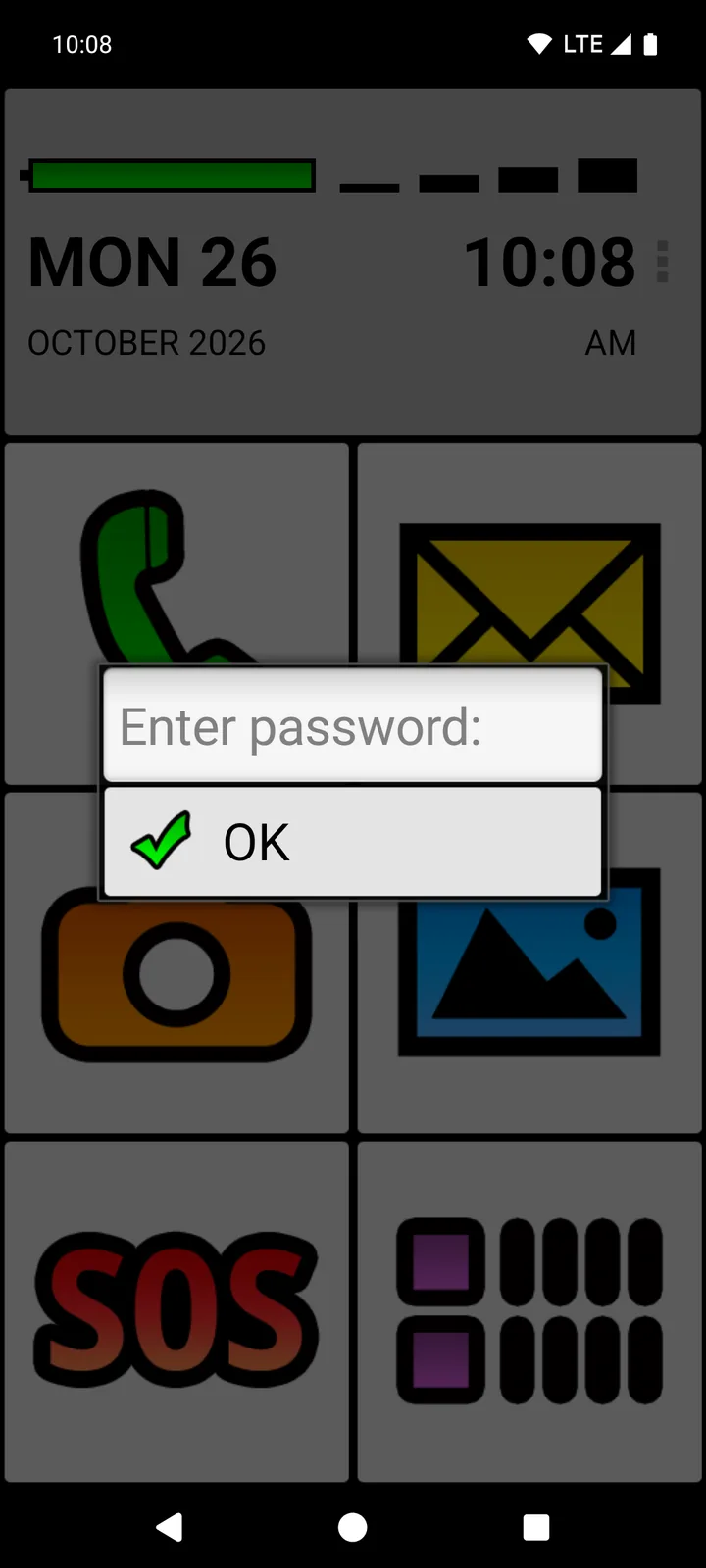
Tap ⋮ → Preferences → Preferences menu and turn on Protect menu. From then on, BIG Launcher shows a password prompt before its settings or Set buttons open. Without a password, tapping OK gets past it; for some people, that extra step is enough to stop accidental changes. If nobody else should change anything, tap Password in the same section and set one. Keep a record of it, because a forgotten password can’t be recovered; write to [email protected] before you clear app data or reinstall. The protection covers BIG Launcher’s own setup, not every Android setting.
What these apps can’t do
- They need an Android phone with Android 6.0 or newer. There is no version for the iPhone.
- They change what your parent sees and taps, not the hardware. An app can’t add physical keys, a louder speaker or a bigger battery.
- Hiding an app removes it from BIG Launcher’s list only. The app stays installed and may still be reachable in other parts of Android.
- Everything is set up on the phone itself; the apps don’t offer remote management.
- BIG Launcher has an SOS button, but it shouldn’t be the only way your parent can get help in an emergency.
If your parent needs physical number keys or can’t use a touchscreen at all, a phone with keys may suit them better.
What do the apps cost?
BIG Launcher, BIG Phone, BIG SMS and BIG Notifications all have free versions with no time limit. The free versions have these limits:
- BIG Launcher: you can change only the right-hand column of buttons and add up to 5 extra screens; the settings can’t be protected with a password, and the app occasionally reminds you about the full version.
- BIG Phone: the call history shows only the 5 most recent calls, and the keypad is disabled during a call.
- BIG SMS: only the 5 most recent conversations are shown, and after 20 sent messages a link to biglauncher.com is added to every new text.
- BIG Notifications: notifications are enlarged with the default settings; only the language and theme can be changed.
You can buy the full version of each app separately, or choose BIG Apps Suite PREMIUM, which includes the full versions of all four apps. New BIG Apps Suite PREMIUM customers get a 7-day yearly trial. Buy the Suite in BIG Launcher under ⋮ → Preferences → Buy/refresh the full version. To buy a single app, open that app. Google Play shows the final price. All options are on the plans and prices page.
Frequently asked questions about apps for seniors
What is the best app for elderly people?
There isn’t one best app for everyone. If the phone itself is hard to use, start with the home screen: an app like BIG Launcher shows large buttons for calls, messages and photos and keeps them in place. Then add only the apps your parent will really use.
Are there free apps for seniors?
Yes. BIG Launcher, BIG Phone, BIG SMS and BIG Notifications all have free versions with no time limit. Each free version has limits, which are listed above under costs.
Do these apps work on an iPhone?
No. The BIG apps are for Android and need Android 6.0 or newer.
Will my parent lose apps, contacts or photos?
No. BIG Launcher only replaces the home screen. Contacts, photos and apps stay on the phone, and apps you hide stay installed.
Can we go back to the old home screen?
Yes. Open Android Settings → Apps → Default apps → Home app and choose the previous home screen. Or tap Clear BIG Launcher as default launcher in BIG Launcher’s Preferences; the next time you press Home, Android may ask which home screen to use.
Start with the home screen
If your parent’s phone runs Android 6.0 or newer, install BIG Launcher free, set up the buttons together and let them use it for a few days. If it doesn’t suit them, switch back to the old home screen.
BIG Launcher has a 4.3 ★ rating with 8,000+ reviews and more than 2 million downloads on Google Play. It’s available in 70 languages and won the Vodafone Smart Accessibility Awards.
