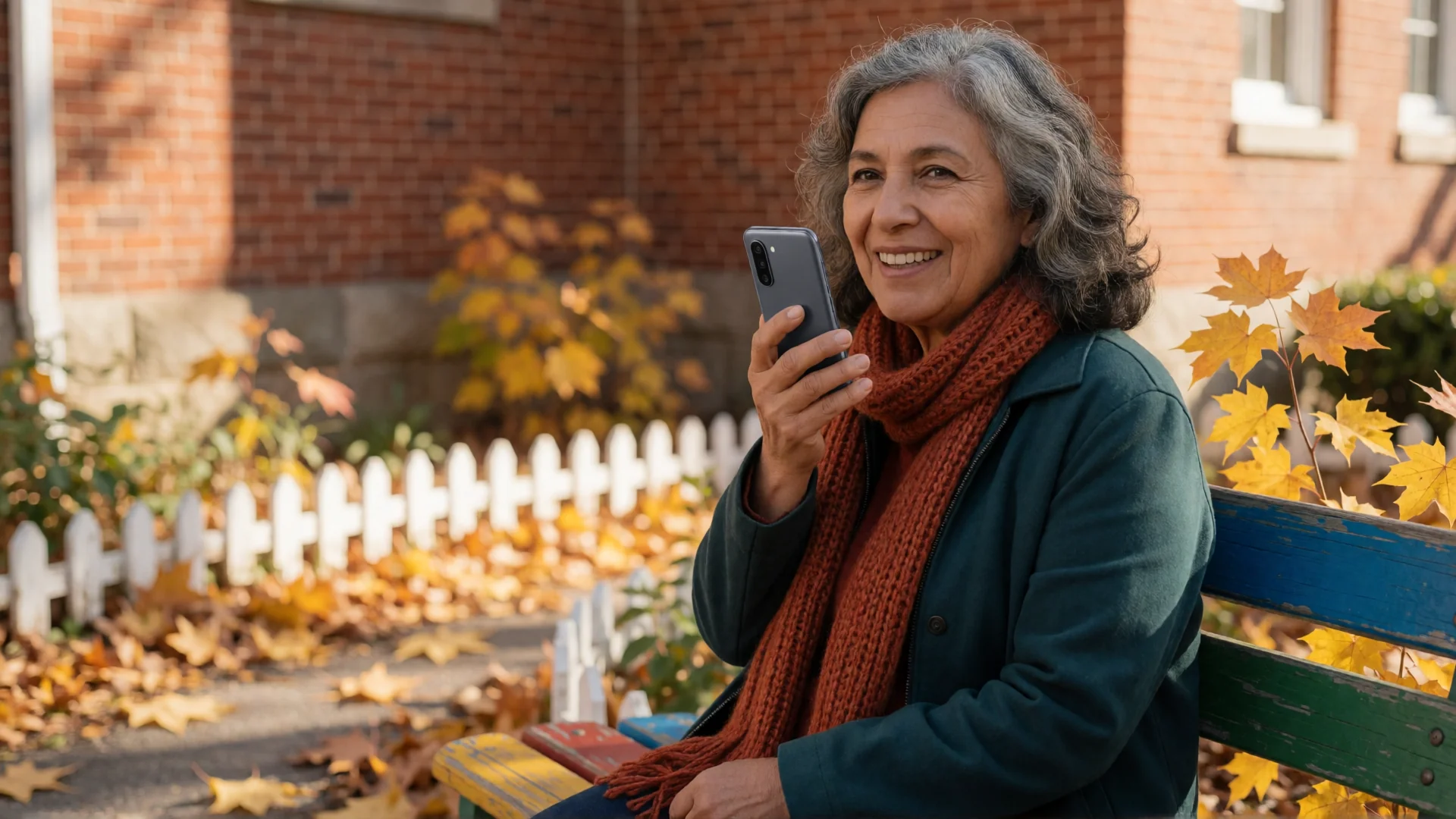
WhatsApp for seniors is easier to learn when you start with one familiar person and one simple task. Install WhatsApp, send a first message, and make the chat text large enough to read. On Android, BIG Launcher can give WhatsApp a large home-screen button—and put a shortcut to one familiar conversation on a second button with a contact photo.
This guide is for you if you are setting up your own Android phone. A family member can help with the initial setup, then you can practice the steps together.
1. Install WhatsApp and set up your account
You need an internet connection and an active phone number that can receive the verification SMS or phone call. Open the Google Play Store, search for WhatsApp, tap Install, and open the app.
- Read the terms shown in WhatsApp, then tap Agree and continue if you accept them. If WhatsApp asks about notifications, tap Allow if you want alerts for messages and calls.
- Choose your country and enter your own phone number.
- Enter the six-digit verification code you receive. If it does not arrive, use Didn’t receive a code? and follow the waiting time shown before requesting another SMS or call. Do not guess the code.
- Follow the remaining steps to set up your account.
WhatsApp is free to download. Your mobile provider may charge for data or verification messages and calls. For account problems, use WhatsApp’s registration help.
2. Give WhatsApp and one favorite chat their own buttons
Finding WhatsApp is one task. Finding the right person inside it is another. BIG Launcher lets you put both on the Android home screen as large, fixed buttons:
- A WhatsApp button opens the app, where you can choose any conversation.
- A photo button for one person can open that person’s WhatsApp chat directly. For example, use a familiar face and the short label Emma rather than searching for the conversation each time.
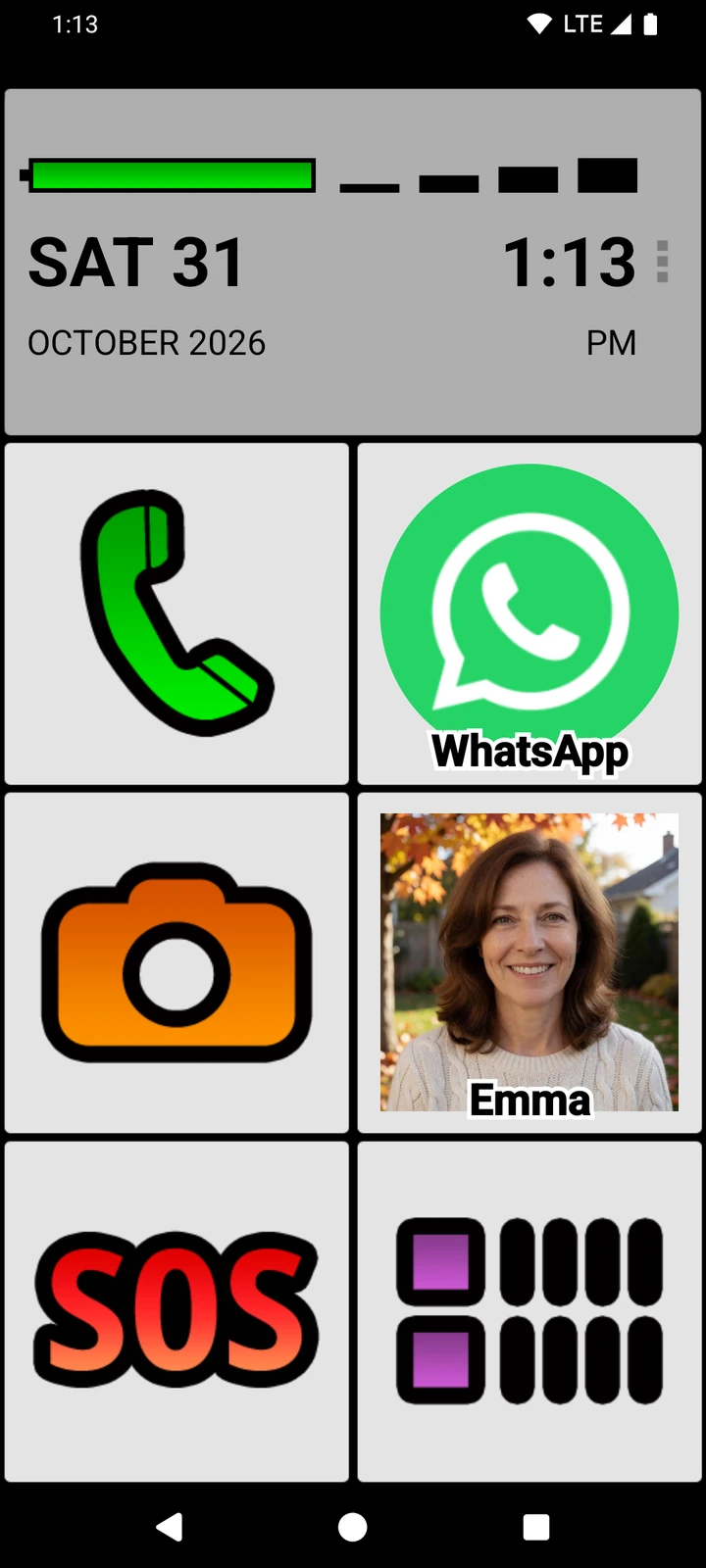
Install BIG Launcher and follow its setup wizard. To return to this screen whenever you press Home, choose Settings → Apps → Default apps → Home app → BIG Launcher in Android. Your phone may use slightly different wording or show a home-app chooser instead.
Button 1: open the WhatsApp app
- On the BIG Launcher home screen, tap the three dots beside the clock, then Set buttons.
- Choose a button in the right column of the standard portrait layout. These buttons are customizable in the free version.
- Select App, then WhatsApp. WhatsApp must already be installed.
- Return to the home screen. This button opens WhatsApp, not a particular person’s conversation.
Button 2: open one person’s WhatsApp chat
After setting up WhatsApp, choose someone you already message there. Give their phone contact a recognizable photo before assigning the shortcut.
- Open Set buttons again and choose a different customizable button—for example, the one just below WhatsApp.
- Choose External shortcut, then the WhatsApp Chat shortcut and the contact.
- Return to BIG Launcher and tap the new photo button. Check that the correct conversation opens in WhatsApp.
- To give it a short name such as Emma, reopen Set buttons, select the photo button and choose Set label.
If WhatsApp Chat is not listed: open the conversation in WhatsApp and use ⋮ → More → Add shortcut. Assign that saved conversation from the bottom of BIG Launcher’s External shortcut list. Our WhatsApp chat-button guide explains this alternative.
Choose External shortcut for a WhatsApp conversation—not Contact details or Direct call/SMS. Those are different button actions. A chat shortcut opens the conversation; it does not start a WhatsApp call. Use the controls inside WhatsApp when you want to call.
The buttons stay in place during everyday use. Holding or dragging them does not move them or open an editing menu, including in the free version. Setup stays separate from the screen you use each day.
Put one familiar conversation within easy reach
Try BIG Launcher free, with no time limit. Use two customizable buttons in the right column for WhatsApp and a favorite chat—on the Android phone you already have.
BIG Launcher changes the home screen, not the screens inside WhatsApp. Messages, photos and calls still use WhatsApp’s own controls. BIG Launcher needs Android 6.0 or newer.
3. Send your first message to someone you know
Ask a family member or friend who already uses WhatsApp to practice with you. Save their phone number in your phone’s contacts and allow WhatsApp to access contacts if you want to find them that way.
- Open WhatsApp and go to Chats.
- Use the search bar to find the person’s name or phone number, then open the chat.
- Tap the message field, type a short greeting and tap the send arrow.
- Wait for their reply and practice opening the same conversation again.
If you cannot find someone, check that they use WhatsApp and that their number is saved correctly, including the country code for an international number. WhatsApp’s contact help covers the other checks.
4. Make WhatsApp text larger
Inside WhatsApp, open the three-dot menu and choose Settings → Chats → Font size → Large → OK. This changes the text in chats.
Other WhatsApp screens follow your phone’s text-size settings. The Android path in WhatsApp’s instructions is Settings → Accessibility → Display size and text → Font size; your phone may use different wording. See WhatsApp’s font-size instructions.
BIG Launcher and WhatsApp’s font setting help in different places: BIG Launcher makes the home screen easier to see and use, and WhatsApp’s font size makes your conversations easier to read.
5. Share a photo or send a voice message
To send a photo: open the person’s chat, tap the attachment icon, choose Gallery, select a photo and tap the send icon. You can also use the camera icon in the chat to take a new picture. The official media guide shows the icons.
To send a voice message: open the chat, press and hold the microphone beside the message field, and speak. Release your finger to send the recording automatically. While holding the microphone, slide left if you want to cancel instead. Practice with a short greeting before recording a longer message.
If keeping a finger on the microphone is awkward, WhatsApp also supports swiping up for hands-free recording. Follow the voice-message instructions to preview and send it.
6. Make a video call from inside WhatsApp
Open the chat with the person you want to see, tap the video-camera icon, then Call. Start with a short practice call when you are both ready. WhatsApp recommends Wi-Fi to save mobile data.
For the current controls, see WhatsApp’s video-call guide. WhatsApp cannot call emergency-service numbers such as 911.
Keep the everyday routine simple
Start with finding WhatsApp, opening one conversation and sending a message. Add photos, voice messages and video calls as you get comfortable. To make calls, texts and notifications easier to read too, see our guide to apps for seniors.
You do not need to replace a working Android phone just to make the home screen simpler; our simple smartphone guide explains that choice. BIG Launcher’s full version lets you customize every button and protect its settings, optionally with a password. The free version remains available without a time limit. See the free-version limits and upgrade options, from monthly plans to a lifetime license.
BIG Launcher: 4.3 ★ on Google Play, 8,000+ reviews, more than 2 million downloads, available in 70 languages.
Make the first tap easier
Put WhatsApp and a favorite conversation on large, easy-to-find buttons with BIG Launcher.
Frequently asked questions
Is there a separate WhatsApp for seniors?
This guide uses the regular WhatsApp app. On Android, BIG Launcher gives you a simpler home screen with a large button to open WhatsApp. It does not replace or redesign WhatsApp itself.
Can I make WhatsApp messages bigger?
Yes. In WhatsApp, open Settings → Chats → Font size, choose Large and confirm with OK. Text on other WhatsApp screens follows your phone’s settings.
Do I have to pay for BIG Launcher to try the WhatsApp button?
No. The free version has no time limit. In the standard portrait layout you can customize the buttons in the right column, including assigning one to the installed WhatsApp app. The full version unlocks customization of all buttons.
Can a photo button open one WhatsApp conversation?
Yes. In BIG Launcher, use Set buttons → External shortcut and assign the person's WhatsApp Chat shortcut. A contact photo and a short label make it easier to recognize. Check that the button opens the right conversation; Contact details and Direct call/SMS are different actions.
