
To block spam calls on Android, turn on your phone app’s spam filter and block the numbers that keep calling you. In Google’s Phone app, that’s Filter spam calls; on a Samsung Galaxy, it’s Block spam and scam calls. If spam keeps coming from the same numbers, the free BIG Phone app can reject them for you: add a number from your call history to its Blocked numbers list, and set Potential spam call to Reject automatically. It works on almost any Android phone (Android 6.0 or newer).
This guide is for you if robocalls and sales calls keep ringing your phone, or a parent’s phone, and you want them to stop.
Turn on spam filtering in your phone app
Google’s Phone app (Pixel and many other Android phones)
- Open the Phone app.
- Tap More options (the three dots), then Settings, then Caller ID and spam.
- Turn on Filter spam calls.
According to Google’s help page, filtered calls don’t give you missed-call or voicemail notifications, but they still appear in your call history. On phones with automatic Call Screen there’s no Filter spam calls option; spam blocking is one of the Call Screen options instead.
Samsung Galaxy phones
- Open the Phone app, tap More options (the three dots), then Settings.
- Tap Caller ID and spam protection, turn it on and agree to the terms if asked.
- Turn on Block spam and scam calls and choose Block all spam and scam calls.
Samsung notes that this Smart Call feature may not be available on all carriers or models.
Block a number that already called you
Both phone apps let you block a single number from your call history. In Google’s Phone app, tap the call and choose Block or Report spam. On a Galaxy, open Recents, tap the number, tap the menu below it and choose Block. As Android’s own guide puts it, you can’t completely eliminate spam calls, but blocking and reporting them consistently cuts them down.
Block repeat spam numbers with BIG Phone
BIG Phone is an easy-to-use phone and contacts app with large text and a clear call screen, and it works on almost any Android phone, not just one brand. Its incoming calls filter rejects every call from the numbers on its Blocked numbers list, and it can also reject calls that Android itself flags as potential spam. You can add a spam number straight from your call history, without typing it. The filter is in the free version.
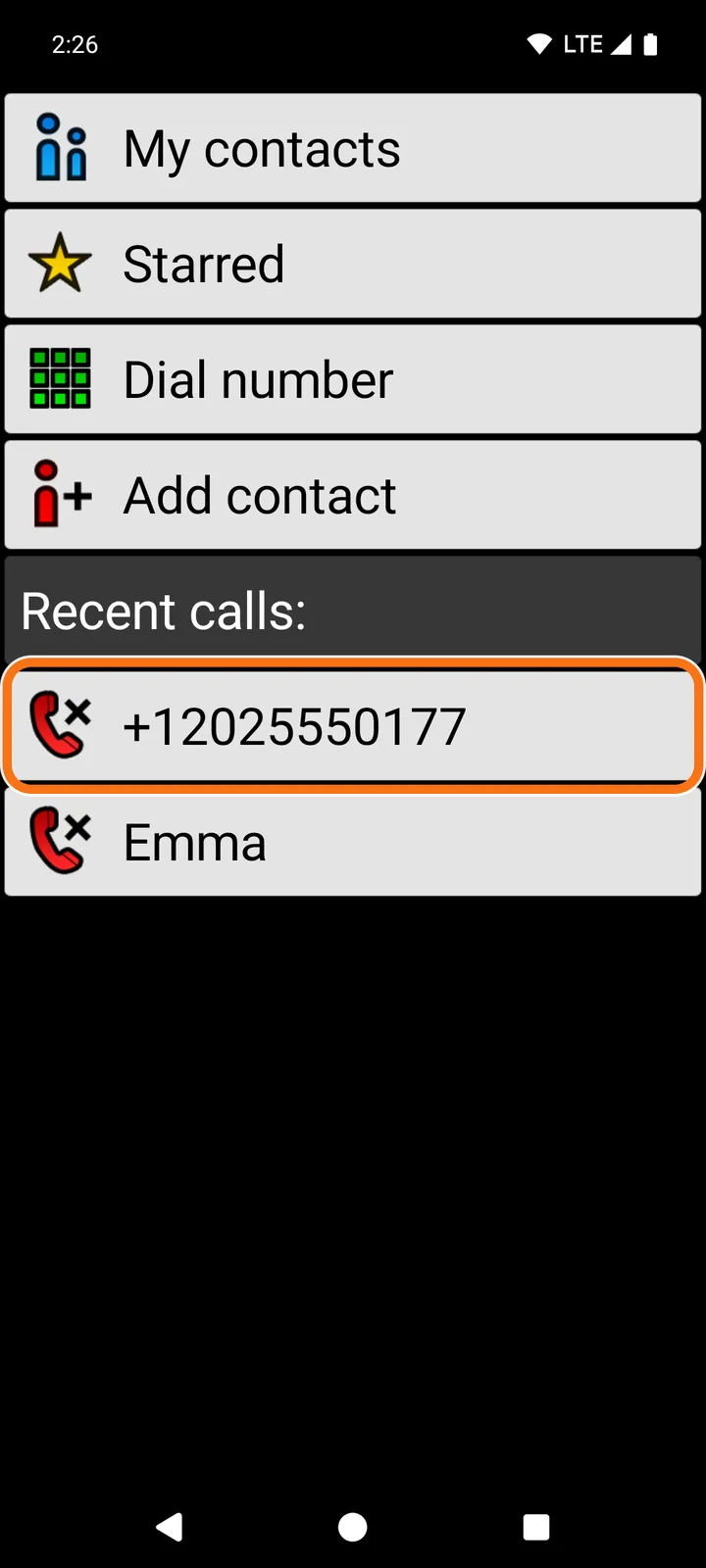
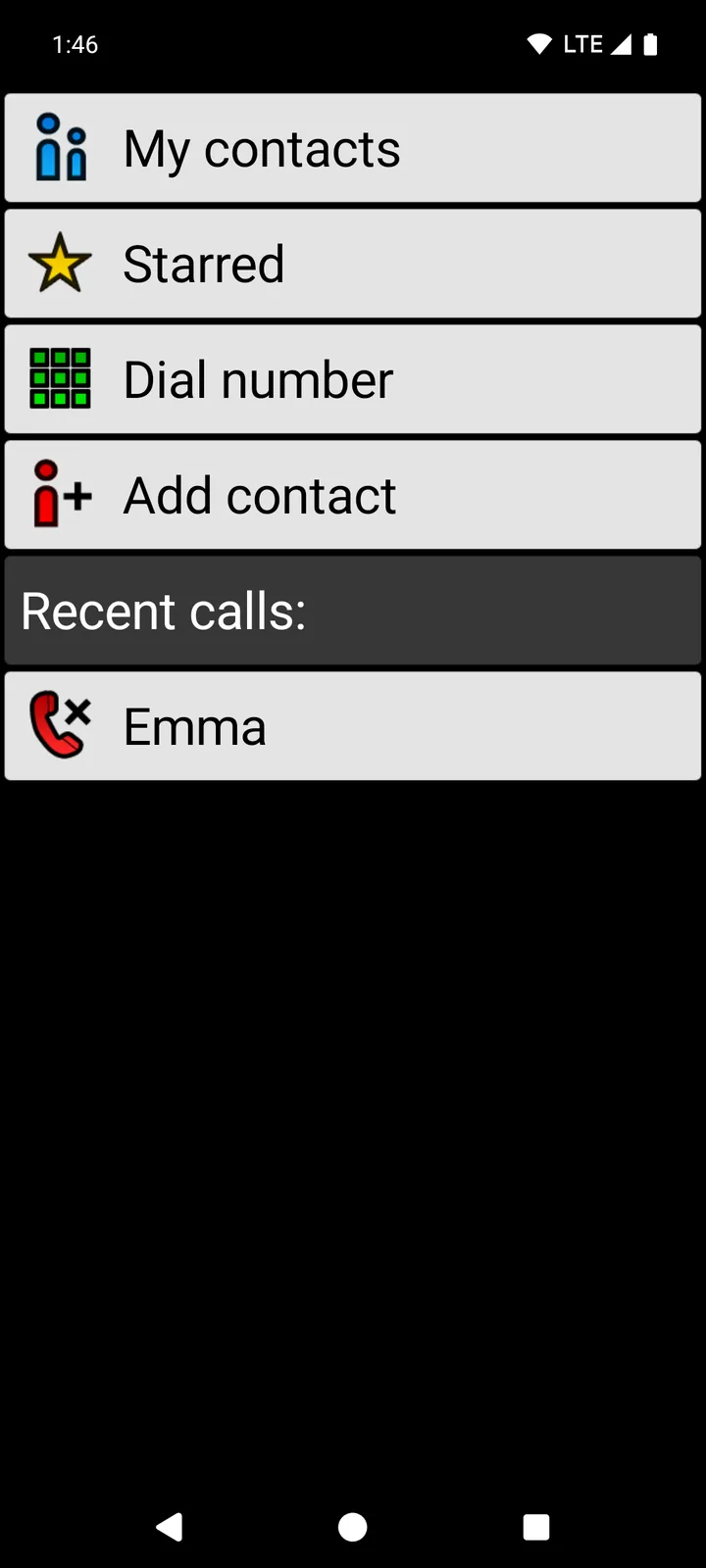
Here’s the situation we set up on our own test phone: a number we don’t know, shown as +12025550177, called and appears as a missed call in BIG Phone’s Recent calls.
- Install BIG Phone from Google Play and open it. When it asks to become your default phone app, tap Yes and allow the permissions it asks for.
- Open the incoming calls settings. Without BIG Launcher, tap Preferences in BIG Phone’s menu (the first item), then tap Phone. If you open BIG Phone from BIG Launcher, this item isn’t there: set it in BIG Launcher instead (see the BIG Launcher note below).
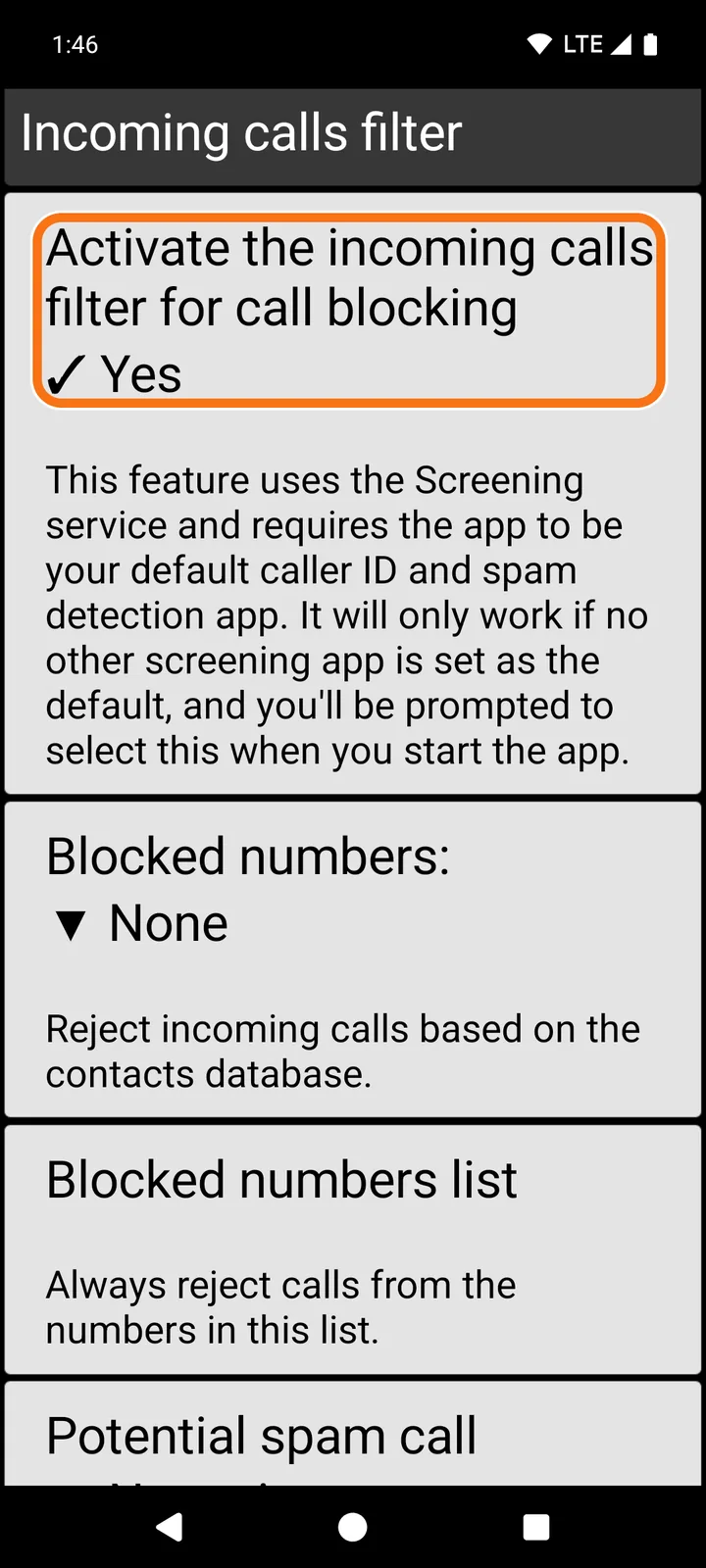
- Scroll down to the Incoming calls filter section and tap Activate the incoming calls filter for call blocking so that it shows Yes.
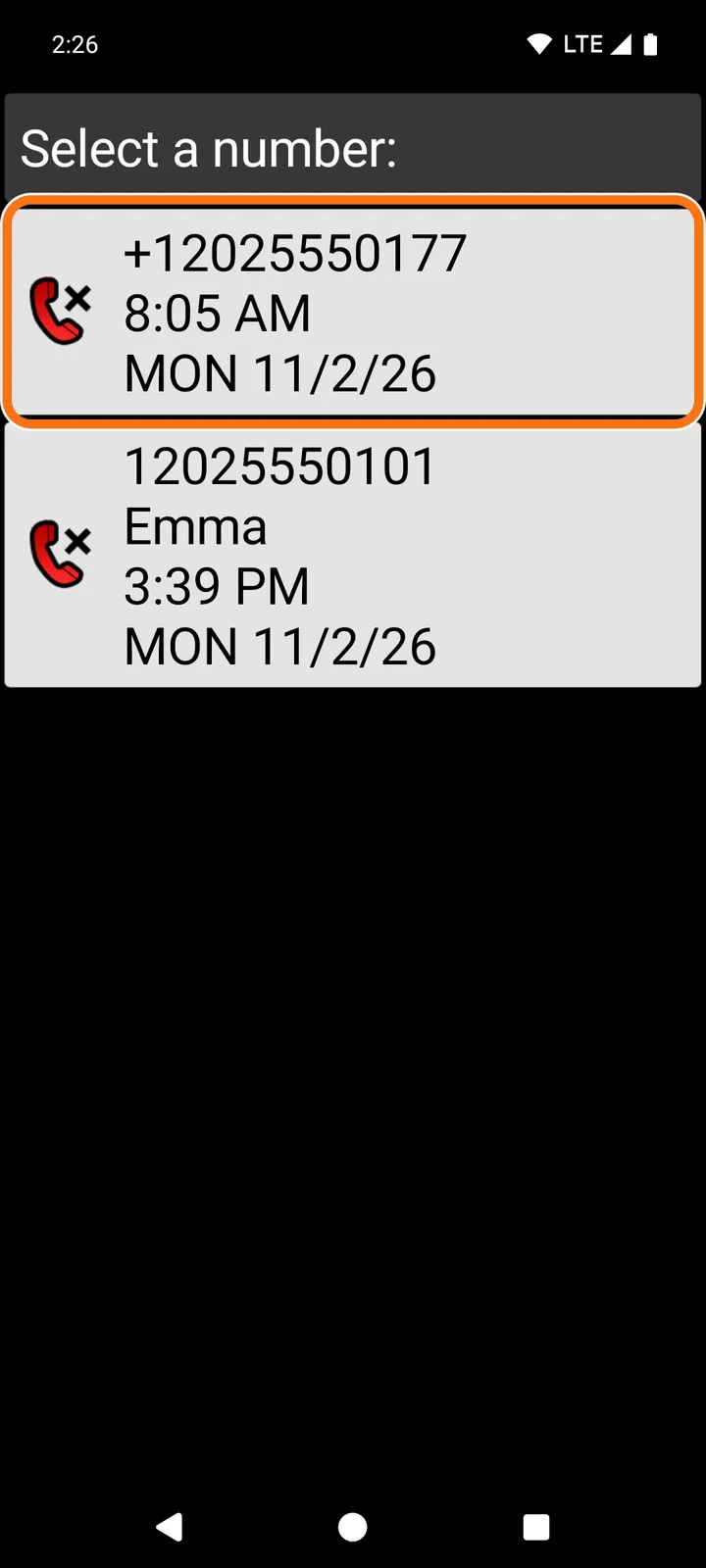
- Tap Blocked numbers list, then Add the number stored in the call log.
- Under Select a number:, tap the spam number.
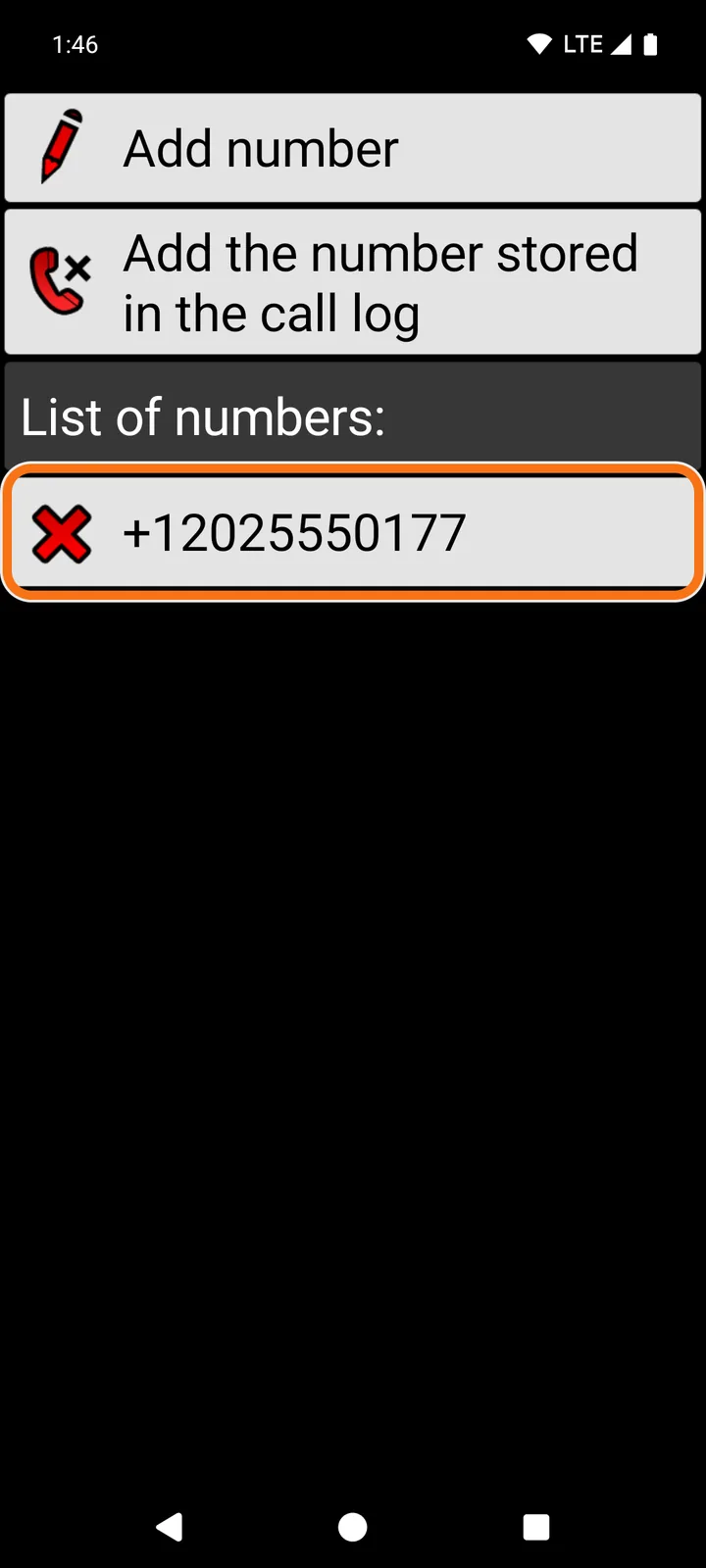
- Back in the filter settings, tap Potential spam call and choose Reject automatically. Leave Blocked numbers: on None if you only want to stop the numbers on your list and the calls Android flags as spam.
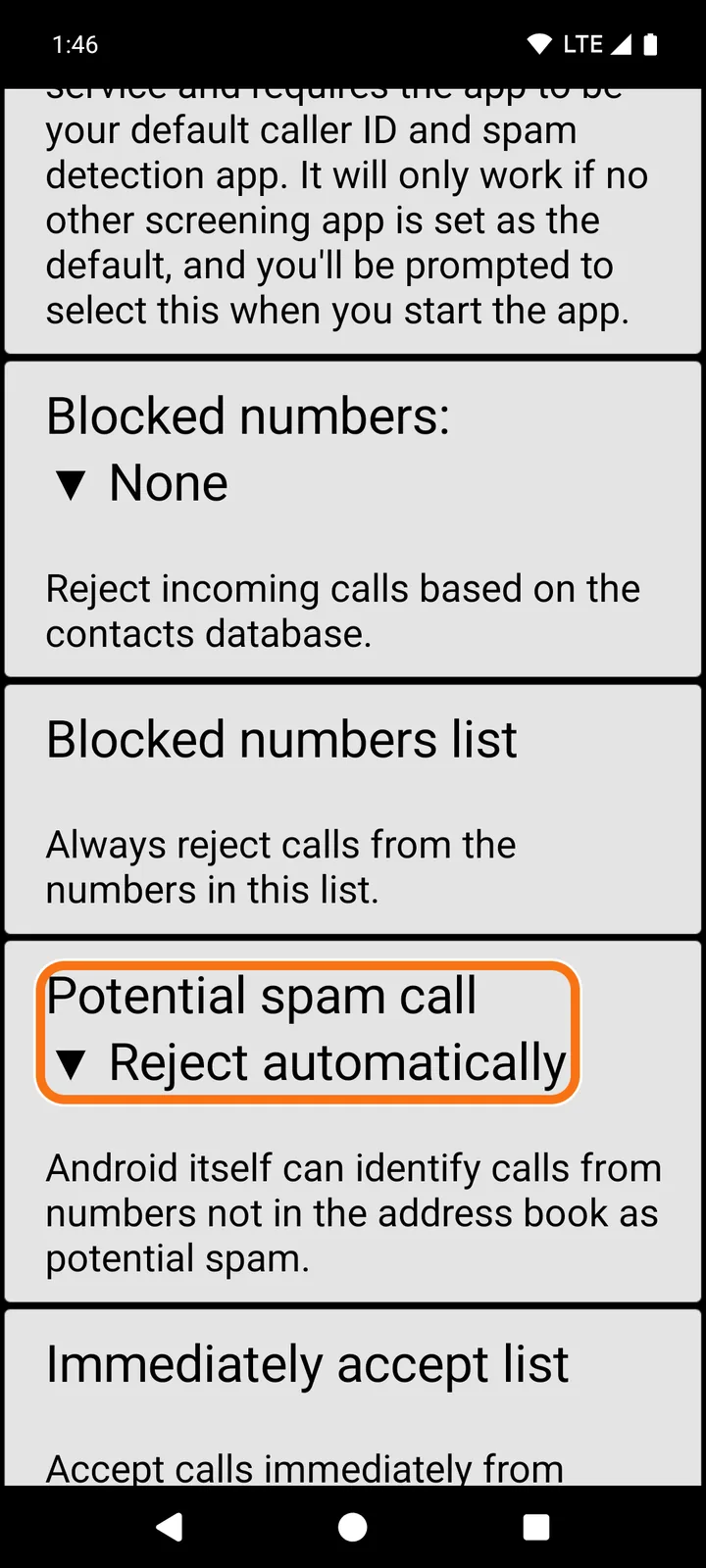
The note under the switch explains that the filter needs BIG Phone to be your default caller ID and spam detection app, and that you’ll be asked to choose it when you start the app. Choose BIG Phone. The filter only works if no other call-screening app is set as the default.
Get BIG Phone
BIG Phone is free with no time limit, and the incoming calls filter is in the free version. The free version shows only the 5 most recent call-log entries, and the keypad is disabled during a call.
What happened when the spam number called again
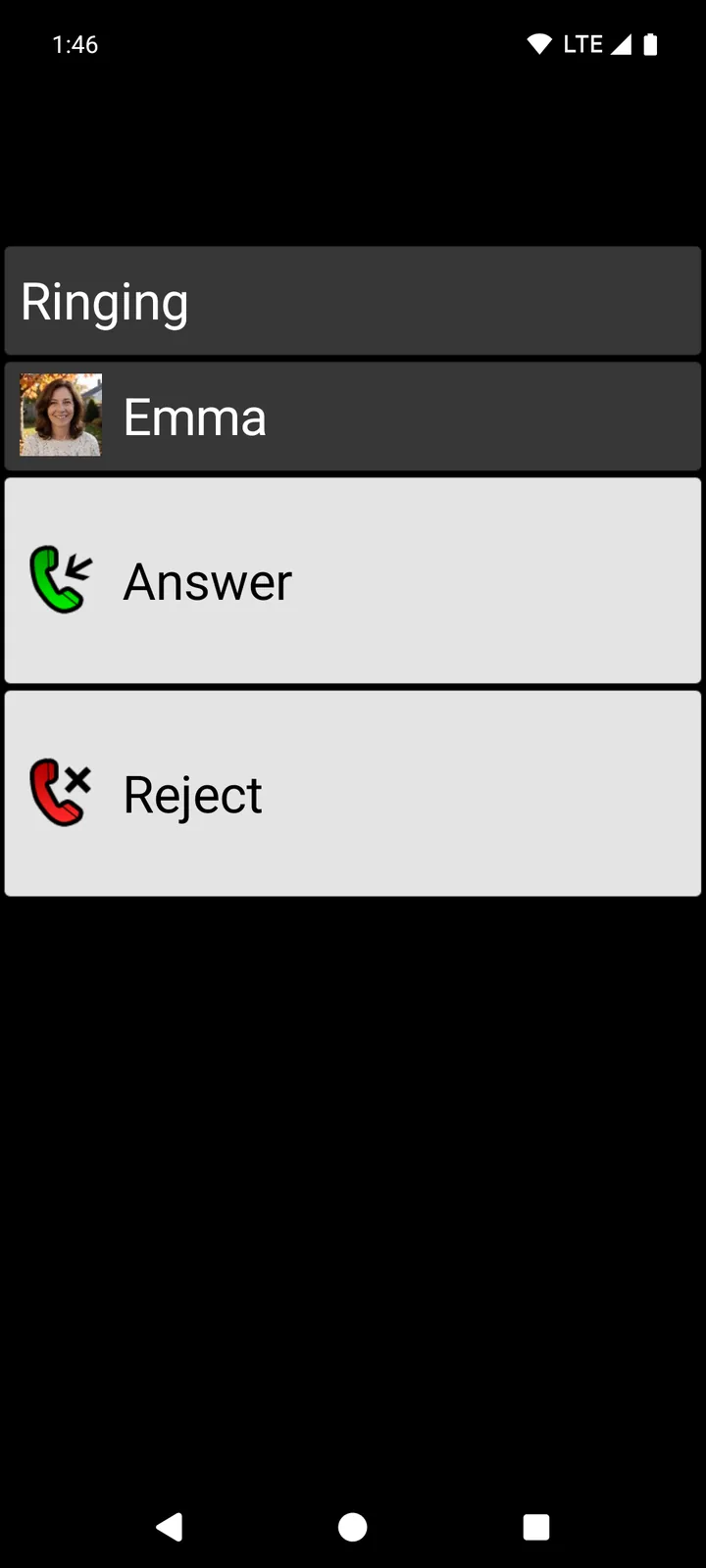
We tried it on our own test phone with BIG Phone’s free version. Emma is saved in Contacts with her photo; the two other numbers aren’t.
- The blocked number: the phone didn’t ring and no call screen appeared. Android recorded the attempt as a blocked call, and BIG Phone’s Recent calls showed no new call from it.
- Emma: her call rang as usual, on BIG Phone’s large incoming-call screen with her photo.
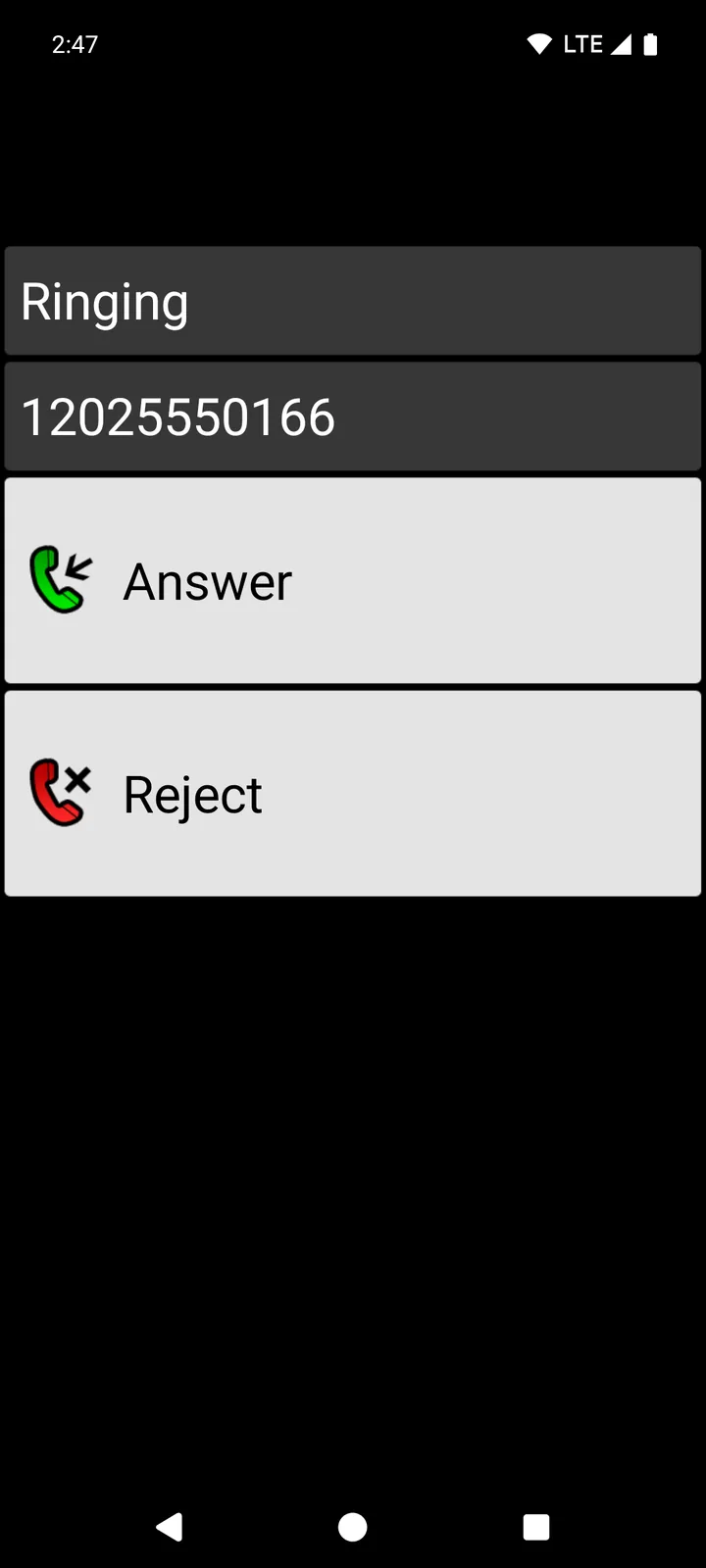
- Another unknown number that wasn’t on the list: it rang normally. The list stops only the numbers you add to it.
Blocking doesn’t remove calls that came in before. On our test phone, the earlier missed call from the spam number stayed in Recent calls; the block stopped only the new calls.
If new spam keeps coming from numbers you’ve never seen, you can go further and let only your contacts ring. See our guide to blocking unknown callers on Android, which sets Blocked numbers: to Which are not in Contacts.
What Reject automatically does
Potential spam call uses Android’s own spam signal: Android can identify calls from numbers that aren’t in your address book as potential spam. BIG Phone then shows an information button or rejects the call, depending on your choice. We couldn’t trigger Android’s spam signal on our test phone, so this part is described from BIG Phone’s settings and its call filtering help page, not tested by us.
What this doesn’t do
- It doesn’t stop all spam or scams, and it isn’t fraud protection. Numbers you haven’t added and calls Android doesn’t flag still ring.
- It works on normal phone calls. It doesn’t block WhatsApp or other internet calls.
- We didn’t test calls from hidden or private numbers, so we can’t say how the filter treats them.
- Voicemail and your carrier’s own call-blocking services are separate; this guide doesn’t cover them.
BIG Phone is part of the BIG Apps family
The family’s main app, and our flagship, is BIG Launcher: a simple home screen with large buttons, where the Phone button opens BIG Phone and the Messages button opens BIG SMS. BIG Launcher has 4.3 ★ on Google Play from 8,000+ reviews and more than 2 million downloads, and it’s available in 70 languages. Get BIG Launcher on Google Play.
With BIG Apps Suite PREMIUM, you get BIG Launcher, BIG Phone, BIG SMS and BIG Notifications for one price. You buy it in BIG Launcher. New BIG Apps Suite PREMIUM customers get a 7-day yearly trial. See the plans and free-version limits.
If BIG Launcher is on the phone too: BIG Launcher has the same Incoming calls filter under the three dots next to the clock → Preferences → Phone. When you open BIG Phone from BIG Launcher, it takes over BIG Launcher’s settings and shows no Preferences item, and a change made only in BIG Phone can be overwritten. So make the change in BIG Launcher, then open BIG Phone from BIG Launcher once.
Spam texts too? See how to stop spam texts on Android with BIG SMS.
Stop repeat spam calls
Try BIG Phone free on your Android phone (Android 6.0 or newer). Large text, a clear call screen and the incoming calls filter are in the free version.
Frequently asked questions
How do I block spam calls on Android?
Turn on your phone app’s spam filter: Filter spam calls in Google’s Phone app, or Block spam and scam calls on a Samsung Galaxy. Block numbers that keep calling from your call history. With BIG Phone, add a number from your call history to the Blocked numbers list and set Potential spam call to Reject automatically.
How do I stop spam calls from the same number?
Block that number. In BIG Phone, go to Preferences → Phone → Incoming calls filter, switch the filter on, then tap Blocked numbers list → Add the number stored in the call log and pick the number. On our test phone, the next call from it didn’t ring.
Can BIG Phone block calls that Android marks as spam?
Yes. Set Potential spam call to Reject automatically. It relies on Android’s own spam signal, so it only catches calls Android identifies as potential spam.
Will blocking a number in BIG Phone also block its texts?
BIG Phone’s list works on calls. To stop texts from a number, use the separate filter for text messages in BIG SMS.
Is BIG Phone free?
Yes. The free version has no time limit and includes the incoming calls filter. It shows only the 5 most recent call-log entries, and the keypad is disabled during a call; the full version removes these limits.
