To make text bigger on Android, open Settings, search for Font size and move the slider to the right. Most apps then show larger text; a few keep their own size. If letters still look thin, turn on Bold text. If the home screen is still hard to read, large buttons with big, readable names can help more than pushing the font size even higher.
This guide is for you if the words on your own Android phone are too small to read comfortably.
Change the font size on Android
- Open the Settings app.
- Search for Font size and select it.
- Move the slider to the right until the preview text is comfortable to read.
Google’s instructions show a preview of the new size. If you don’t like the result, tap Reset settings to go back to your phone’s original text and display sizes.
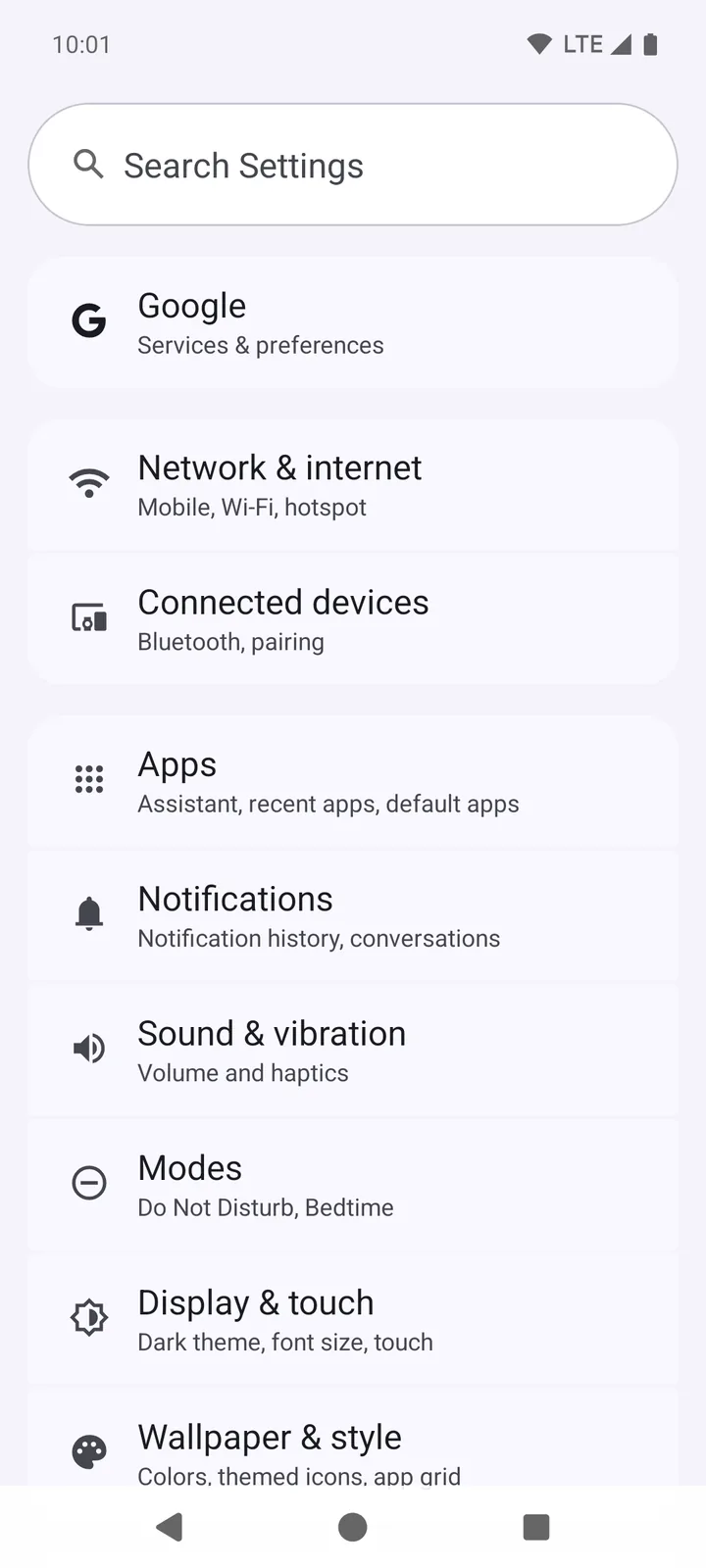
After you change the font size in Settings, Android adds a Font Size tile to Quick Settings. Next time, swipe down from the top of the screen, tap the tile and use the increase and decrease buttons or the percentage slider. Google notes that this goes up to 200%.
On a Samsung Galaxy phone
- Open Settings and choose Display.
- Choose Font size. Depending on the model, the option is called Font or Font and screen zoom.
- Move the slider or pick a size from the list, then tap Apply if your phone shows it.
Samsung’s own guide uses this path. Menu names vary between models and software versions, so the search field in Settings is a good fallback.
If letters still look small or thin
- Bold text: open Settings → Accessibility → Display size and text and turn on Bold text. Google suggests bold text to improve visibility.
- Outline text: on Android 16 and newer, the same screen has Outline text, which makes text easier to read.
- Display size: search Settings for Display size if you want everything on the screen bigger, not only text.
Google also notes that the font size setting doesn’t apply to some apps. If one app still shows small text, look in that app’s own settings. See Google’s text and display settings guide for all the options.
Make the home screen easier to read
A bigger font makes words larger, but a crowded home screen of small icons stays crowded. BIG Launcher is a home-screen app that replaces the small icons with six large buttons under a big clock and battery indicator. You choose the size of the names shown on the buttons.
On our test phone, the names were set to the smallest size. Here is how we made them bigger:
- On the BIG Launcher home screen, tap the three dots beside the clock and choose Preferences.
- Open Screens’ options and scroll down to Text size.
- Choose a larger size. The options go from 50% to 110%; we chose 100%.
- Press Home.
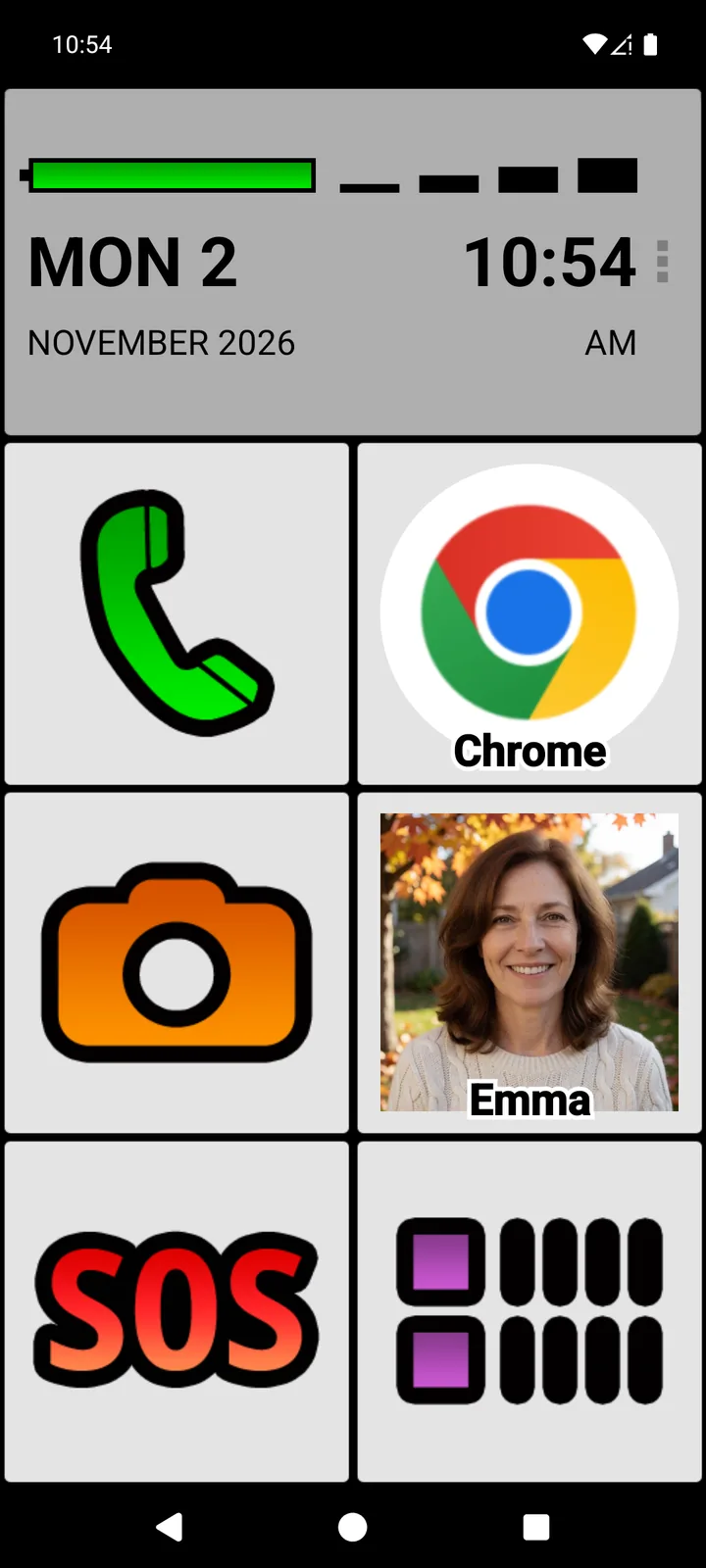
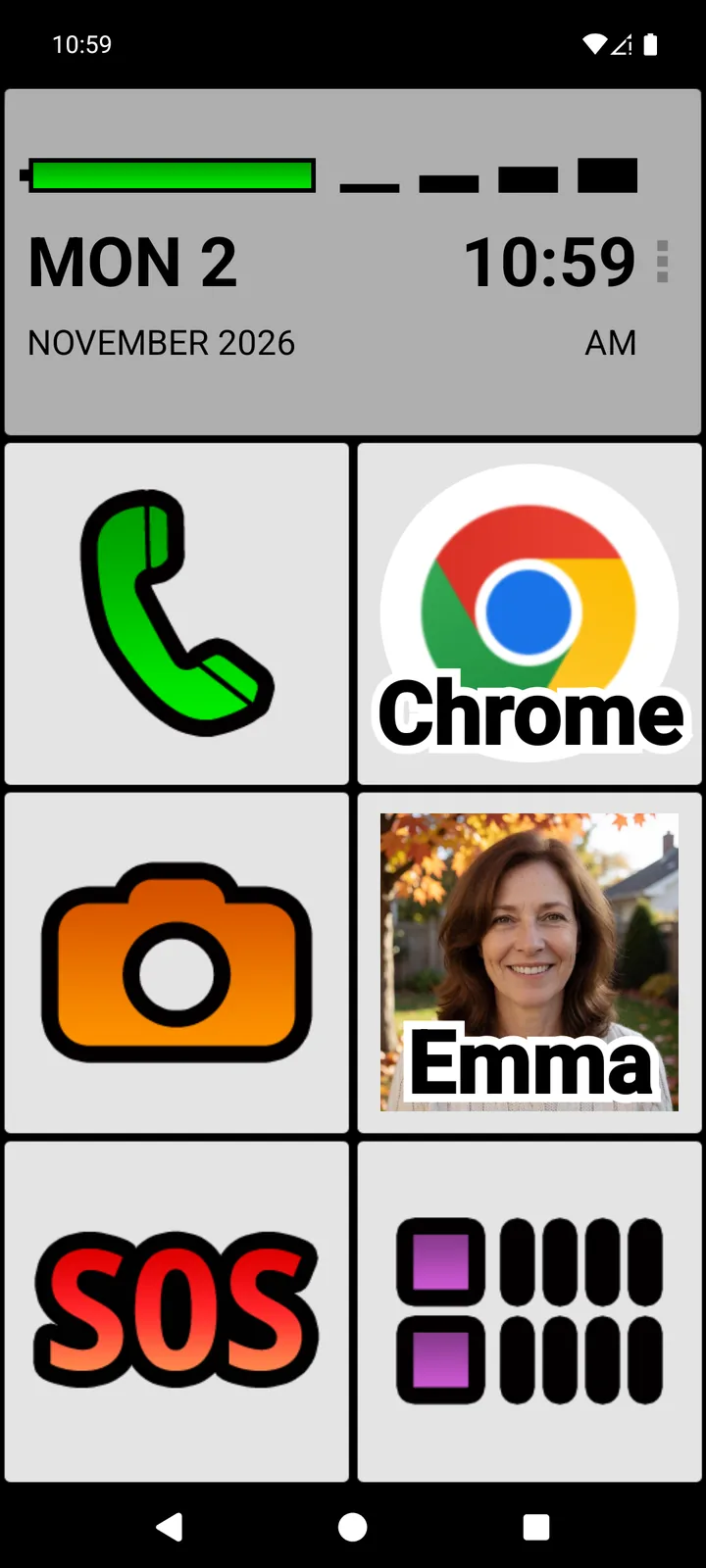
Names appear on the buttons that have one; the phone, camera, SOS and app-list buttons are recognized by their pictures. To give a button a name, open Set buttons, tap the button and choose Set label. In the free version, this works for the buttons in the right column. Our guide to bigger icons walks through setting up a button step by step.
Try a home screen that is easier to read
Keep your Android phone and try BIG Launcher free, with no time limit. Large buttons and the size setting for button names are in the free version.
Larger text in BIG Launcher’s menus and lists
BIG Launcher also has its own text size for its menus, lists and settings. Open the three dots → Preferences → Appearance → Text size and choose Default, Bigger or Biggest.
Compare the foreground button menu in these two captures from our test phone. Both images use the same scale.
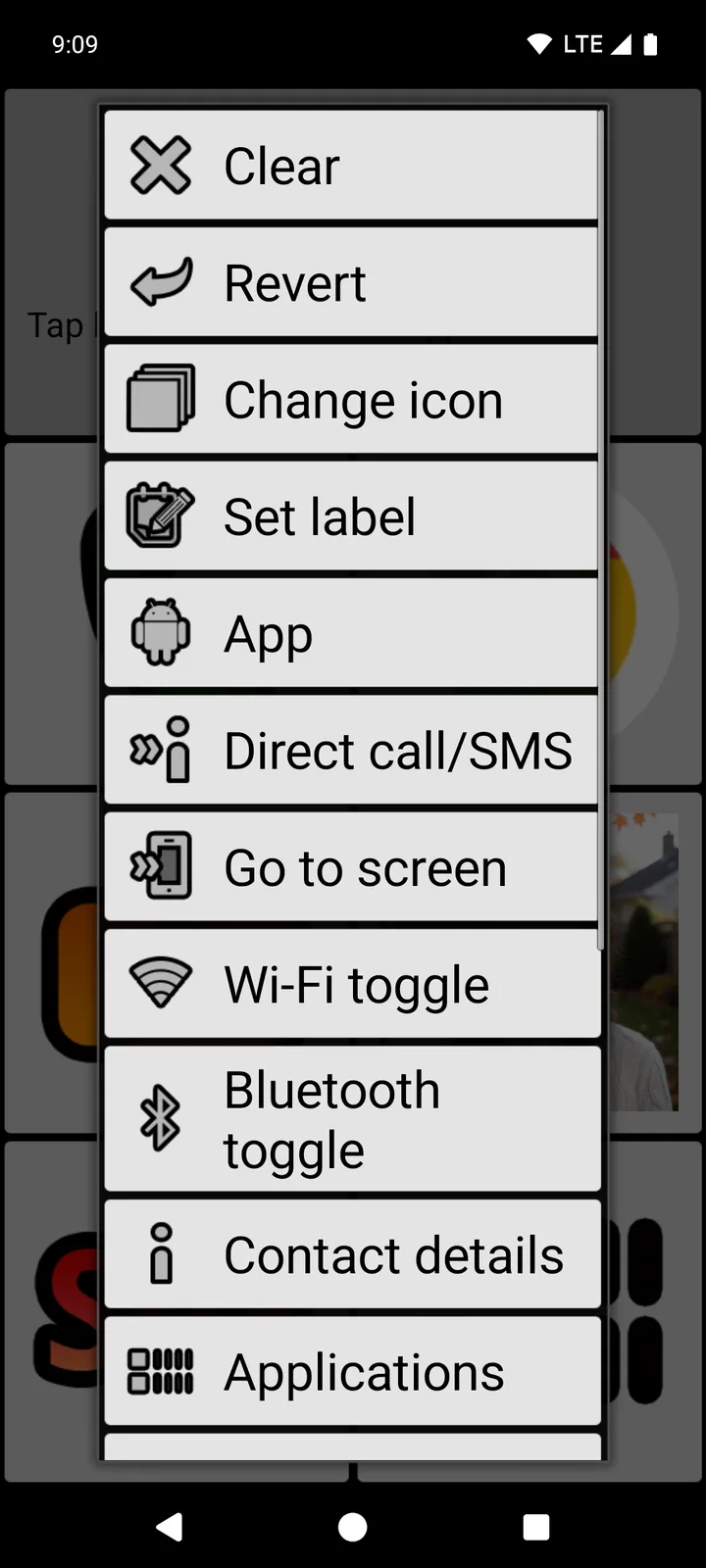
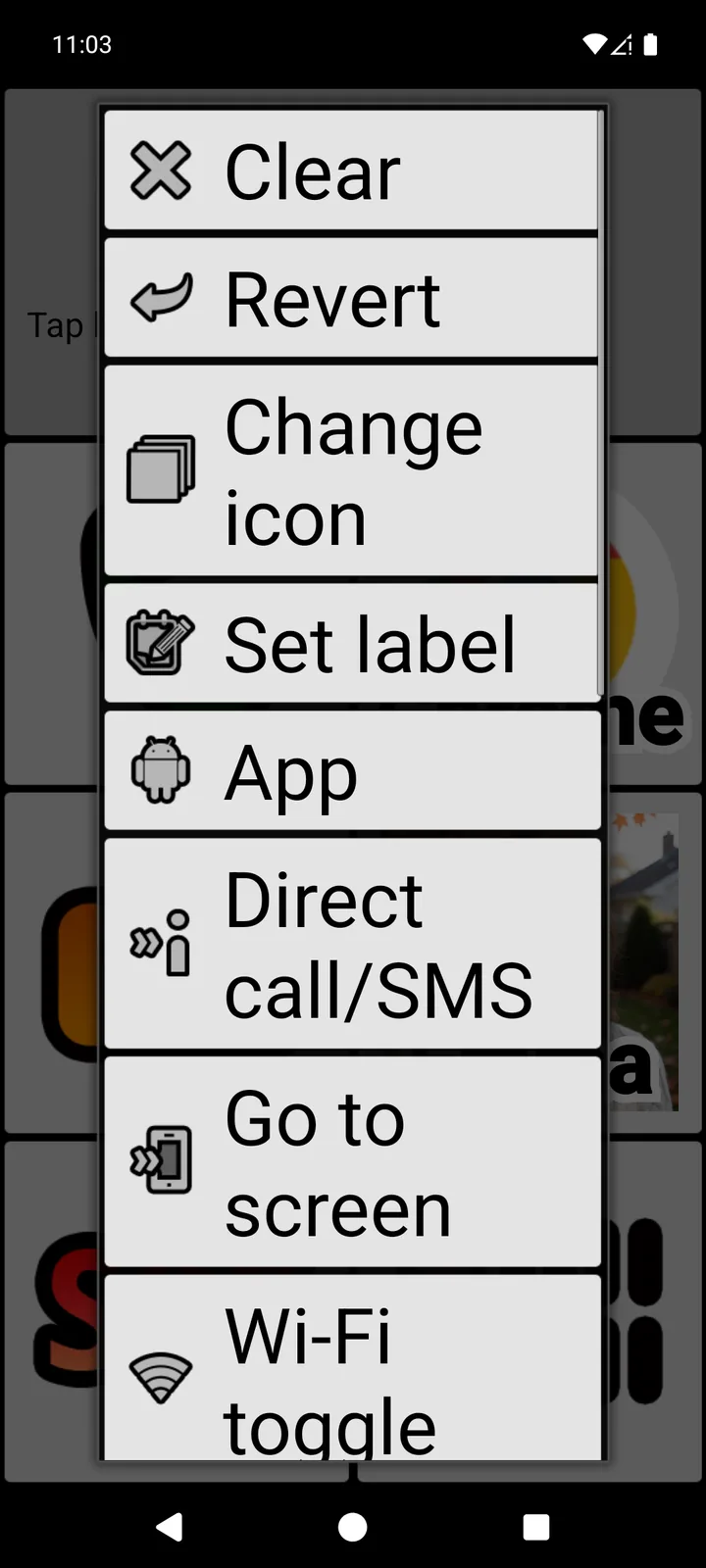
When we chose Bigger, the menus and settings lists got larger and longer items moved onto two lines. The home buttons don’t change with this setting: on our test phone they looked exactly the same at Default and at Biggest. Keep Biggest for very low vision: menus then show only a few items at a time, so you scroll more.
BIG SMS is a separate app with its own text-size setting. When you open BIG SMS from BIG Launcher, it takes BIG Launcher’s text size, so set the size there. Without BIG Launcher, set it in BIG SMS under Preferences → Appearance → Text size. For more messaging steps, see reading and replying to SMS with larger text.
See the difference in BIG SMS
Here is the same example conversation in BIG SMS at all three sizes. On our test phone, we used BIG SMS’s Preferences → Appearance → Text size setting and reopened the conversation each time. The sample messages and screen size are identical; only the text-size setting changes.
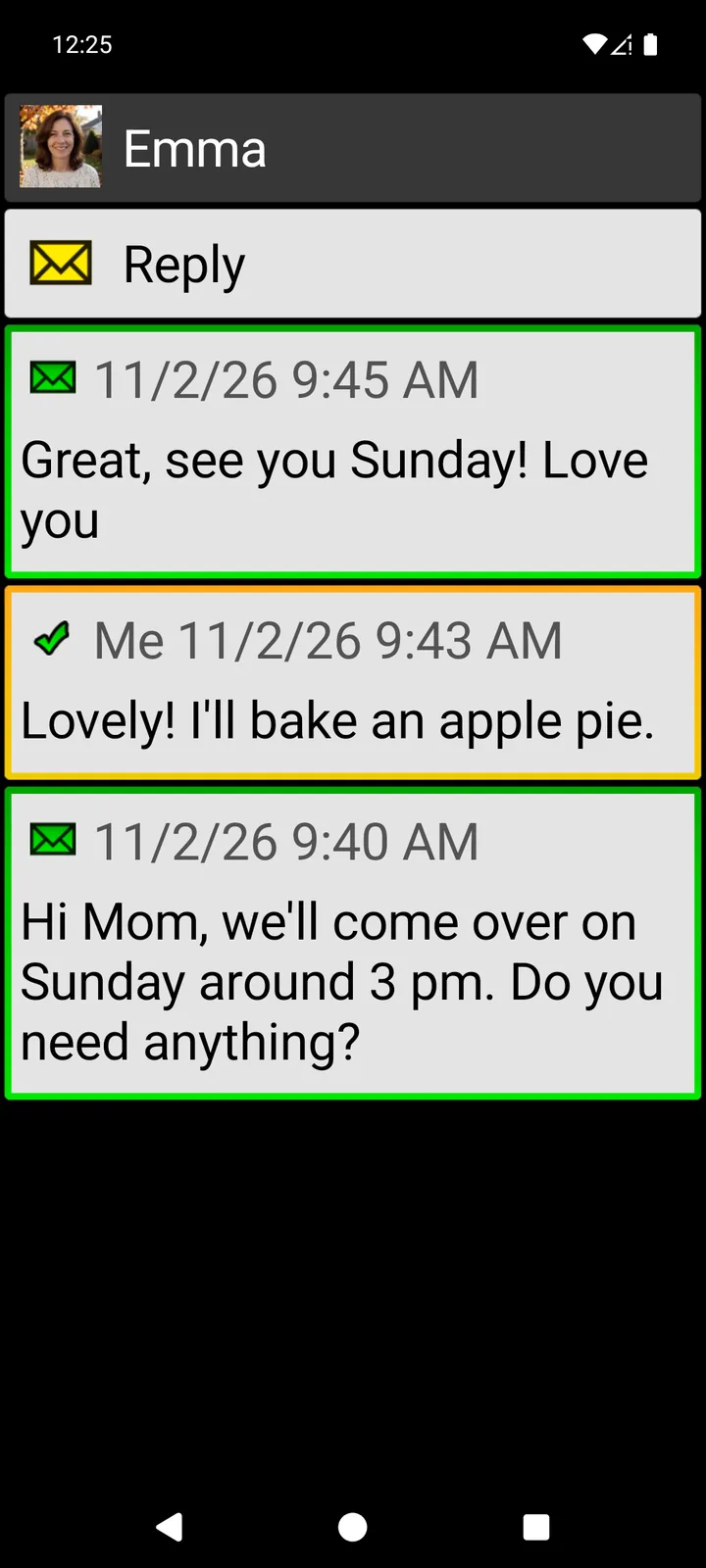
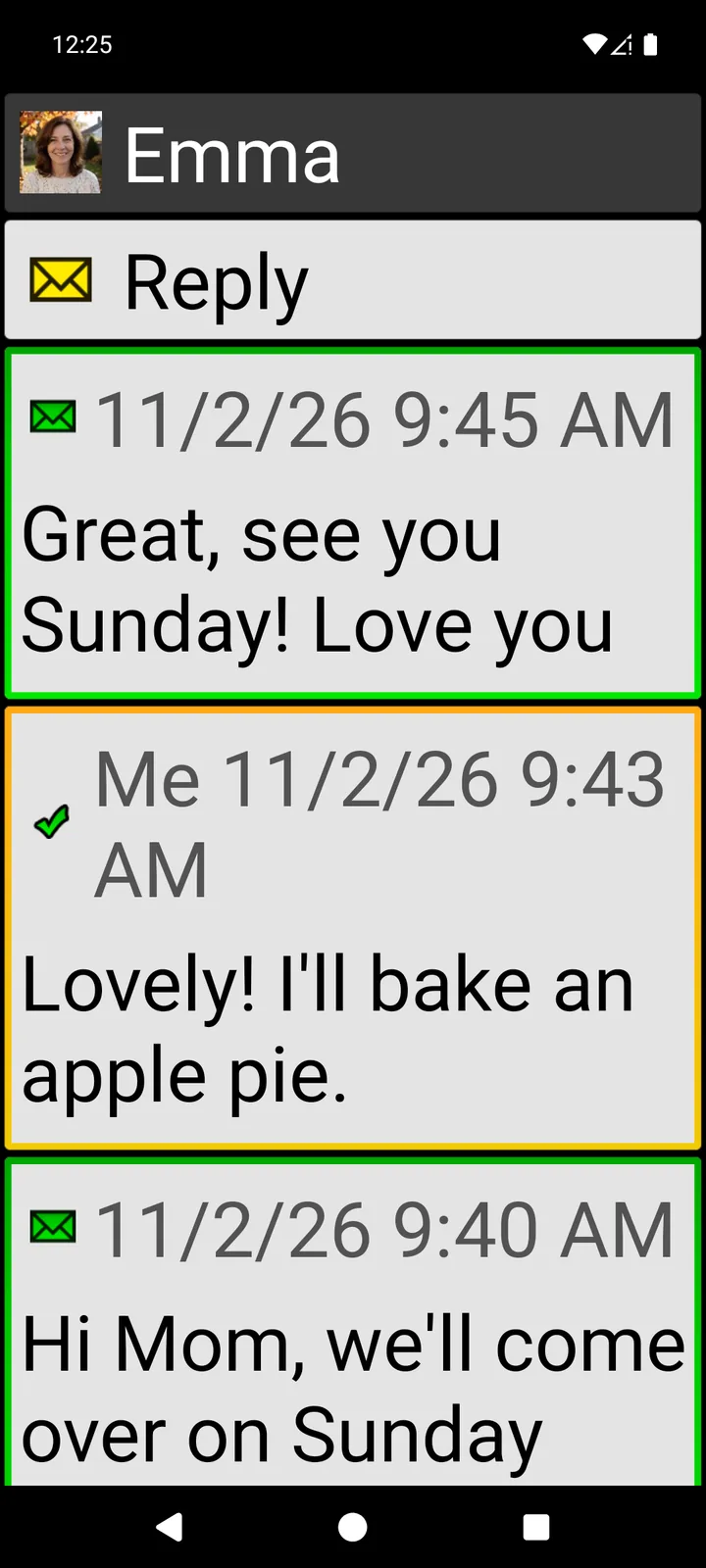
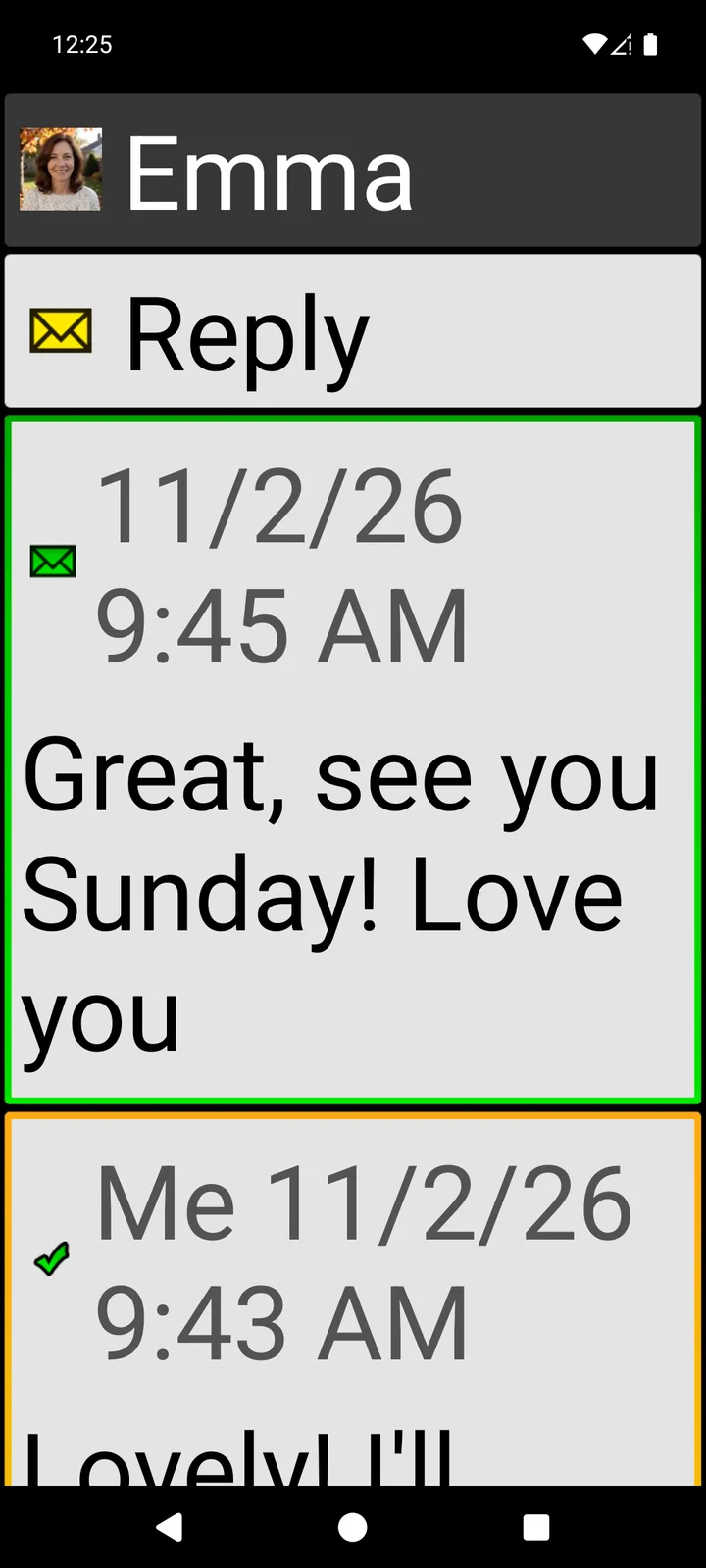
The conversation uses fictional messages and a fictional contact. Bigger letters are easier to see, but fewer words fit on each screen. Choose the size that feels comfortable, then scroll to read the rest.
BIG Launcher doesn’t change the text inside other apps. Text in WhatsApp, your browser or your email app depends on Android’s font size and on each app’s own settings, so set Android’s font size first.
Check that it’s easier to read
- Open a text message or email and read a few lines at your usual distance.
- Press Home and check that you can read the clock and the button names without effort.
- If some text no longer fits on the screen, go back one step on the slider.
If your eyesight makes most screens hard to use, our low-vision setup guide covers more options. BIG Launcher needs Android 6.0 or newer. The full version lets you customize every button and protect the settings with an optional password; see the free-version limits and upgrade options, from monthly plans to a lifetime license.
BIG Launcher: 4.3 ★ on Google Play, 8,000+ reviews, more than 2 million downloads, available in 70 languages.
Make your phone easier to read
Try BIG Launcher’s large, labeled buttons on the Android phone you already have.
Frequently asked questions
How do I make the text bigger on my Android phone?
Open Settings, search for Font size and move the slider to the right. You can also add a Font Size tile to Quick Settings, which goes up to 200%.
Why is the text still small in some apps?
Google notes that the font size setting doesn’t apply to some apps. Check that app’s own settings for a text size or zoom option.
Does BIG Launcher make text bigger in WhatsApp or Chrome?
No. BIG Launcher doesn’t change the text inside other apps. Use Android’s font size, plus the app’s own settings if it has a text size option. BIG Launcher makes its own home screen, button names, menus and lists easier to read.
Is BIG Launcher free?
Yes. The free version has no time limit and includes the large-button home screen. In the standard portrait layout you can customize the buttons in the right column; the full version lets you customize all buttons.
