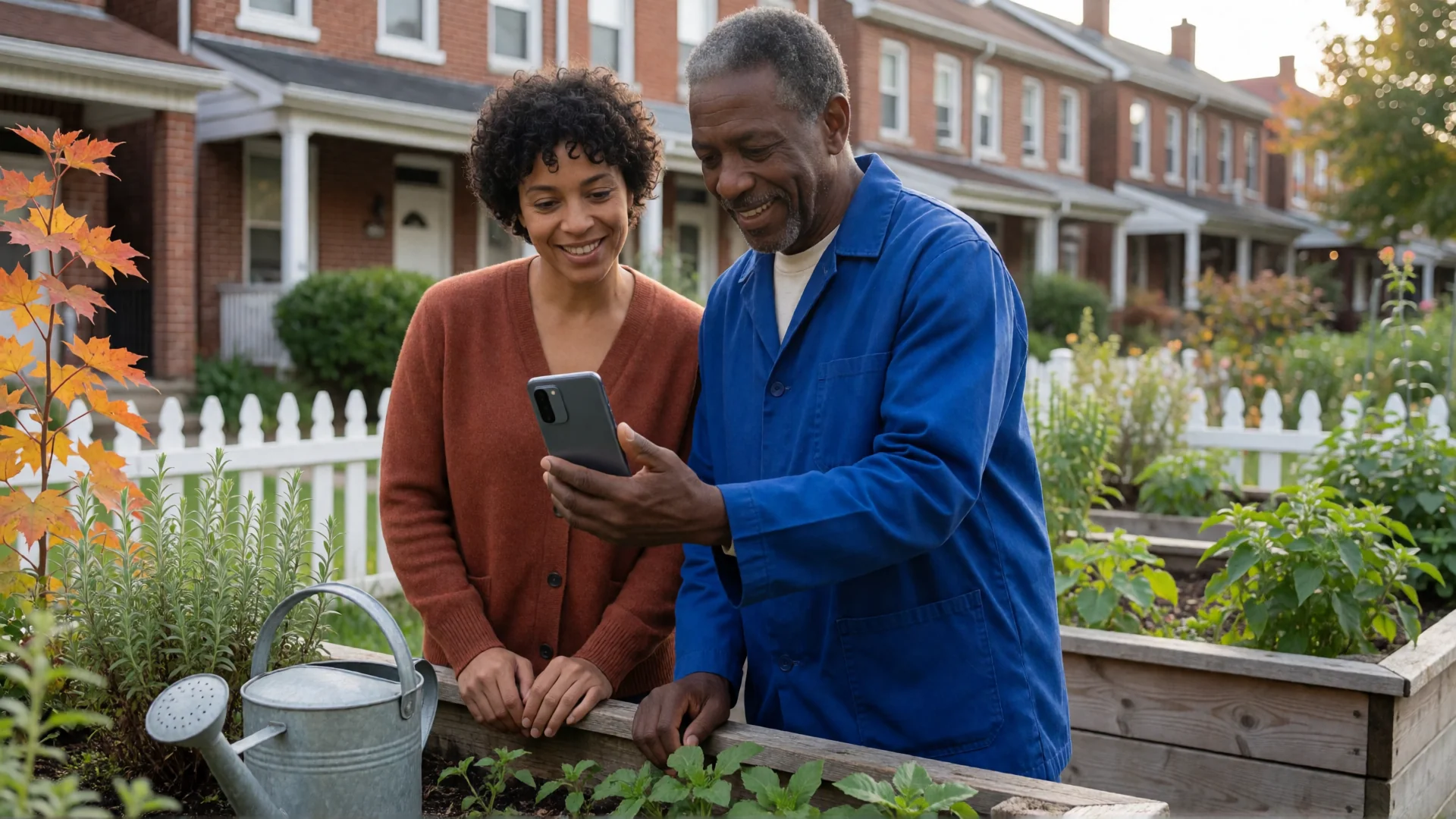
If you are wondering how to make icons bigger on Android, BIG Launcher gives you a home screen built around large buttons instead of small app icons. It replaces the home screen; it does not resize the controls inside every app. If you want to keep your current home screen and only change the overall scale, Android’s Display size setting is another option.
This guide is for you if the home screen on your own phone feels too small to see or tap comfortably.
First, decide what needs to be bigger
- The things you tap on the home screen: BIG Launcher gives calls, messages and apps large home-screen buttons.
- Text and other parts of Android: the phone’s display-size and font-size settings are separate controls.
- A screen inside an app: look for that app’s own text or display options. Changing your launcher does not redesign WhatsApp, your browser or your keyboard.
Start with the place that causes the problem. A larger home button helps you open an app; it does not make every screen in that app larger.
Replace small home-screen icons with large buttons
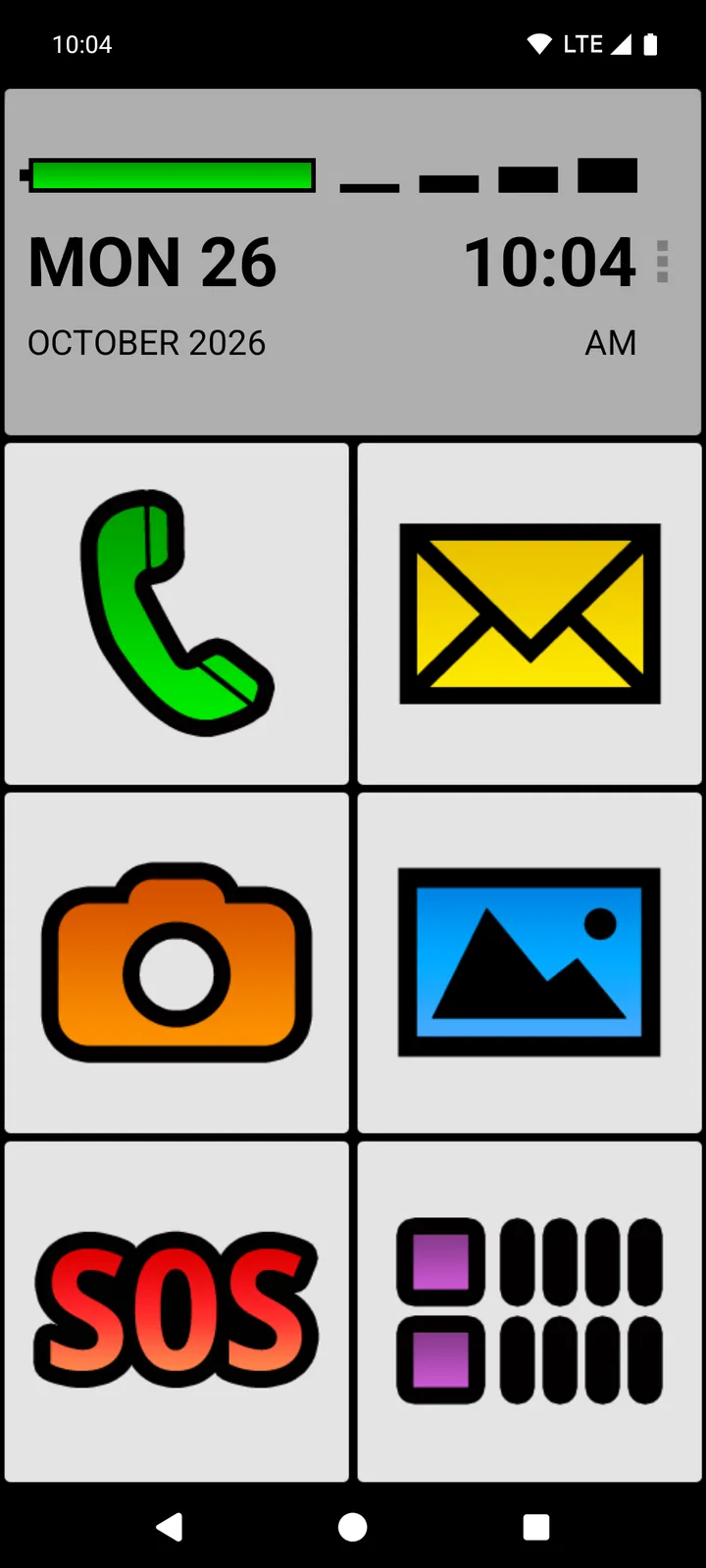
BIG Launcher is an Android home-screen app. Its standard portrait layout puts six large buttons beneath a prominent clock and battery indicator. The starting buttons are for the phone, messages, camera, photos, SOS and the app list.
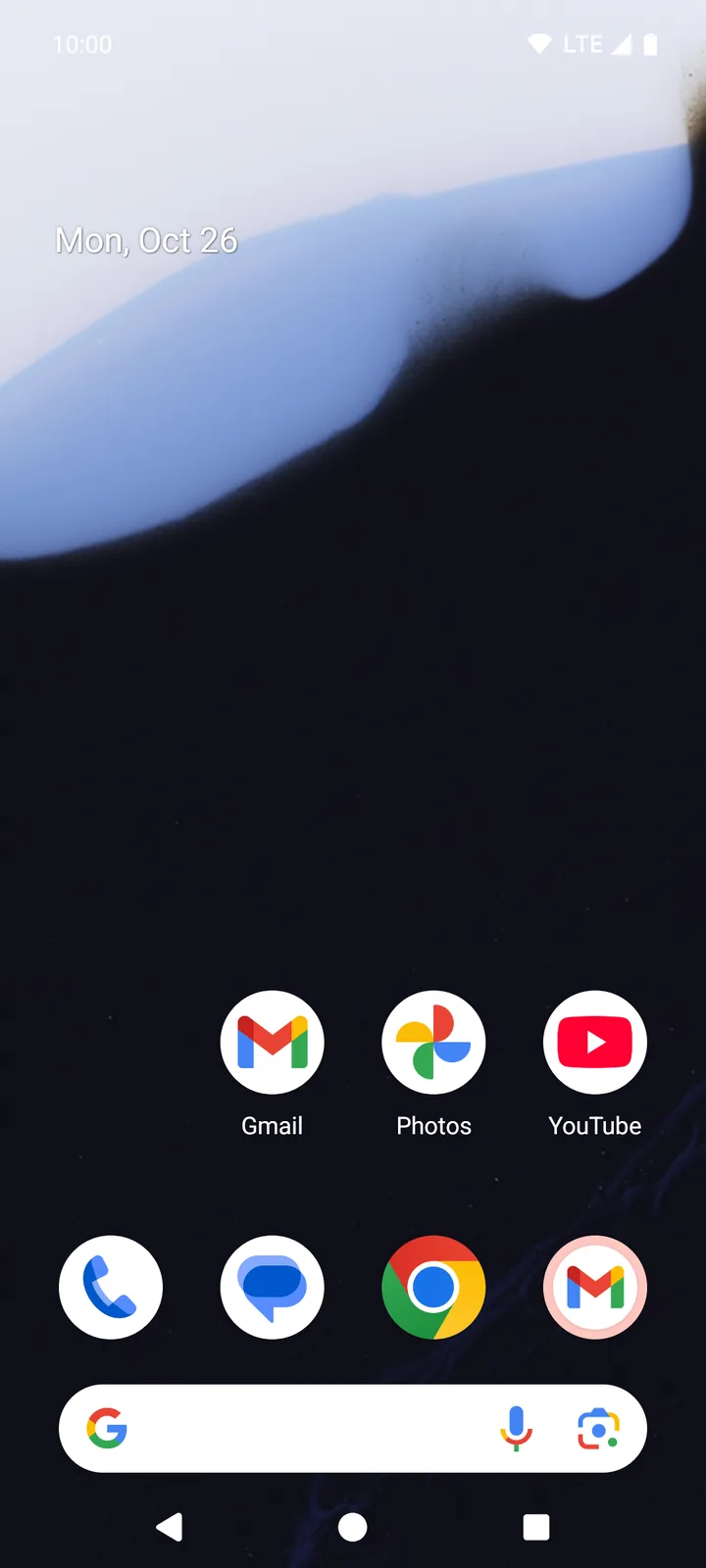
The buttons stay where you put them. Holding or dragging a normal BIG Launcher button does not move it or open an editing menu. Everyday use and configuration are kept separate, including in the free version.
Try a home screen with large buttons
Keep your existing Android phone and try BIG Launcher free, with no time limit. The large-button home screen is available in the free version.
Set BIG Launcher as your home screen
BIG Launcher needs Android 6.0 or newer. Install it from Google Play, open it and follow the setup wizard.
- Open your phone’s Settings.
- Go to Apps → Default apps → Home app.
- Select BIG Launcher, then press the Home button.
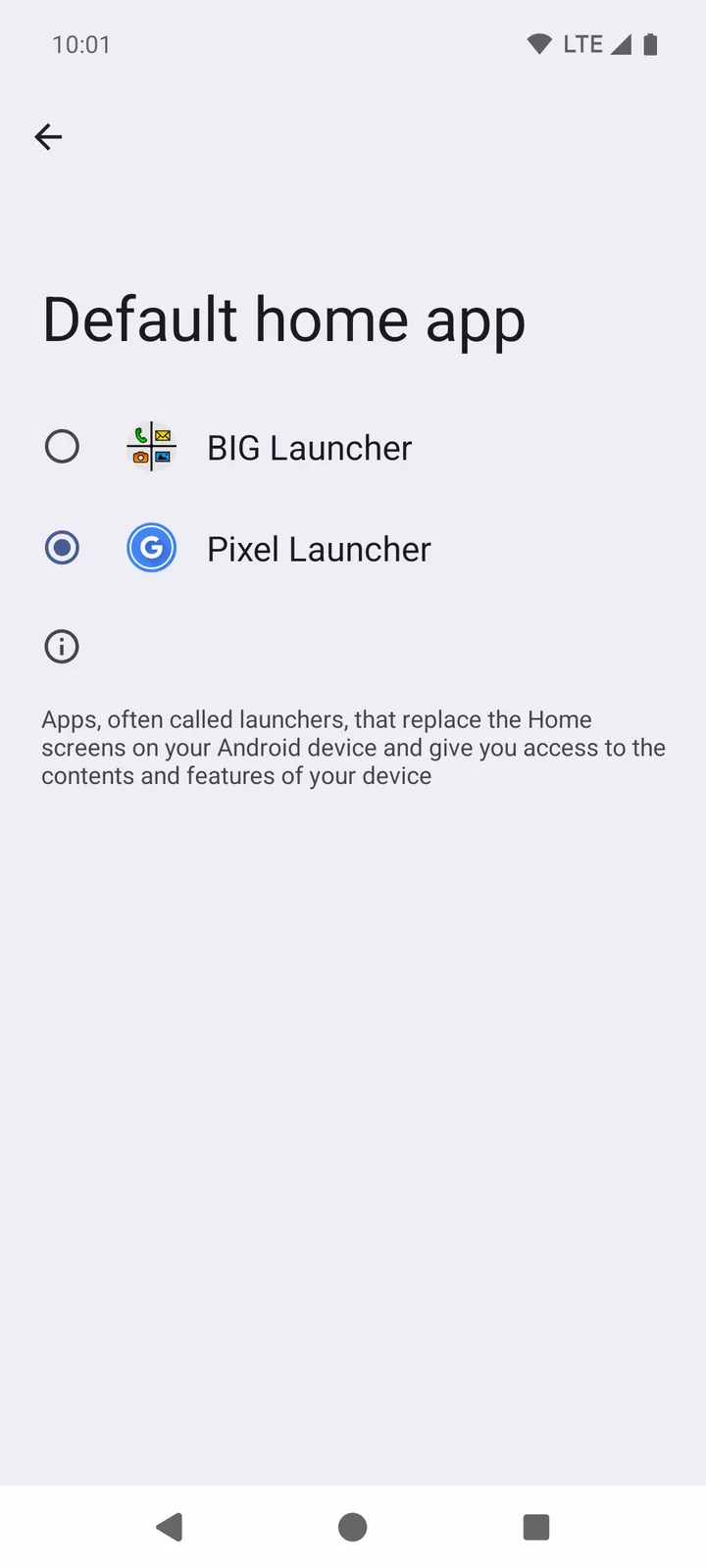
This is the Android settings path shown in our example. Labels differ between phones, and some phones show a home-app chooser when you press Home instead.
Put the apps you use on the big buttons
You choose what a customizable button opens. Start with one app you use every day rather than add everything at once. In our example, we put Chrome on the top-right button.
- On the BIG Launcher home screen, tap the three dots beside the clock and choose Set buttons.
- Tap the button you want to change. In the free version’s standard portrait layout, choose one in the right column.
- In the menu that opens, choose App.
- Tap the search field at the top, type the app’s name, for example Chrome, and select it in the list.
- Press Home to see the new button.
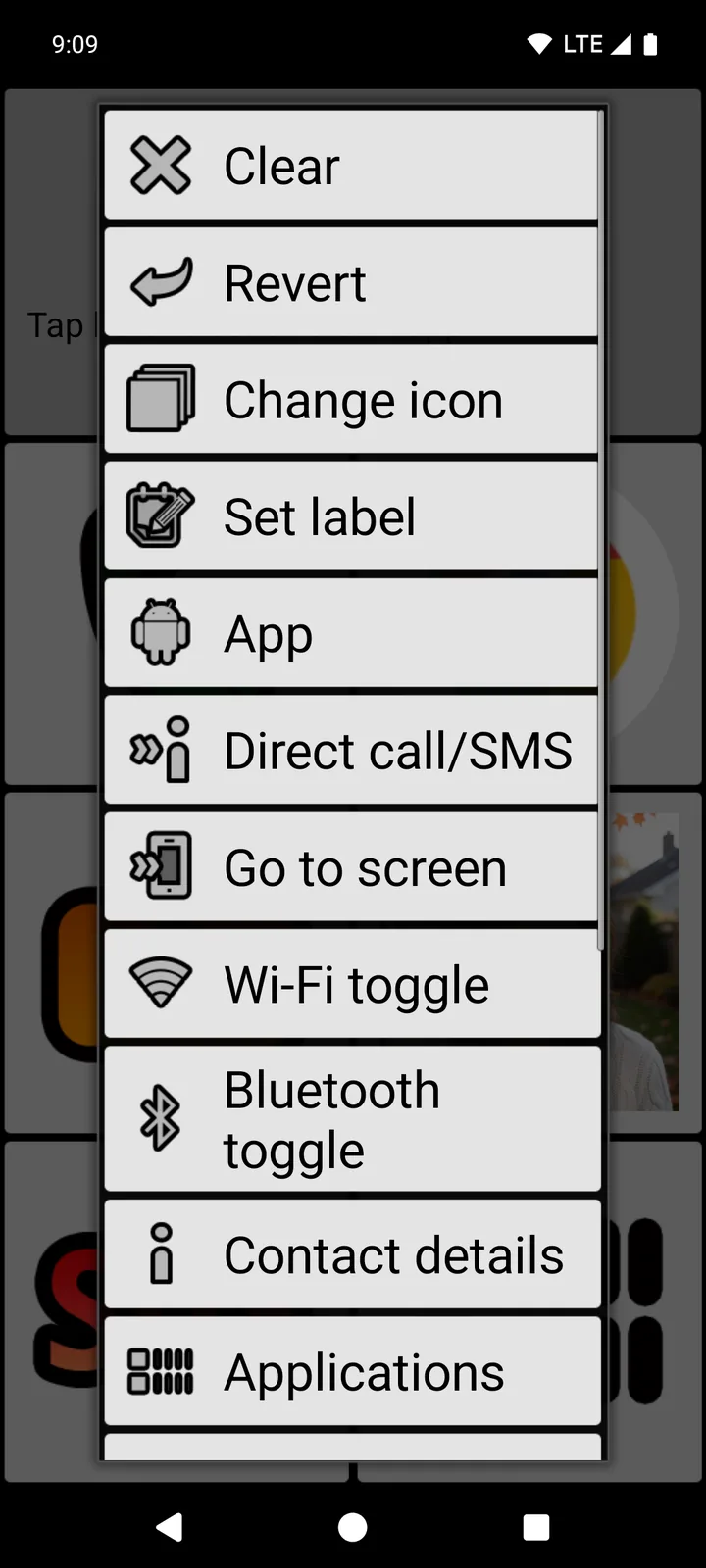
In our example, the button first showed the name “Chrome (app)”. To show a shorter name, open the same button menu again, choose Set label, type the name and tap OK.
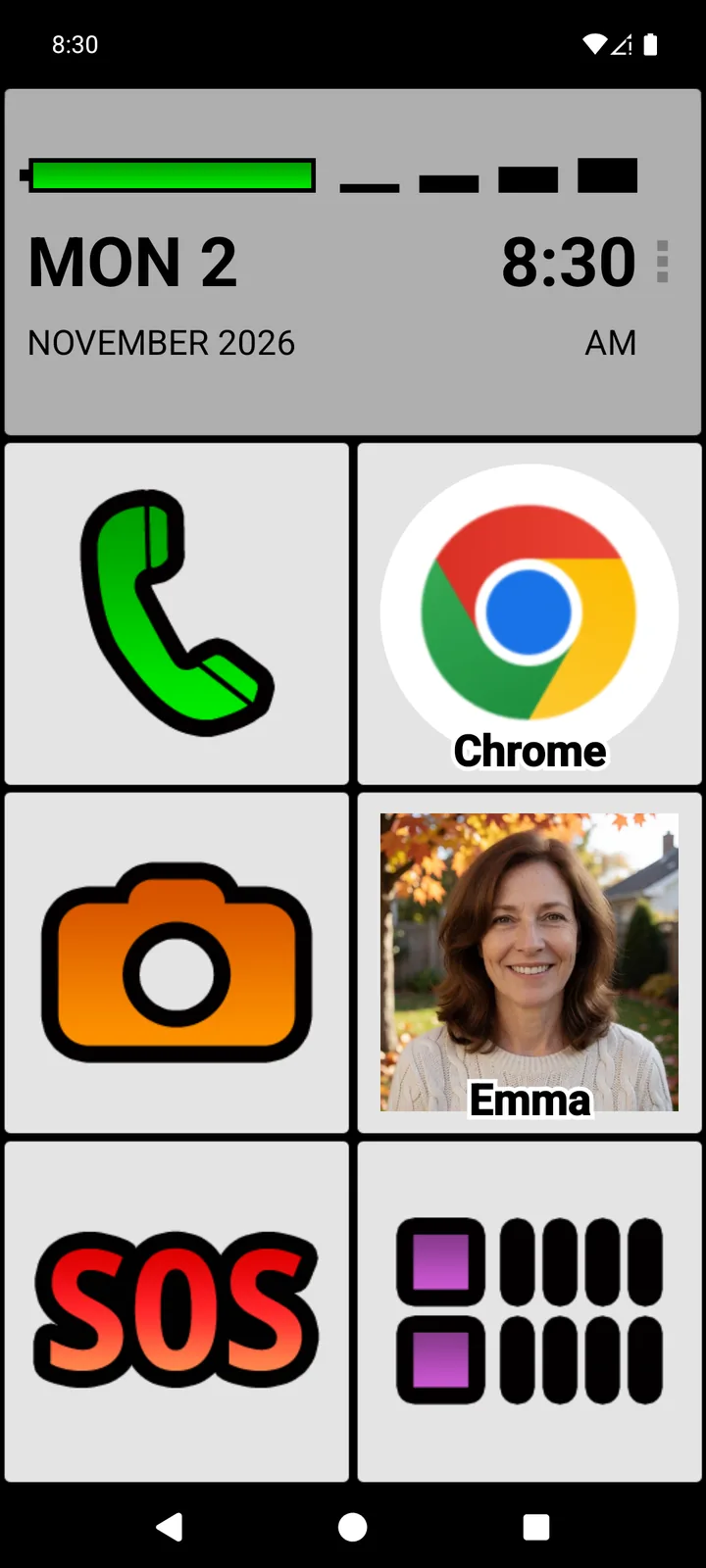
When we set this up, tapping the new Chrome button opened Chrome. Pressing Home brought back the same BIG Launcher screen, with Chrome still on the top-right button.
In the full version, you can customize all the buttons. The free version is not time-limited, so you can try the large-button home screen before deciding whether you need more customization.
If your first choice is WhatsApp, our WhatsApp guide also covers larger chat text and the first message. For a broader look at calls, text messages and notifications, see apps that make an Android phone easier to use.
If you only want to change Android’s display size
If you are happy with your current home screen, try the phone’s own scaling control first. Google’s instructions are to open Settings, search for Display size, then move the slider to your preferred size. Check the preview before returning to the home screen. The available controls depend on your phone and Android version.
Font size is a separate setting. Use it for text rather than assume it will solve a problem with small home-screen controls. Google also notes that its font-size setting does not apply to some apps. See Google’s text and display settings guide.
Display scaling changes the size of what Android shows. BIG Launcher takes a different approach: a home screen designed around large buttons, with setup kept separate from everyday tapping. Choose the approach that fixes the part of the phone you find difficult.
Check the result with one everyday task
- Press Home and check that the large-button screen appears.
- Tap the button you just set up and check that the right app opens.
- Press Home again and find the same button in the same place.
If the home screen is now comfortable but the app’s text is still small, adjust that app’s settings separately. You do not need to replace a working phone just to try a different home screen.
For more options, BIG Launcher’s full version adds customization of every button and protection of its settings, with an optional password. See the free-version limits and upgrade options, from monthly plans to a lifetime license.
BIG Launcher: 4.3 ★ on Google Play, 8,000+ reviews, more than 2 million downloads, available in 70 languages.
Make your home screen easier to see and tap
Try BIG Launcher’s large buttons on the Android phone you already have.
Frequently asked questions
Can I make home-screen icons bigger without buying another phone?
Yes. Try your phone’s display-size setting, or use BIG Launcher for a home screen with large buttons. BIG Launcher needs Android 6.0 or newer.
Does BIG Launcher make icons inside other apps bigger?
No. BIG Launcher replaces the home screen. Apps such as WhatsApp and your browser keep their own screens and controls.
Are BIG Launcher’s large buttons only in the paid version?
No. The free version includes the large-button home screen and has no time limit. In the standard portrait layout you can customize the buttons in the right column; the full version lets you customize all buttons.
How do I switch back to my previous home screen?
Open your phone’s Settings → Apps → Default apps → Home app and choose the previous home app. Names can vary by phone.
