Is there a simple smartphone for seniors? Yes. Dedicated senior phones exist, and for some people they are the right choice. But if your mom or dad already has an Android phone that works, the simplest smartphone for them is often the one they already own, set up with BIG Launcher.
BIG Launcher is an Android app that swaps the phone’s home screen for one with large buttons for calls, messages, the camera, photos, SOS, and apps. Apps like this are called launchers. Nothing has to move to a new device, and you can try it free.
A dedicated senior phone is still the better choice when your parent needs physical number keys, a flip-phone body, louder hardware, a charging cradle, or a professional emergency-response service. See when a senior phone is the better buy.
If none of that applies, ask one question before you replace a phone that still works:
Is the phone the problem, or is the Android interface the problem?
If the trouble is small icons, confusing menus, accidental taps, too many apps, or not being able to find calls and messages, BIG Launcher is usually the better first test. It keeps the existing Android phone and replaces the crowded home screen with a large-button, easier-to-read interface built for seniors.
Why try BIG Launcher first:
- It changes the part of Android your parent sees first: the home screen.
- It keeps the existing phone: contacts, photos, WhatsApp, accounts, and habits stay on the same device.
- It is Android-only and available in 70 languages.
- It has a free version with no time limit, so you can test it before deciding whether new hardware is really necessary.
- It has a public track record: a 4.3 ★ rating with 8,000+ reviews and more than 2 million downloads on Google Play, and a Google Play listing that names it a winner of the Vodafone Smart Accessibility Awards.
What makes a smartphone simple for seniors
Use this checklist for any phone you are considering for an elderly parent, whether that is a new senior phone or the Android they already have. Under each point, you can see how BIG Launcher handles it.
1. Large buttons and large text
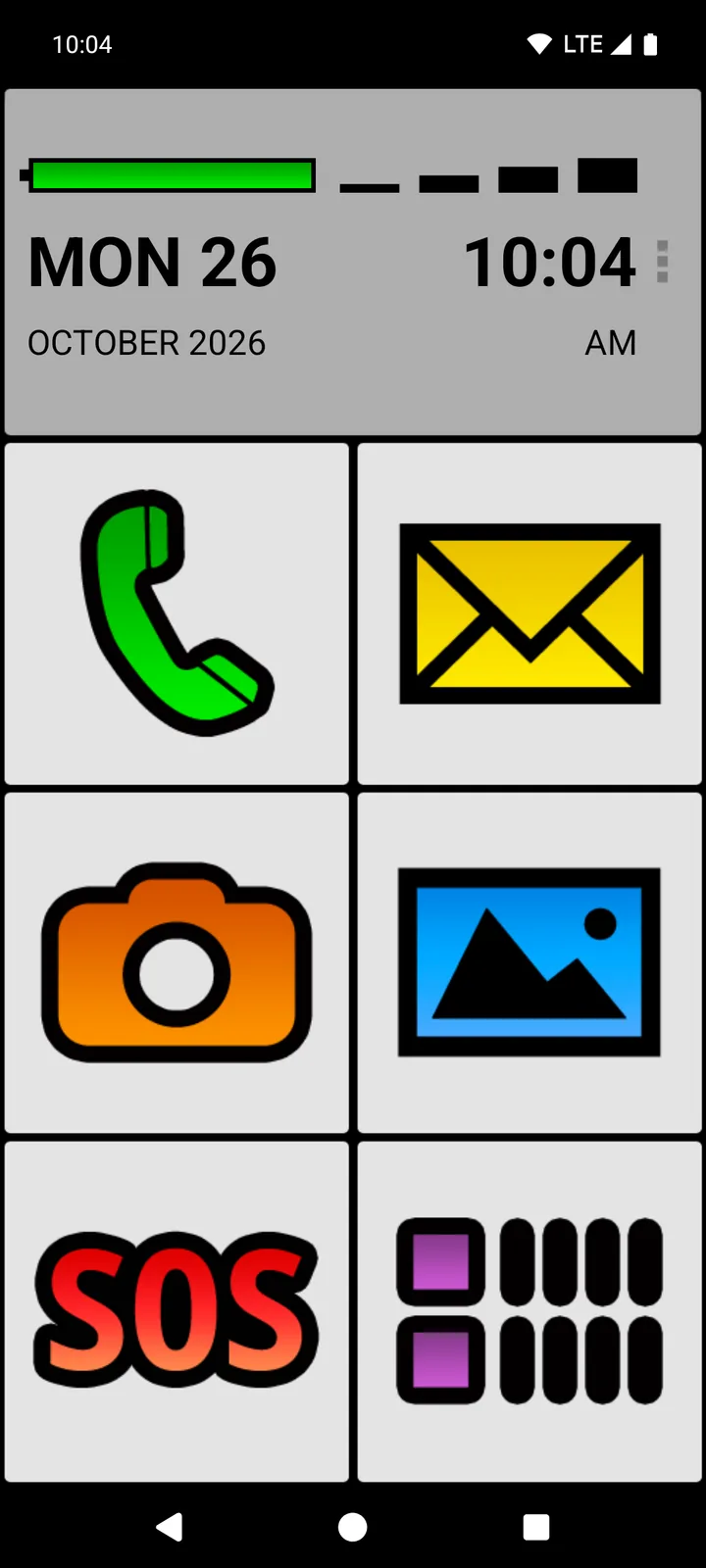
Your parent should see the everyday actions at a glance and tap them without hunting. BIG Launcher’s home screen starts with six large buttons for calls, messages, the camera, photos, SOS, and apps. You can also choose bigger text and high-contrast themes.
2. Calls and messages first
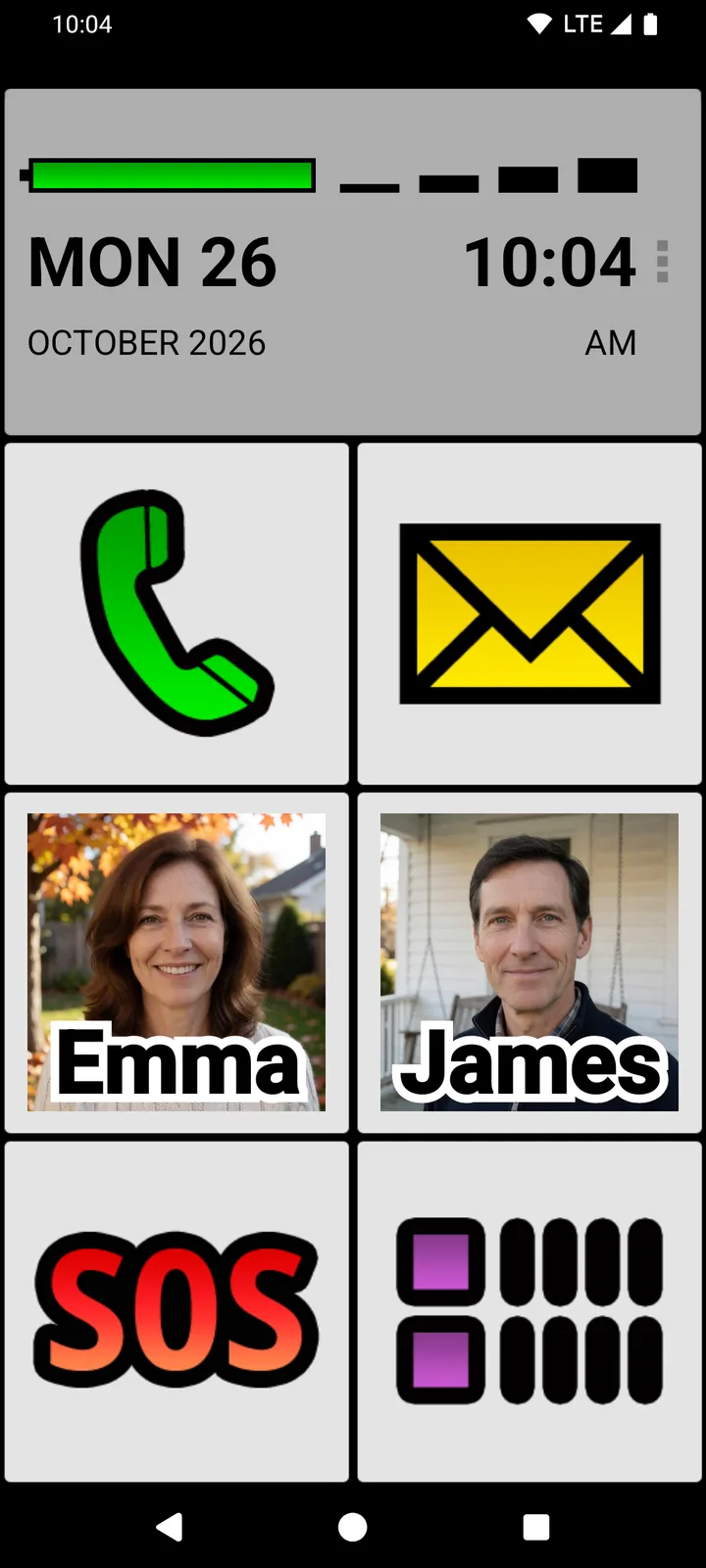
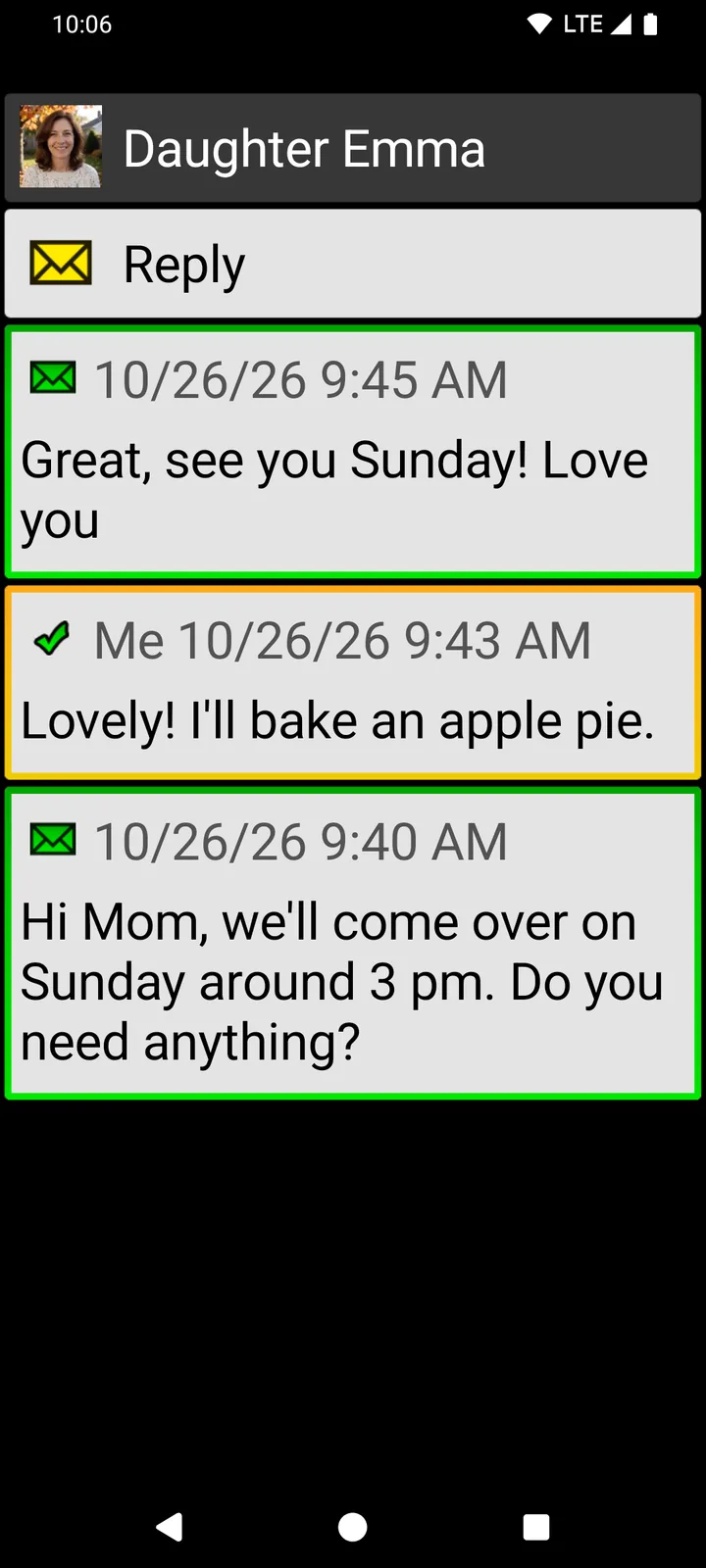
The people your parent calls most should be on the home screen, not buried in a contacts list. Tap the three dots (⋮), choose Set buttons, tap a button (in the free version, one in the right-hand column), and pick Direct call/SMS. That button then calls or texts one person and shows their photo if the contact has one. You can keep a short confirmation before each call, so a stray tap does not start one. If the family uses WhatsApp, a button can also open a chat with one chosen contact (see how).
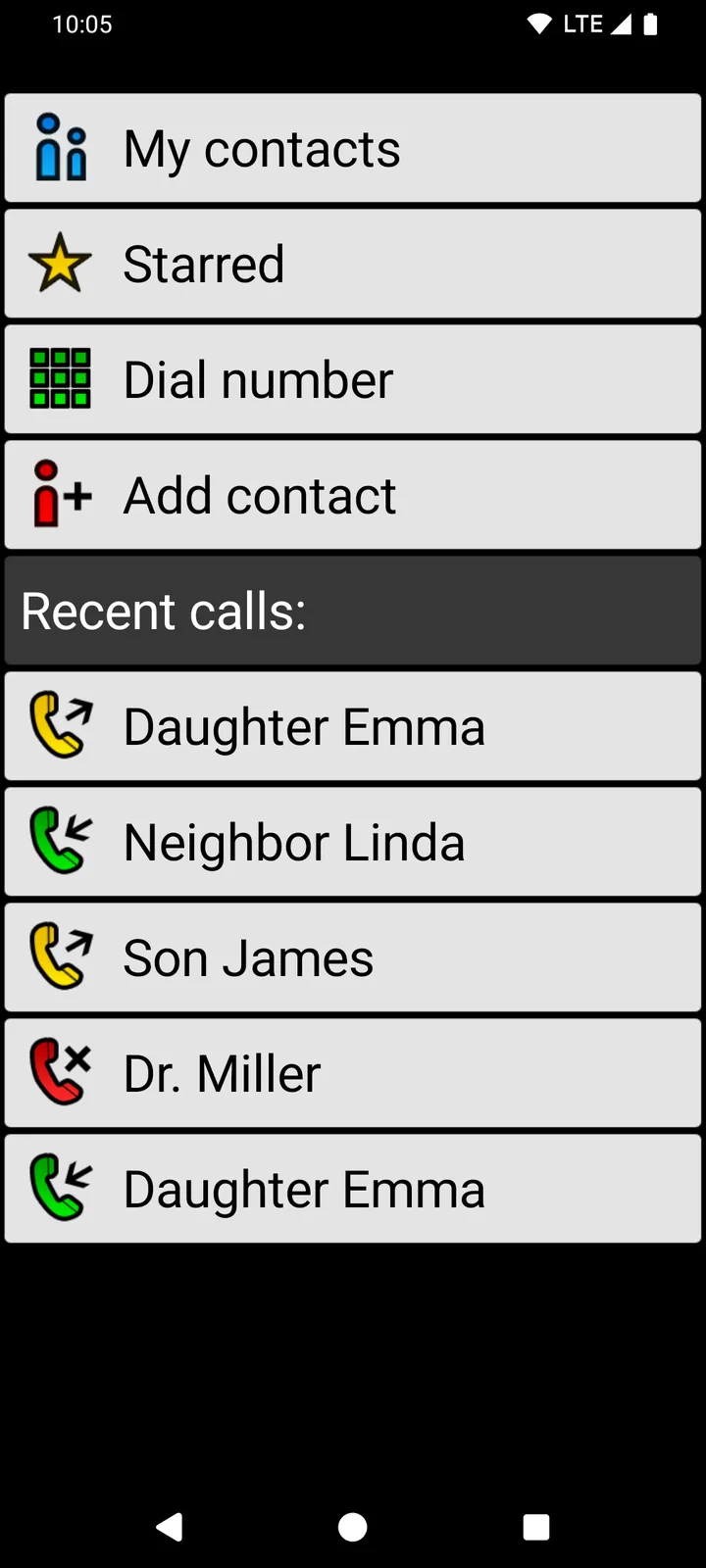
For calls and texts in large print, add the companion apps BIG Phone and BIG SMS. BIG Phone lists recent calls in large text with a quick way to call back. BIG SMS shows conversations in large text with a simple editor for replies. Both are separate apps on Google Play.
3. A home screen that does not change by accident
On a standard Android home screen, touching and holding an app lets you drag it somewhere else, and touching and holding an empty space brings up the home-screen options. In BIG Launcher, even in the free version, a long press on a normal button does not open a configuration menu, and pressing and dragging does not move a button or create a new screen. Changes happen only in the separate setup screens.
If your parent tends to hold the screen too long, you can also set any long press to count as a normal tap. Using a Samsung Galaxy? See how Samsung Easy Mode compares and when BIG Launcher fits better.
4. Settings protected from changes (full version)
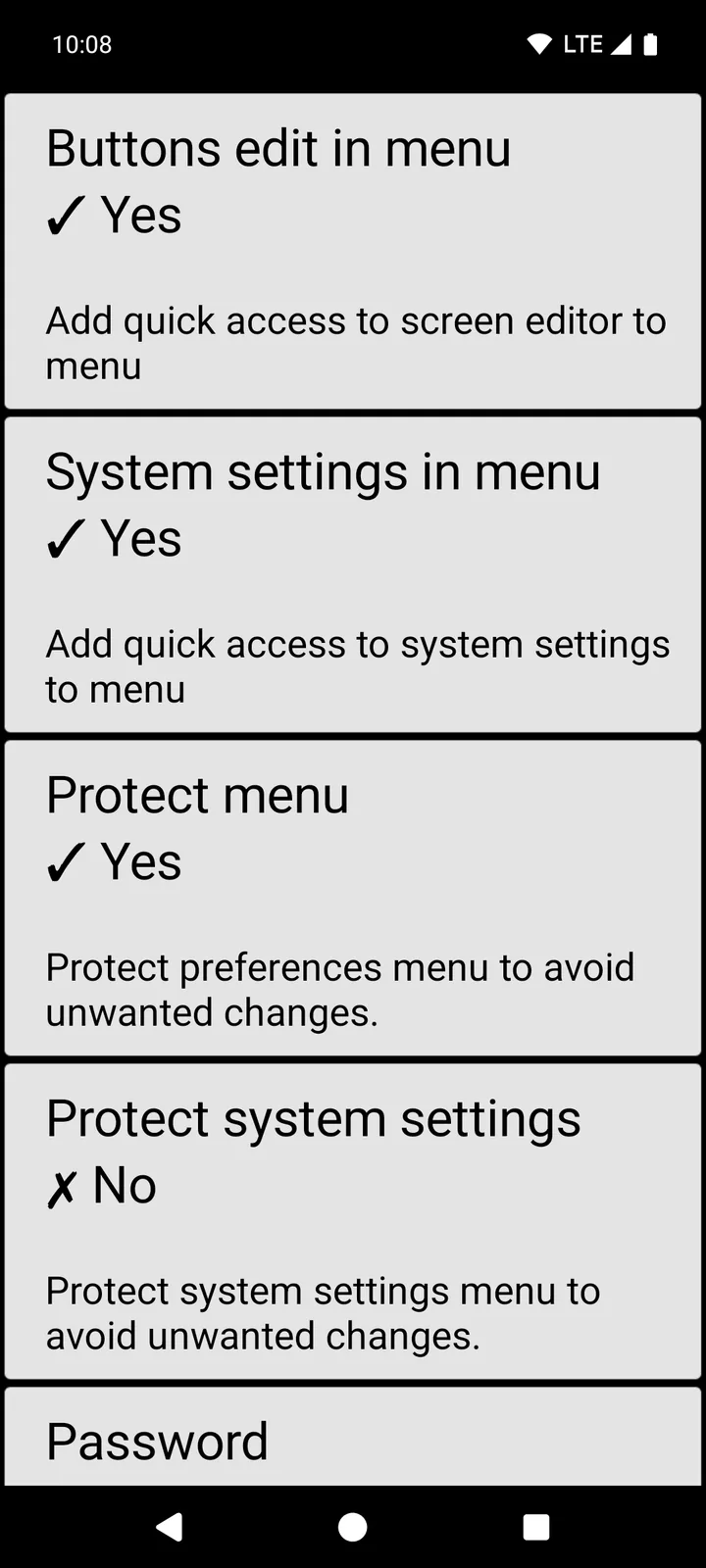
Whoever sets up the phone should be able to protect the setup. In the full version, tap the three dots (⋮), open Preferences → Preferences menu, and tap Protect menu so it shows Yes. From then on, Preferences and Set buttons first show a password prompt (Enter password:), and so does the emergency way into the settings (holding the top-left home-screen button for 30 seconds).
The prompt works in two ways. With no password set, tapping OK opens the settings; for some people, that extra step is enough to stop accidental changes. With a password (tap Password to set one), only people who know it can open the settings. Either way, the protection covers BIG Launcher’s own setup; in the full version, you can also turn on Protect system settings and hide the notification bar with Full screen, but this is still not a complete lock of Android. If you set a password, keep a record of it, because BIG Launcher has no password-recovery option. In the free version, tapping Protect menu only shows the message “Available in full version”.
5. Only the apps they need
Hide what your parent never uses. In Preferences → Applications, you can choose which apps to hide from the apps list. You can also take the apps-list button off the home screen and leave only the buttons you set up. Hidden apps stay installed; they just do not appear in BIG Launcher’s list. Step by step: show only the apps you need on an Android home screen.
6. A battery level you can read at a glance
Your parent should not need to find a tiny icon to know whether the phone needs charging. BIG Launcher shows a very large battery indicator right on the home screen; you can see it across the top of the home-screen picture in point 1.
Try it on the phone your parent already has
Install BIG Launcher and set it up with your parent. The free version is not time-limited, so you can test the home screen together for as long as you need. The full version lets you change every button and protect the settings from changes.
Try BIG Launcher free on Google Play
For larger call and message screens, also install BIG Phone and BIG SMS. See plans and prices.
Should you buy a senior phone instead?
Not while the current phone still works and the interface is the real problem. If your parent can still use a touchscreen, start by making that phone easier to understand.
Before buying new hardware, check three things:
- Can your parent still hold, unlock, and tap the current Android phone?
- Are the screen, speaker, battery, and mobile connection good enough for daily use?
- Is the real problem finding calls, messages, the camera, photos, WhatsApp, or a few important apps?
If all three answers are yes, try BIG Launcher before you replace the phone.
Why BIG Launcher is a strong first choice
A senior phone solves the problem by changing the hardware. BIG Launcher changes what your parent sees and taps every day, on the phone they already use.
A new phone means moving contacts, photos, WhatsApp, banking and authenticator apps, passwords, and accounts, and then learning a new device. BIG Launcher lets the family test a simpler setup without moving anything to a new device. If WhatsApp is new to your parent, our WhatsApp for seniors guide covers setup, text size and first messages.
BIG Launcher is especially useful when:
- the Android phone still works, but the normal home screen is too busy;
- your parent can tap a touchscreen but cannot reliably find the right app;
- calls, messages, the camera, photos, or WhatsApp need to be obvious;
- a family member wants to set up the phone once and get fewer calls for help;
- the family wants to try software before buying new hardware.
Once it is set as the home app, BIG Launcher becomes the front door of the phone: each time your parent presses Home, they come back to the same simple screen with large buttons instead of the standard Android layout.
BIG Launcher is best when the phone works, but Android does not
BIG Launcher is not a senior phone. It is a senior-friendly Android launcher. It is the strongest first choice when the phone is physically usable but the standard Android interface causes daily confusion. It fits especially well when the family wants fewer support calls, fewer accidental taps, and a predictable home screen for calls, messages, the camera, photos, WhatsApp, and a few trusted apps. If you are still comparing options, see our best Android launcher for seniors comparison.
It is the wrong tool when the real need is hardware or a monitored service. If you are not sure whether the interface is the real problem, start with 5 signs your parent needs a simpler Android phone.
What BIG Launcher changes on the phone
BIG Launcher replaces the standard Android home screen with a simpler one. It does not try to show every possible feature; it makes the important actions hard to miss.
That is different from only making the text bigger. Bigger text is easier to read, but the home screen keeps the same crowded layout. BIG Launcher changes the layout itself: it shows only the apps your parent needs and puts calls and messages on large buttons.
Set it up around your parent’s routine, with family contacts and frequent actions where they are easy to find and distractions out of sight. For a hands-on walkthrough, use our guide to make any Android phone easier for elderly parents.
BIG Launcher also works with two companion apps, which you install separately from Google Play:
- BIG Phone for calls and contacts, with an enlarged call screen;
- BIG SMS for text messages in big text.
When a dedicated senior phone is still better
BIG Launcher is not hardware, and it is not an emergency-response service. A dedicated senior phone may be the better choice when the main need is physical or service-based:
- physical number keys or a flip-phone design;
- very loud speakers or hardware-level hearing-aid support;
- a charging cradle or a physical assistance button;
- a service plan with live operators, family monitoring, or emergency response;
- a parent who no longer wants a smartphone at all.
In those cases, a dedicated senior phone or service is the right call. Buy new hardware for a hardware problem, not for a software one.
Simple decision table
| Need | Best first step | Why |
|---|---|---|
| The Android phone works, but the interface is confusing | Try BIG Launcher | It replaces the daily home screen without moving to a new phone. |
| Physical keys, a flip phone, louder hardware, or a charging cradle | Compare dedicated senior phones | Those are hardware needs a launcher cannot create. |
| Professional emergency response, live operators, or caregiver monitoring | Compare dedicated services or medical alert options | BIG Launcher is not a monitored emergency-response service. |
A simple one-week test
You do not need a long technical project. Test the idea in one week:
- Back up important data. Make sure contacts, photos, and accounts are safe.
- Install BIG Launcher from Google Play. Use the official BIG Launcher listing. If calls and texts are the main problem, also install BIG Phone and BIG SMS; they are separate apps.
- Set BIG Launcher as the home app. Open Settings → Apps → Default apps → Home app and choose BIG Launcher; the change applies right away. The labels can differ from phone to phone, and on some phones pressing Home may instead show a list of home apps to choose from.
- Keep only essential buttons. Start with calls, messages, the camera, the gallery, SOS, and the few apps your parent really uses. In the free version, you can change the right-hand column of buttons; the full version unlocks all of them.
- Add the right contacts. Put family members and frequent numbers on Direct call/SMS buttons where they are easy to find.
- Test it with your parent. Watch them call, read a message, open the camera, return home, and recover from a mistake.
If the daily confusion drops, the existing phone may be enough. If it does not, you have learned exactly what a dedicated senior phone must solve. To go back to the old home screen, open Preferences → Clear BIG Launcher as default launcher and press Home. If no choice appears, pick the original launcher under Settings → Apps → Default apps → Home app.
Important safety note about SOS
BIG Launcher has an SOS button, but it is not a medical alert device, a dispatch service, or a professional monitoring service. Because of an Android restriction, SOS cannot use emergency numbers such as 911 or 112, so set it up with family or caregiver numbers instead. If emergency response is the main need, compare dedicated medical alert services.
FAQ
Is there a simple smartphone for seniors?
Yes. You can buy a dedicated senior phone, or you can make the Android phone your parent already owns simpler with BIG Launcher. It replaces the home screen with large buttons for calls, messages, the camera, photos, SOS, and apps. Buy a senior phone when your parent needs physical keys, a flip-phone body, louder hardware, a charging cradle, or a professional emergency-response service.
What is the easiest smartphone for seniors to use?
There is no single easiest model for everyone. Use the checklist above: large buttons and text, calls and messages first, a home screen that does not change by accident, settings that can be protected, only the apps your parent uses, and a battery level they can read at a glance. BIG Launcher covers these points on the Android phone your parent already has; some of them, including protected settings, need the full version.
What is the best alternative to buying a senior phone?
If the existing Android phone still works, the best first alternative is usually to simplify that phone with a senior-friendly launcher. BIG Launcher is built for this: large buttons, fewer distractions, and a home screen that is easier to understand.
Is BIG Launcher enough, or should I buy a senior phone?
BIG Launcher is enough to test first when the phone works physically and the problem is the interface. Compare dedicated senior phones when your parent needs physical keys, louder hardware, a charging cradle, or a monitored emergency-response service.
Can I make my parent’s existing Android phone work like a senior phone?
You can make it much easier to use, but not identical to dedicated hardware. BIG Launcher simplifies the home screen and everyday actions. It cannot add physical keys, louder hardware, a charging cradle, or a professional emergency-response service.
Is BIG Launcher free?
Yes. BIG Launcher has a free version that is not time-limited. In the free version, you can customize only the right-hand column of buttons and add up to 5 extra screens, password protection is not available, and an occasional upgrade reminder is shown. The full version removes these limits. You can buy BIG Launcher on its own or BIG Apps Suite PREMIUM, which unlocks BIG Launcher, BIG Phone, BIG SMS, and BIG Notifications. New BIG Apps Suite PREMIUM customers get a 7-day yearly trial. See the BIG Launcher plans; Google Play shows the final price.
Does BIG Launcher work on iPhone?
No. BIG Launcher is for Android phones and tablets.
Bottom line
Do not buy a senior phone just because Android feels confusing. If the phone still works, try BIG Launcher first. It is quicker to test, less disruptive, and aimed at the everyday tasks that go wrong: making calls, reading messages, opening the camera, finding important apps, and getting back to the home screen.
If the test works, you may not need a new device at all. If it does not, you will know the problem is hardware or service support, and you can choose a dedicated senior phone knowing what it has to solve.
Next step: try BIG Launcher free on Google Play, follow the step-by-step Android setup guide, or compare options in the senior launcher comparison.
