BIG Launcher puts calls, messages and the people you contact on large home-screen buttons. BIG Phone provides the calling and contact screens, and BIG SMS provides the text-message screens. Install the three apps on a compatible Android phone; there is no need to replace Android.
The setup below keeps Phone, Messages and a few contacts on the first screen. You can remove unused buttons or keep an Applications button with a filtered list of apps.
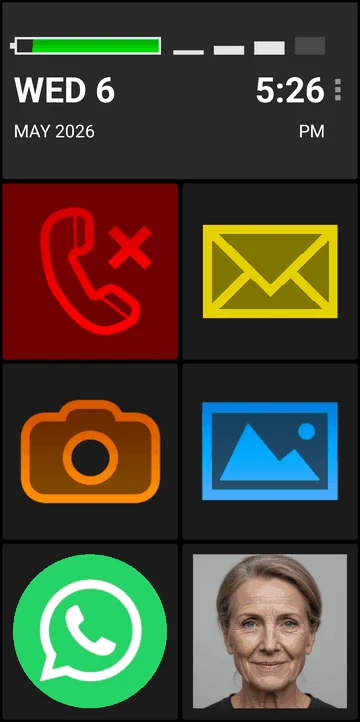
What the finished home screen will show
Start with these buttons:
- Phone: open your contacts, dial a number or return a recent call.
- Messages: read a text or write a reply.
- A few familiar people: open a chosen contact’s details without searching the full list.
Keep Camera, Photos or other app buttons if you use them. Otherwise, replace them with contacts or clear them.
Above the buttons, BIG Launcher shows a large clock and date, a battery indicator and a mobile signal-strength indicator.
1. Install BIG Launcher, BIG Phone and BIG SMS
Install BIG Launcher, BIG Phone and BIG SMS from Google Play. You can also start from BIG Launcher’s Phone and Messages buttons and follow their download prompts.
Open each app and follow its setup prompts. Allow BIG Phone access to calls, contacts and call history when requested.
2. Set the default apps for Home, calls and SMS
When Android asks, choose:
- BIG Launcher as the default Home screen or Launcher.
- BIG Phone for Seniors as the default Phone app or Calling app.
- BIG SMS for Seniors as the default SMS app or Messaging app.
If you did not get a prompt, find Default apps in Android’s system settings and select each app for its role. If you cannot find the setting, see the default-home guide or default Phone/SMS guide.
Press Home to check that you return to BIG Launcher. Setting BIG Launcher as the home app does not also make BIG Phone and BIG SMS the defaults; select all three roles.
3. Put contacts, calls and texts on the first screen
The free version of BIG Launcher lets you change only the right-column buttons. To replace or clear buttons elsewhere, you need the full version.
- On the BIG Launcher home screen, tap the three dots beside the clock and choose Set buttons.
- Keep the Phone and Messages buttons.
- Select another button, choose Contact details and pick a person you contact often. Give the button a clear name label. If the contact has a photo, it appears on the button. Opening the button shows their details so you can choose a number or send a message.
- Repeat for the people you want on the first screen. For an unused button, choose Clear. This leaves its position empty; it does not delete an app, contact or message.
- Return Home and tap each button to check that it opens the intended app or contact.
You can leave the Applications button in place and hide selected apps from its list. Open Preferences → Applications → Allowed applications and tap each app you want to hide. Keep useful apps visible and hide any that could cause problems if opened by mistake. This filters BIG Launcher’s app list; it does not uninstall the apps or block them elsewhere in Android.
To remove the Applications button from the home screen, open Set buttons, select that button and choose Clear. Its position will be left empty.
For help assigning individual buttons, see the button-customization guide. For additional apps, shortcuts or screens, see how to show only the apps you need.
4. Protect the layout from unwanted changes
Holding and dragging a normal BIG Launcher home-screen button does not move it or open layout editing. To change the buttons, you use the separate Set buttons option.
You can also protect button editing and Preferences with a password. In the full version, open Preferences → Preferences menu, enable Protect menu, then set Password. This protects BIG Launcher’s configuration; you can also turn on Protect system settings and hide the notification bar with Full screen, but this is still not a complete lock of Android.
5. Try calling and texting
Try these tasks on the phone. If you are preparing it for someone else, have them try it too.
- Make a call: open a familiar contact, choose the correct number, call them and end the call.
- Answer a call: ask someone to call while the screen is locked. Answer and end it. If the expected BIG Phone screen does not appear, follow the incoming-call setup guide.
- Reply to a text: open Messages, tap a conversation, tap a message, choose Reply, type a short answer and tap Send. BIG SMS uses your chosen Android keyboard; it does not enlarge that keyboard itself. If the keyboard covers Send, use the send-button placement fix.
- Return Home: check that you can find your contacts and read the clock, date, battery level and signal indicator.
BIG SMS can receive MMS text and attachments, but it cannot create a new MMS. Keep your usual photo-messaging app if you need to send photos.
What you can try free
All three apps have free versions:
- BIG Launcher: only right-column buttons can be changed, and password protection requires the full version.
- BIG Phone: the free version shows the five most recent call-log items. The keypad used during a call is a full-version feature; you need it to press numbers in automated phone menus.
- BIG SMS: the free version shows the five most recent conversations. After 20 sent SMS, a biglauncher.com link is added to subsequent outgoing messages.
Check the current price shown in the app or on the pricing page.
Try the setup on your Android phone
Start with BIG Launcher. For the calling and texting setup in this guide, install BIG Phone and BIG SMS as well.
