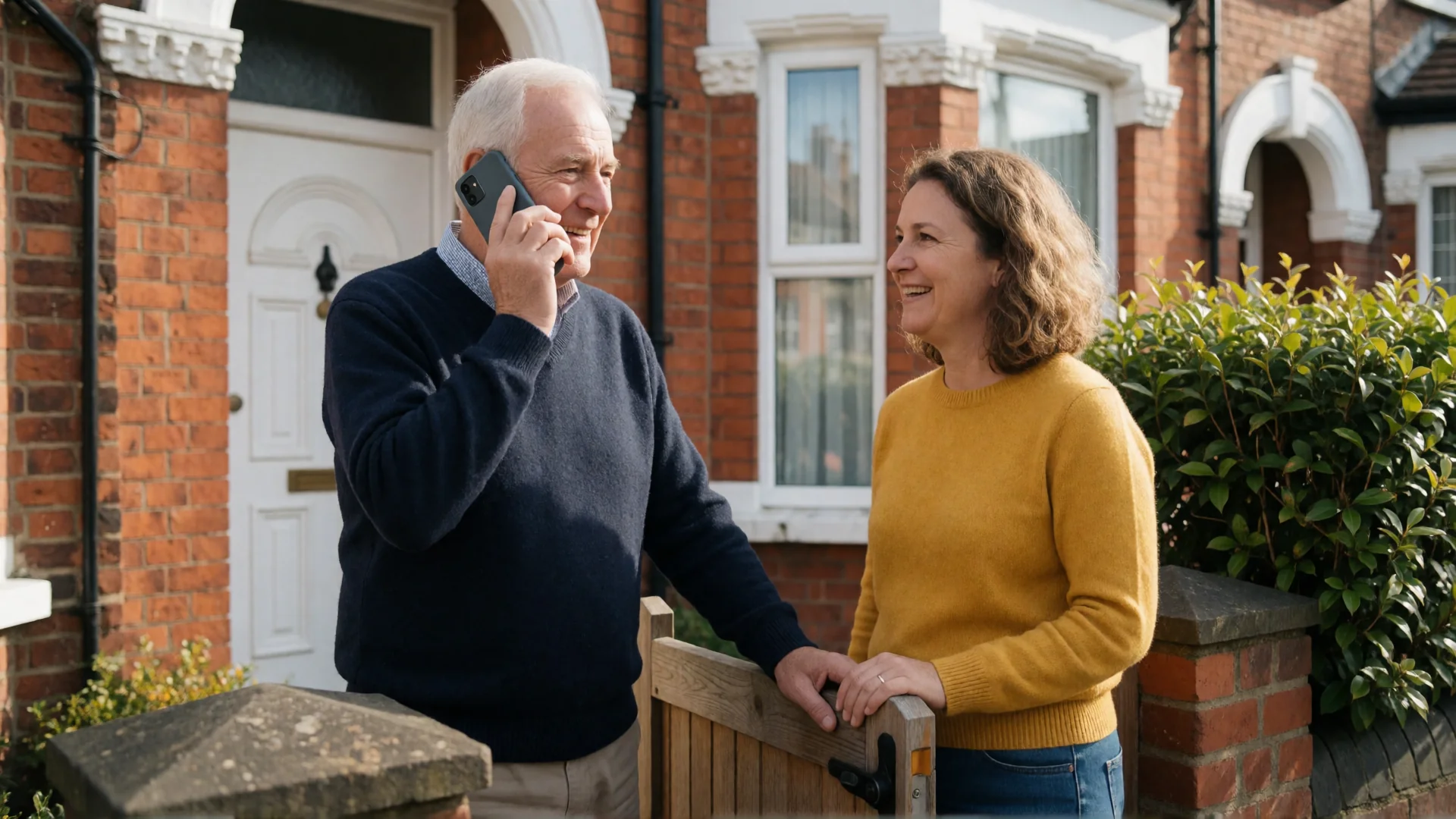
‘Mum, what can you see on the screen now?’
‘Well… there’s a little box. And something blue at the bottom.’
You’ve been on the phone for 20 minutes and still don’t know what Mum has in front of her. If you could see her screen, it would take a minute. This guide covers three ways to see your parents’ Android phone screen remotely, what each can do and which lets you help without worrying that a stranger could get in the same way.
In brief
- If you just need to see the screen: use screen sharing in a WhatsApp video call.
- If you also want to tap on your parents’ behalf: general-purpose tools such as TeamViewer QuickSupport can do that. But anyone your parent gives the code to can connect, which is why scammers use them too.
- If you want to see the screen, tap on your parents’ behalf and know that only family can connect: BIG Remote Help lets you do this, with the phones paired in person the first time using a QR code.
What a phone call can’t show you
You need three things: to see what your parents see, to show them where to tap and occasionally to do it for them. And a fourth that’s easy to overlook: they need to be able to start it all themselves, without you there to help.
1. WhatsApp: when you just need to look
During a WhatsApp video call, your parent opens the three-dot menu, chooses screen sharing and confirms the Android prompt. You can then see their screen, while you can still see each other below it.
- When it’s enough: your parents already use WhatsApp and you just need to read whatever has popped up on their phone.
- Its limits: you can only watch. You can’t point out where to tap or do anything for them. Your parent also has to find the right option themselves during the call, which is often the hardest step.
2. TeamViewer QuickSupport and similar tools: capable, but open to anyone
TeamViewer QuickSupport is a technical support tool. Your parent opens the app, gives their ID or enters a code and confirms the connection, allowing the person at the other end to see their screen and control the phone.
Technically, it works. The problem is who your parent gives the code to. Someone who calls pretending to be from a bank or the police wants exactly this: for your parent to install an app and read out a number. Action Fraud advises: ‘Do not allow remote access to your computer.’
When you teach your parents that reading out a code is a normal way to get help, you also teach them the very step this scam relies on.
3. BIG Remote Help: remote help just for family
BIG Remote Help is an app from the makers of BIG Launcher, which has had over 2 million downloads since 2011. It was made for one situation: a family helping an older person with their phone. It’s a video call where you can see your parent’s screen and, with their permission, tap on their behalf.
How it works
- Pair the phones for the first time during a visit. A QR code appears on Mum’s phone, and you scan it with yours. This first pairing cannot be done remotely, by design: a stranger cannot pair with her phone over a call.
- Mum calls you with one tap on the button with your photo. When you call her, her phone rings as it would for a normal call, even when it’s locked.
- You can see and hear each other. When she needs help, you ask to see her screen. She taps ‘Allow’, then ‘Start now’ in the next window. The app tells her what to expect beforehand.
- You can see her screen. Use a circle to show her where to tap, or tap on her behalf. Her touch always takes priority, and she can end the help session with one large button.
- Her banking stays private. When Mum opens a banking or payment app that BIG Remote Help recognises, screen sharing and control pause automatically.
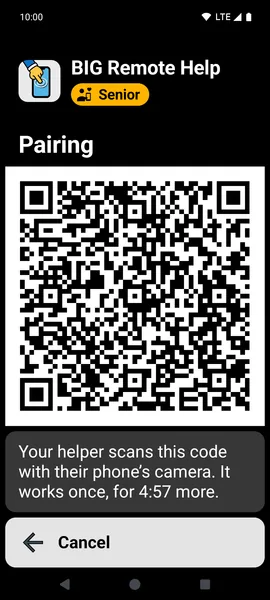
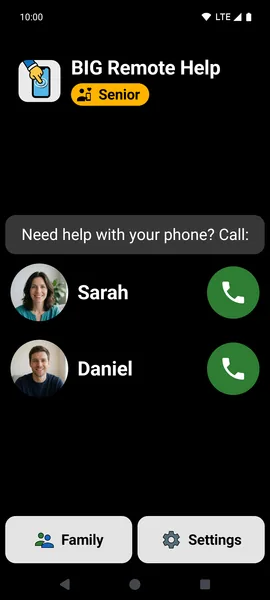
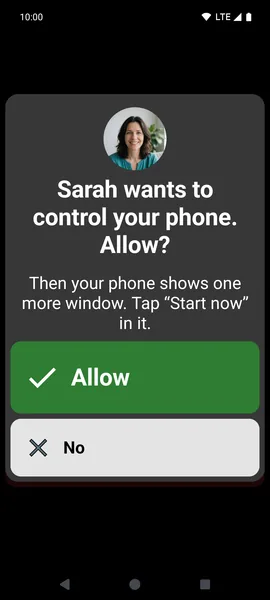
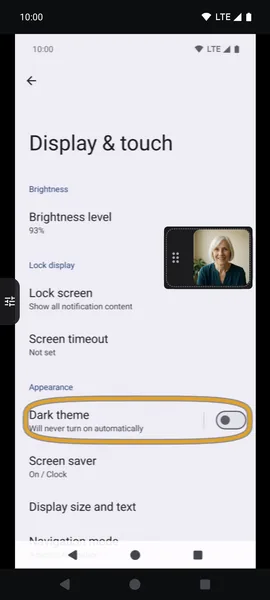
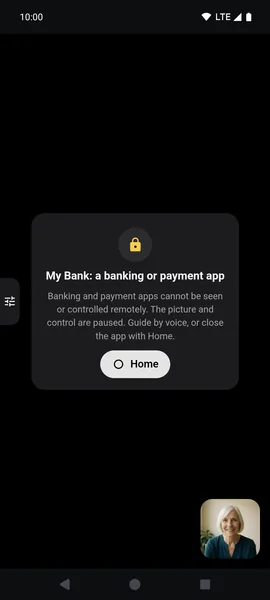
Calls and screen sharing are encrypted from device to device, and nothing is recorded. You can help from the Android app, a web browser on a computer or an iPhone. On an iPhone, you help through the browser with limitations; it works best between two Android phones.
What it costs
You get 15 minutes of calls per month for free, enough for quick advice. For the first 30 days, you can also control the phone; after that, you can still see the screen and point out where to tap. If you need more, there’s Premium in the BIG Apps Suite PREMIUM bundle (3 hours of calls per month, with control on every call), or a Gold subscription with unlimited calls.
At a glance
| TeamViewer QuickSupport | BIG Remote Help | ||
|---|---|---|---|
| See your parent’s screen | yes | yes | yes |
| Tap on their behalf | no | yes | yes, with their permission (free for the first 30 days) |
| See each other during the call | yes | no, there’s just text chat | yes, it’s a video call |
| Who can connect | anyone your parent is on a video call with | anyone your parent gives their ID or code to | family only: first pairing in person by QR code; Mum confirms further family members |
| What your parent needs to do | find screen sharing during the call and confirm the prompt | open the app, give their ID and confirm the connection | tap ‘Accept’, ‘Allow’ and ‘Start now’; the app guides her with large buttons |
When BIG Remote Help isn’t suitable
- Your parents have an iPhone. BIG Remote Help is for Android phones. Between iPhones, FaceTime offers screen sharing and, outside the EU, remote control too (iOS 18 or later).
- You want to fix the phone while it’s unattended. Android doesn’t allow anyone to do this: the person holding the phone must confirm screen sharing every time.
- You want to set it up remotely the first time. The first pairing must take place in person.
Your next visit: 3 minutes to save hours
- Install BIG Remote Help from Google Play on Mum’s phone and your own.
- Go through the guided setup together. It takes about 3 minutes.
- Scan the QR code on her phone.
- Try the first call while you’re still at the table. Let Mum tap ‘Allow’ herself and then end the help session herself.
One rule for your parents, whatever you use
Put it simply: ‘Don’t install anything or read anything out when someone on the phone tells you to. I’ll set up remote help for you in person when I visit.’ Action Fraud advises you not to allow remote access to your computer.
Sources and checks
- WhatsApp help: ‘How to share your screen’ (checked 12 November 2026).
- TeamViewer QuickSupport, app description on Google Play (checked 12 November 2026).
- Action Fraud (UK national reporting centre for fraud and cyber crime, run by the City of London Police): ‘Watch out for “Microsoft” scam calls to fix your computer’ (checked 12 November 2026).
- Apple Support: ‘Request or give remote control in a FaceTime call on iPhone’ (checked 12 November 2026).
Frequently asked questions
Can I control my parents’ phone without them knowing?
No. On Android, the person holding the phone must confirm screen sharing. In BIG Remote Help, Mum also gives permission for each help session separately and can end it with one button.
Can I help from an iPhone?
Yes, with limitations. The BIG Remote Help app is for Android, so on an iPhone you help through a web browser at remote.biglauncher.com. Your iPhone won’t ring on its own when your parents call, so you need to keep the page open. It works best between two Android phones.
Is BIG Remote Help free?
Yes, the free version includes 15 minutes of calls per month and has no adverts.
Do my parents need BIG Launcher?
No. BIG Remote Help works on its own.
Which phones does it work on?
The app works on Android 8.0 or newer. Your parents’ phone must always run Android.
Key points
- WhatsApp is enough if you just need to see the screen. To tap on your parents’ behalf, you need a remote help tool.
- With general-purpose tools, the code is what matters. Anyone who gets it can connect.
- BIG Remote Help pairs phones in person the first time, so only family can help.
