Samsung Easy Mode is a built-in setting on Samsung Galaxy phones and tablets. It makes icons, text and other on-screen items larger, gives the home screen a simpler layout and is turned on or off with a single switch in Settings. If you need more than bigger icons, such as buttons that stay where you put them and settings that don’t get changed by accident, BIG Launcher may suit you better. It’s a large-button home-screen app for Android that isn’t tied to one phone brand.
Quick answer: To turn on Samsung Easy Mode, open Settings, tap Display, tap Easy mode and tap the switch. To turn it off, tap the same switch again. Samsung notes that settings may vary with the software version and model of your phone, so your menus may look slightly different.
How to switch Samsung Easy Mode on or off
- Open Settings.
- Tap Display.
- Tap Easy mode.
- Tap the switch to turn Easy mode on. The screen changes to larger icons and text.
- To turn Easy mode off, go back to Settings → Display → Easy mode and tap the switch again.
These steps follow Samsung’s Galaxy user guide and its Easy Mode guide. If you can’t see Easy mode under Display, check the user guide for your model on Samsung’s support site.
What Easy Mode changes
According to Samsung’s support pages and user guides, Easy mode:
- makes icons, text and other on-screen items larger;
- gives the home screen a simpler layout;
- provides a high-contrast keyboard;
- helps prevent accidental touches, with a touch-and-hold delay you can adjust;
- adds a Contacts page to the home screen for quick calls, and a Magnifier for zooming in on text.
If small text and crowded icons are the only problem, that may be all you need. Easy mode is already on the phone, so it’s quick to try.
Where Easy Mode stops
Easy mode makes a Galaxy easier to read and tap. Before you rely on it, know its limits:
- It’s a Samsung feature. Samsung’s Easy mode is part of the software on Samsung Galaxy phones and tablets. Some other Android brands have their own simplified modes, with their own menus and features.
- It depends on the phone. Samsung says settings may vary with the software version and model, and its user guides describe Easy mode differently from one Android version to the next.
- A longer hold still counts. The touch-and-hold delay sets how long a touch must last before the phone treats it as a long press, for example to move an app icon or open its menu. Hold past that point and the icon can still move or the menu can still open.
- Locking the layout is a separate switch. Samsung’s Lock Home screen layout setting prevents home-screen items from being removed or repositioned. On the Galaxy we tested, this lock had no password, and with it on, touching and holding an app on the Apps screen still offered Uninstall.
When BIG Launcher suits you better
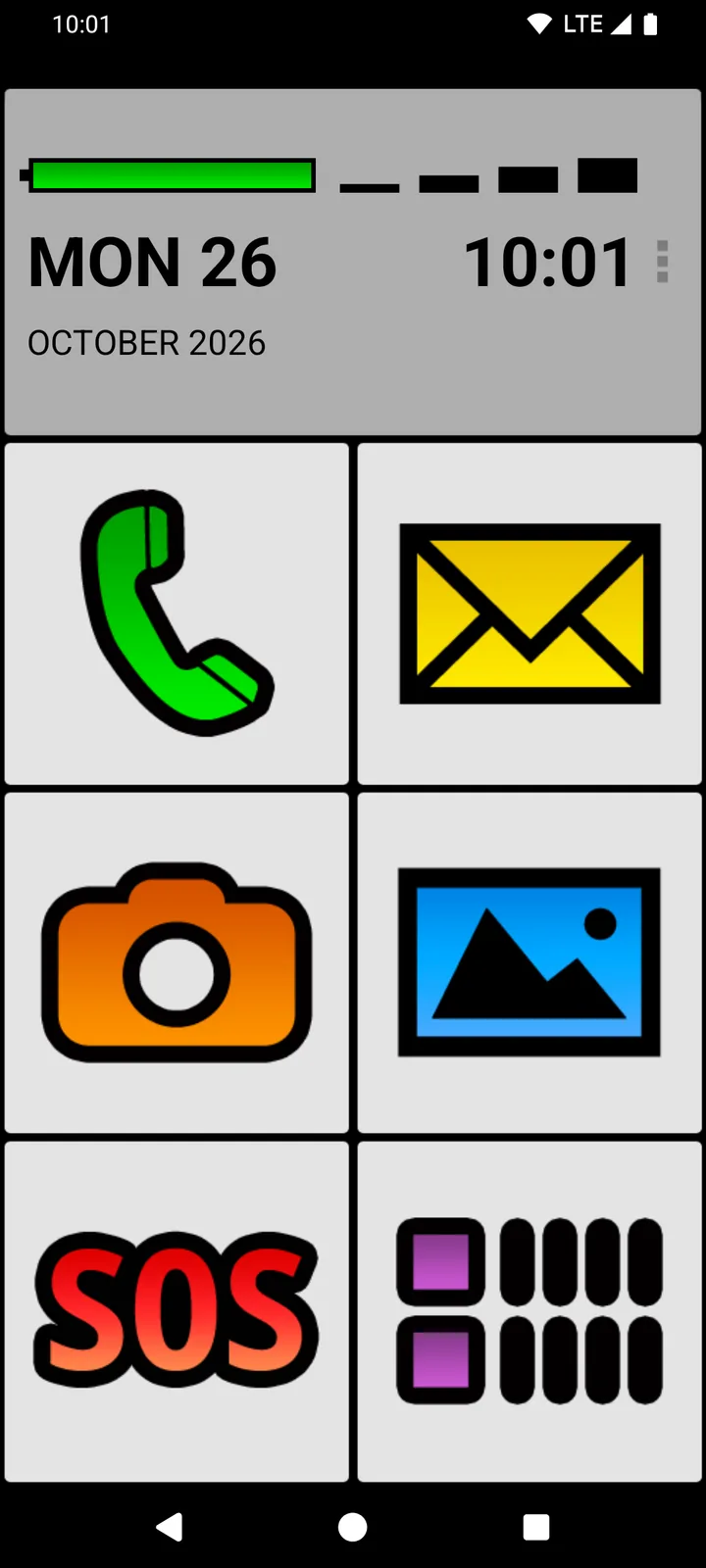
BIG Launcher is a launcher: an app that replaces the home screen on an Android phone. Its home screen has large buttons for calls, messages, the camera, photos, SOS and apps, with a very large battery indicator across the top. It suits you better than Easy mode when one of these sounds familiar.
The phone isn’t a Samsung, or the next one might not be
BIG Launcher is a Google Play app for Android 6.0 or newer, and it isn’t tied to one brand. You can use it on a Galaxy now and on another brand’s Android phone later. It also means a simpler phone doesn’t have to be a new phone: see what makes a simple smartphone for seniors.
A long press or a drag shouldn’t change anything
Easy mode lets you choose how long a touch must last before it counts as a hold. In BIG Launcher, even in the free version, a long press on a normal button doesn’t open a configuration menu, and pressing and dragging doesn’t move a button or create a new screen. You change the layout separately, through Set buttons and Preferences in the ⋮ menu, so nothing on the home screen gets moved or deleted by accident. If you tend to hold the screen too long, BIG Launcher can also treat any long press as a normal tap (see how).
Nobody should change the settings by accident
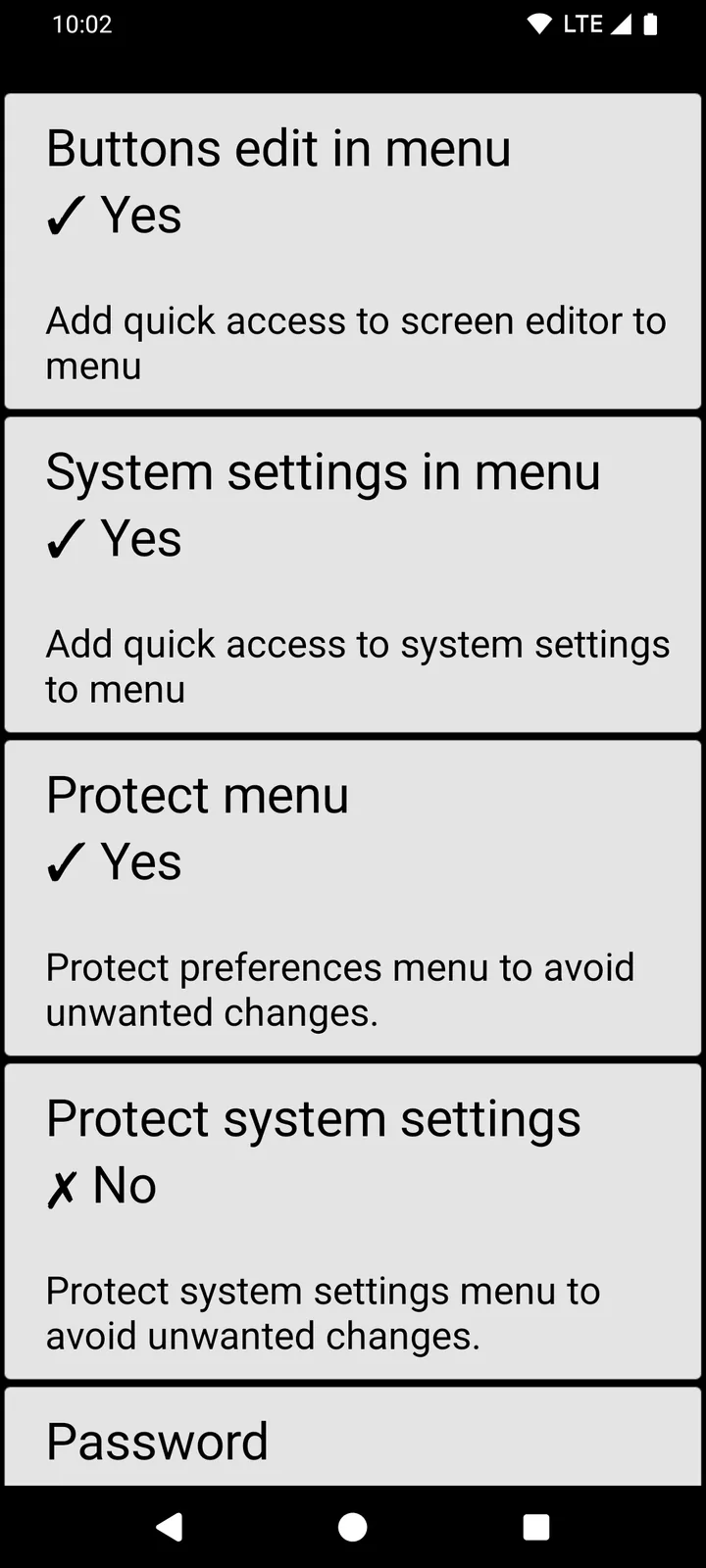
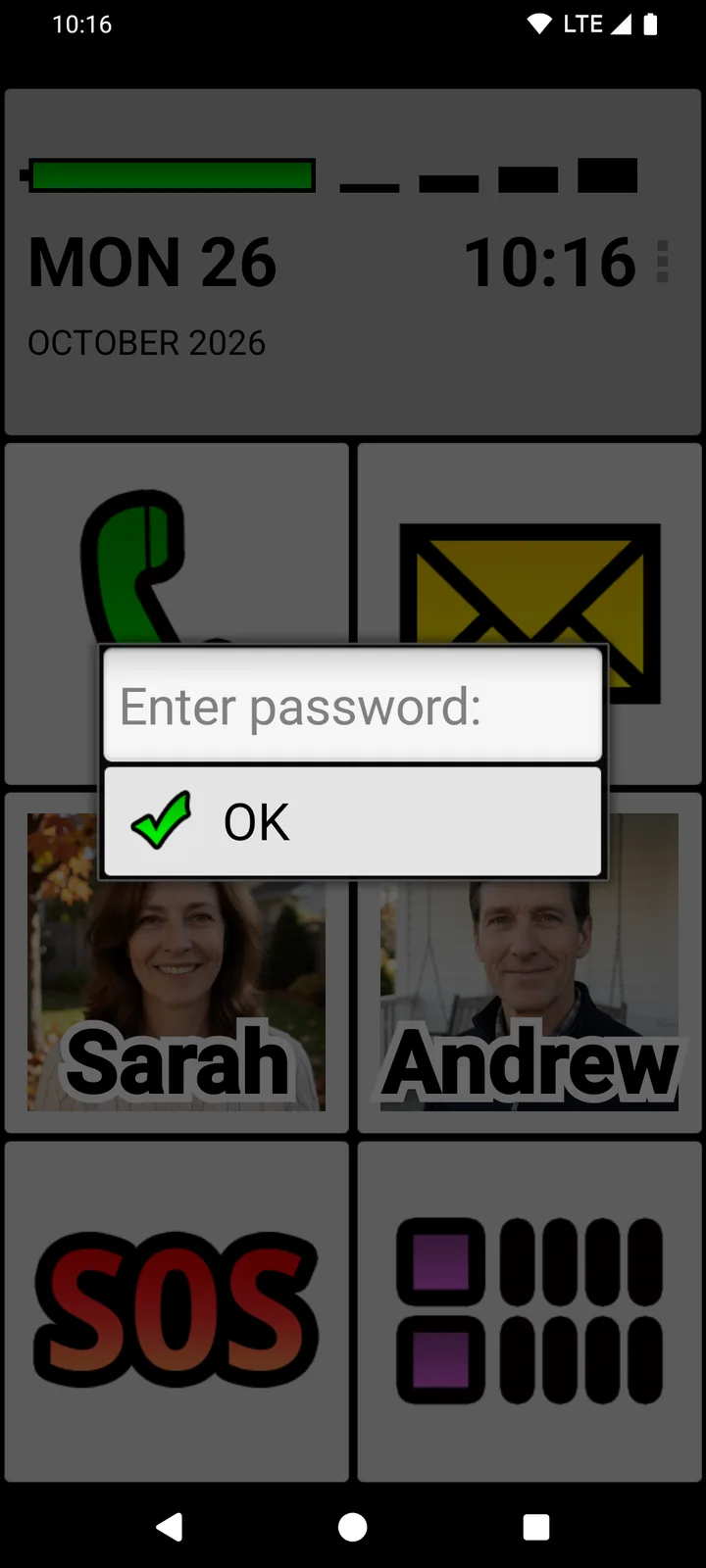
In the full version, tap the three dots (⋮), open Preferences → Preferences menu and tap Protect menu so it shows Yes. From then on, Preferences and Set buttons first show a password prompt (Enter password:), and so does the emergency way into the settings: holding the top-left home-screen button for 30 seconds.
You decide how strict that is. With no password set, tapping OK opens the settings; for some people, that extra step is enough to stop accidental changes. If you tap Password and set one, only people who know it can open the settings. Either way, the protection covers BIG Launcher’s own setup; in the full version, you can also turn on Protect system settings and hide the notification bar with Full screen, but this is still not a complete lock of Android. If you set a password, keep a record of it, because BIG Launcher has no password-recovery option. In the free version, tapping Protect menu only shows the message “Available in full version”.
Only the apps you use should show
In Preferences → Applications you can choose which apps to hide from BIG Launcher’s apps list. You can also take the apps-list button off the home screen and keep only the buttons you set up. Hidden apps stay installed; they just don’t appear in BIG Launcher’s list. Step by step: show only the apps you need on an Android home screen.
Calls, messages and the battery level come first
Put the people you call most on their own buttons: tap ⋮, choose Set buttons, tap a button and pick Direct call/SMS to call or text one number, or Contact details to open the person’s details. In the free version you can change the buttons in the right-hand column; the full version unlocks all of them. The battery indicator is large enough to read at a glance, so you don’t have to look for a tiny icon in the status bar to see whether the battery is about to go flat. For calls and texts in large print, add the companion apps BIG Phone and BIG SMS, which you install separately from Google Play.
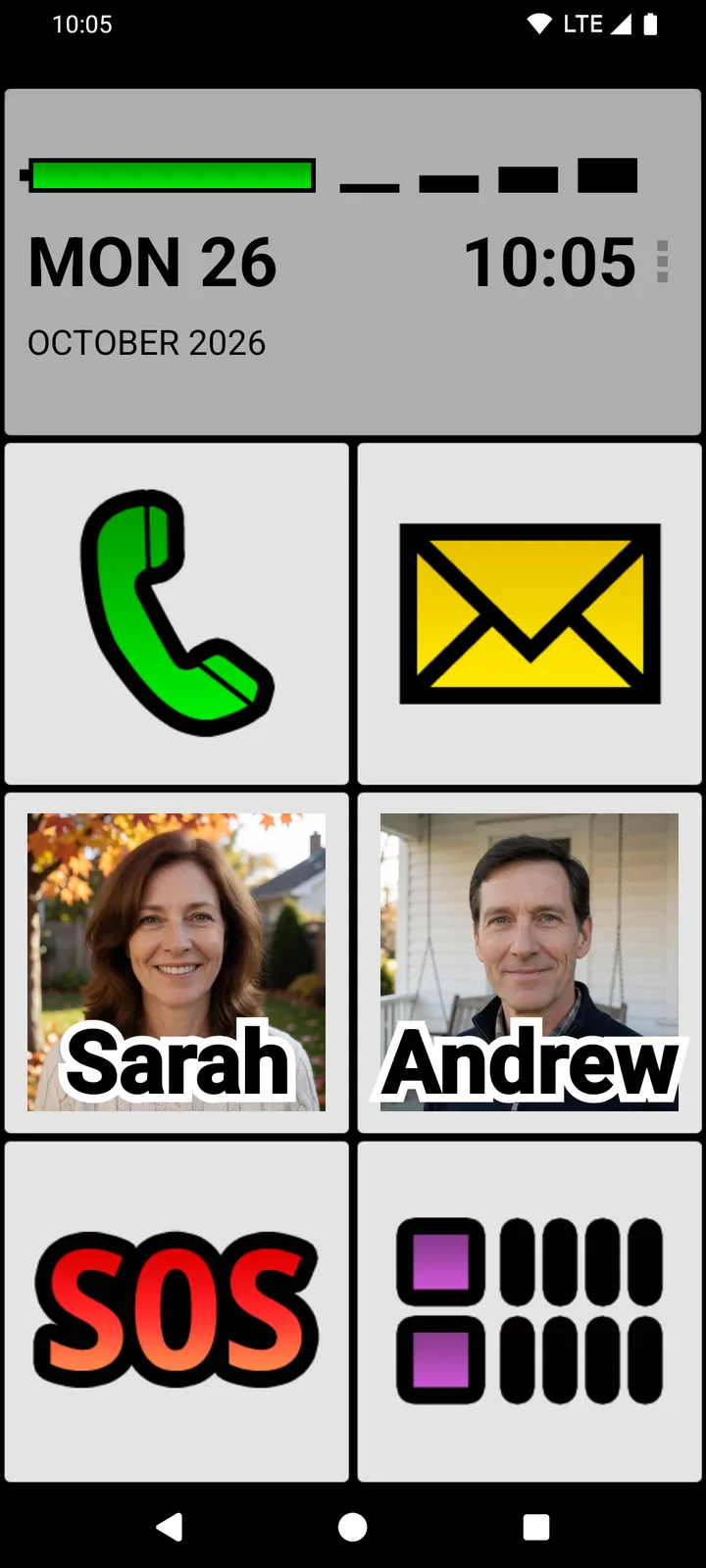
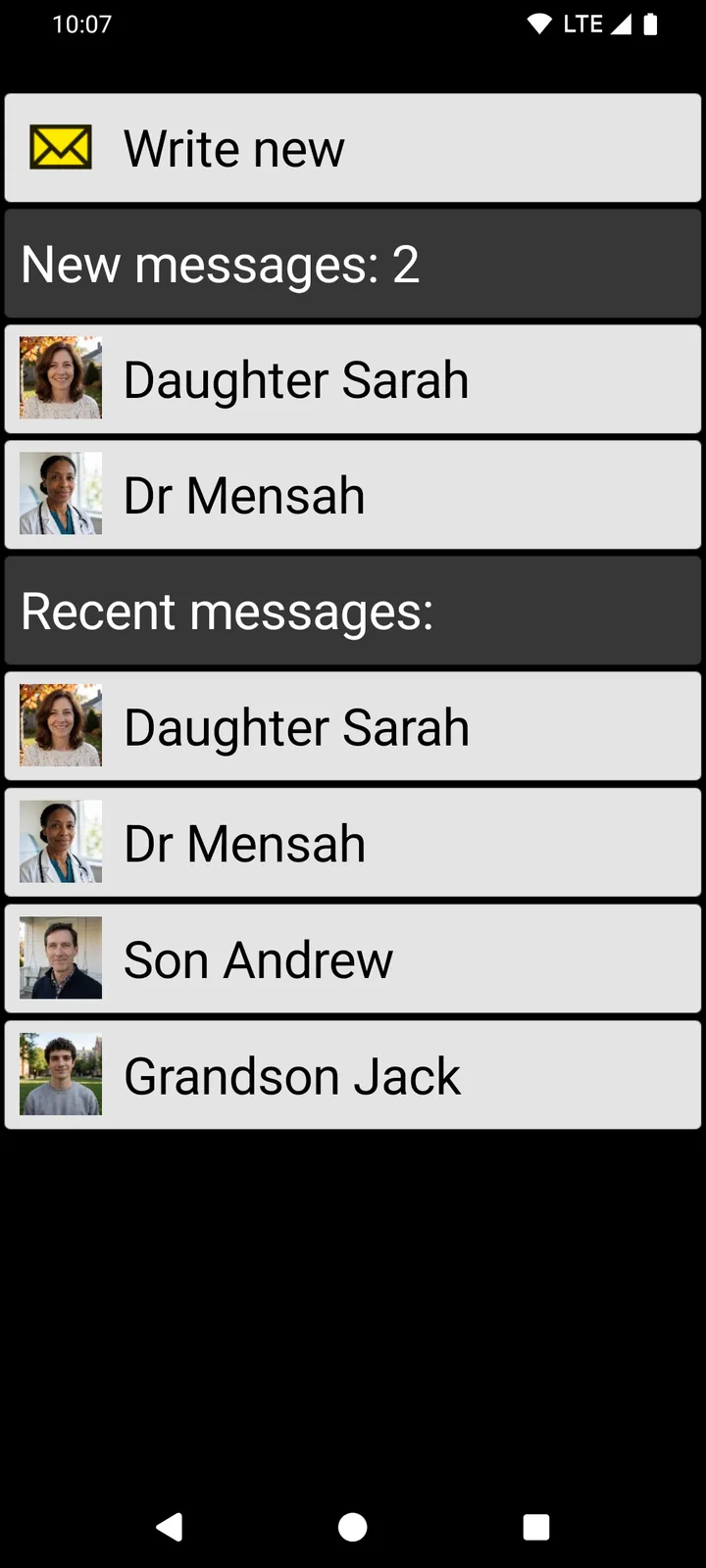
BIG Launcher has a 4.3 ★ rating with 8,000+ reviews and more than 2 million downloads on Google Play, and it’s available in 70 languages.
Try BIG Launcher on your phone
Install BIG Launcher from Google Play, then make it your home app: on a Galaxy, open Settings → Apps → Choose default apps and select BIG Launcher as the home app (on many other Android phones, the path is Settings → Apps → Default apps → Home app). The free version has no time limit and already keeps your buttons in place: a long press or a drag won’t move or change them. The full version lets you change every button and protect the settings from changes.
Try BIG Launcher free on Google Play
For larger call and message screens, also install BIG Phone and BIG SMS; their free versions have their own limits (see the FAQ). See plans and prices.
Samsung Easy Mode vs BIG Launcher at a glance
| Samsung Easy Mode | BIG Launcher | |
|---|---|---|
| Phones | Samsung Galaxy phones and tablets | Android 6.0 or newer, not tied to one brand |
| Cost | Part of the phone’s settings | Free version with no time limit; the full version is a paid upgrade |
| Bigger icons and text | Yes | Large buttons, bigger text and high-contrast themes |
| Long press | Adjustable touch-and-hold delay | No configuration menu on a long press and no moving buttons by dragging, in the free version too; a long press can also count as a tap |
| Protecting the setup | Separate Lock Home screen layout switch; no password on the Galaxy we tested | Protect menu, with or without a password (full version) |
| Switching it off | Settings → Display → Easy mode | Preferences → Clear BIG Launcher as default launcher |
Switching back to the Samsung home screen
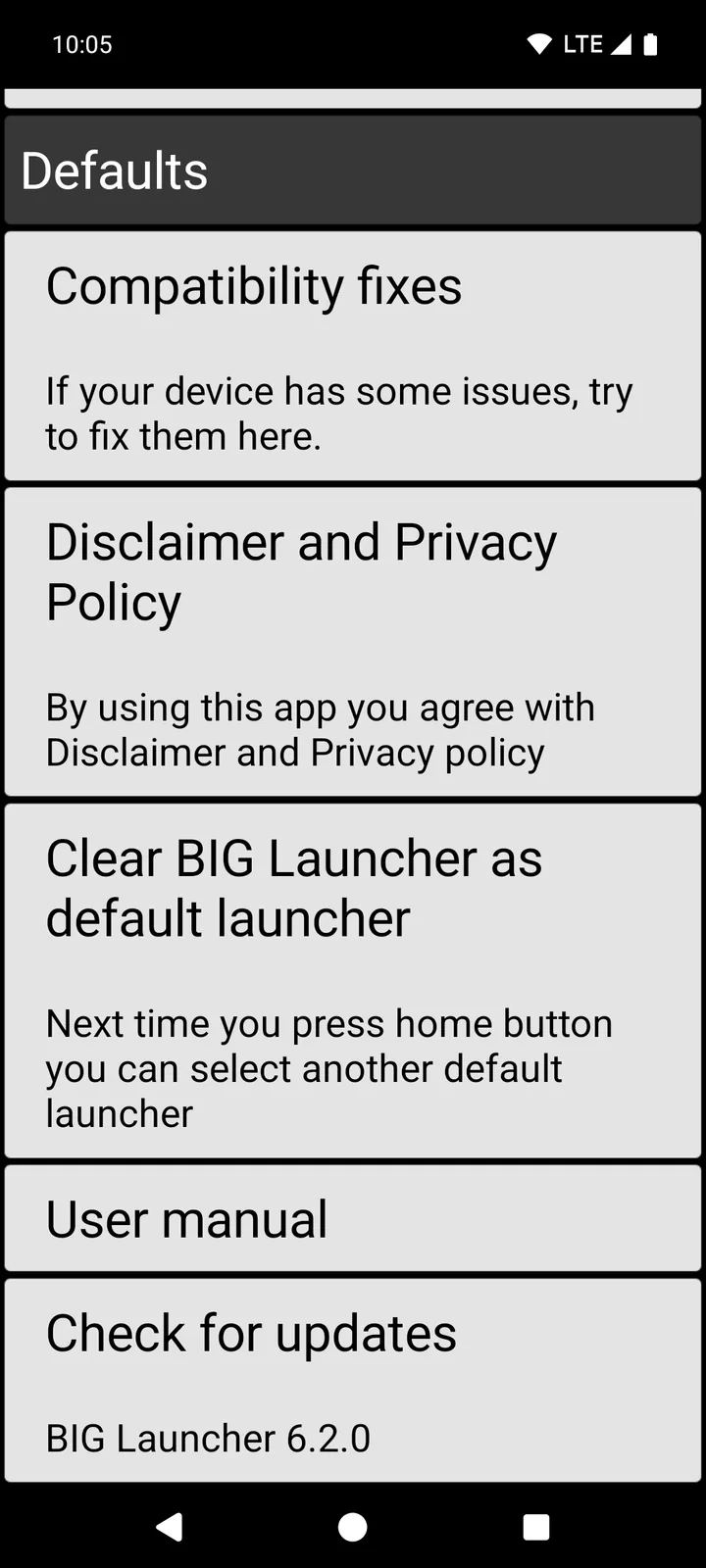
You can go back at any time. In BIG Launcher, tap ⋮, open Preferences, tap Clear BIG Launcher as default launcher and press Home. If the phone asks which home app to use, choose One UI Home, Samsung’s own home screen. If no choice appears, open Settings → Apps → Choose default apps and select One UI Home as the home app.
FAQ
How do I turn off Easy mode on a Samsung phone?
Open Settings, tap Display, tap Easy mode and tap the switch to turn it off. Menus can differ by model and software version.
Why can’t I find Easy mode on my phone?
Samsung’s Easy mode is only on Samsung Galaxy phones and tablets. On a Galaxy, look under Settings → Display. Samsung says settings may vary with the software version and model, so if it isn’t there, check the user guide for your model.
Is there an easy mode or senior mode for other Android phones?
Some brands have their own simplified mode. On a Google Pixel, for example, it’s called Simple View (see Simple View vs BIG Launcher). BIG Launcher doesn’t depend on a built-in mode: it’s a large-button home-screen app for Android 6.0 or newer, and it isn’t tied to one brand.
Is BIG Launcher free?
Yes. BIG Launcher has a free version that isn’t time-limited, and it already keeps your buttons in place: a long press or a drag doesn’t move or change them. In the free version you can customise only the right-hand column of buttons and add up to 5 extra screens, password protection isn’t available and an occasional upgrade reminder is shown. The full version removes these limits. You can buy BIG Launcher on its own or BIG Apps Suite PREMIUM, which unlocks BIG Launcher, BIG Phone, BIG SMS and BIG Notifications. New BIG Apps Suite PREMIUM customers get a 7-day yearly trial. See the BIG Launcher plans; Google Play shows the final price.
Are BIG Phone and BIG SMS free?
Both have free versions with no time limit. The free BIG Phone shows only the 5 most recent calls and turns off the keypad during a call. The free BIG SMS shows only the 5 most recent conversations, and once you’ve sent 20 messages, it adds a link to biglauncher.com to every new text. The full versions remove these limits.
Next step: try BIG Launcher free on Google Play.
Sources
- Samsung: Galaxy S25 and S24 series user guide, Android 16 (PDF; Easy mode and uninstalling apps)
- Samsung: Galaxy S26, S25, S24 and S23 series user guide, Android 17 (PDF; Easy mode)
- Samsung Australia: Using Easy Mode on my Galaxy Phone
- Samsung US: Adjust your Galaxy phone or tablet’s display settings (Easy mode)
- Samsung UK: How to customise the accessibility settings on your smartphone
- Samsung US: Organize the Home screen on your Galaxy phone or tablet (Lock Home screen layout)
- Samsung US: Manage apps on your Galaxy phone or tablet (Choose default apps)
- BIG Launcher: user manual and plans
