It’s 9 PM. Your Mobile Rings Again.
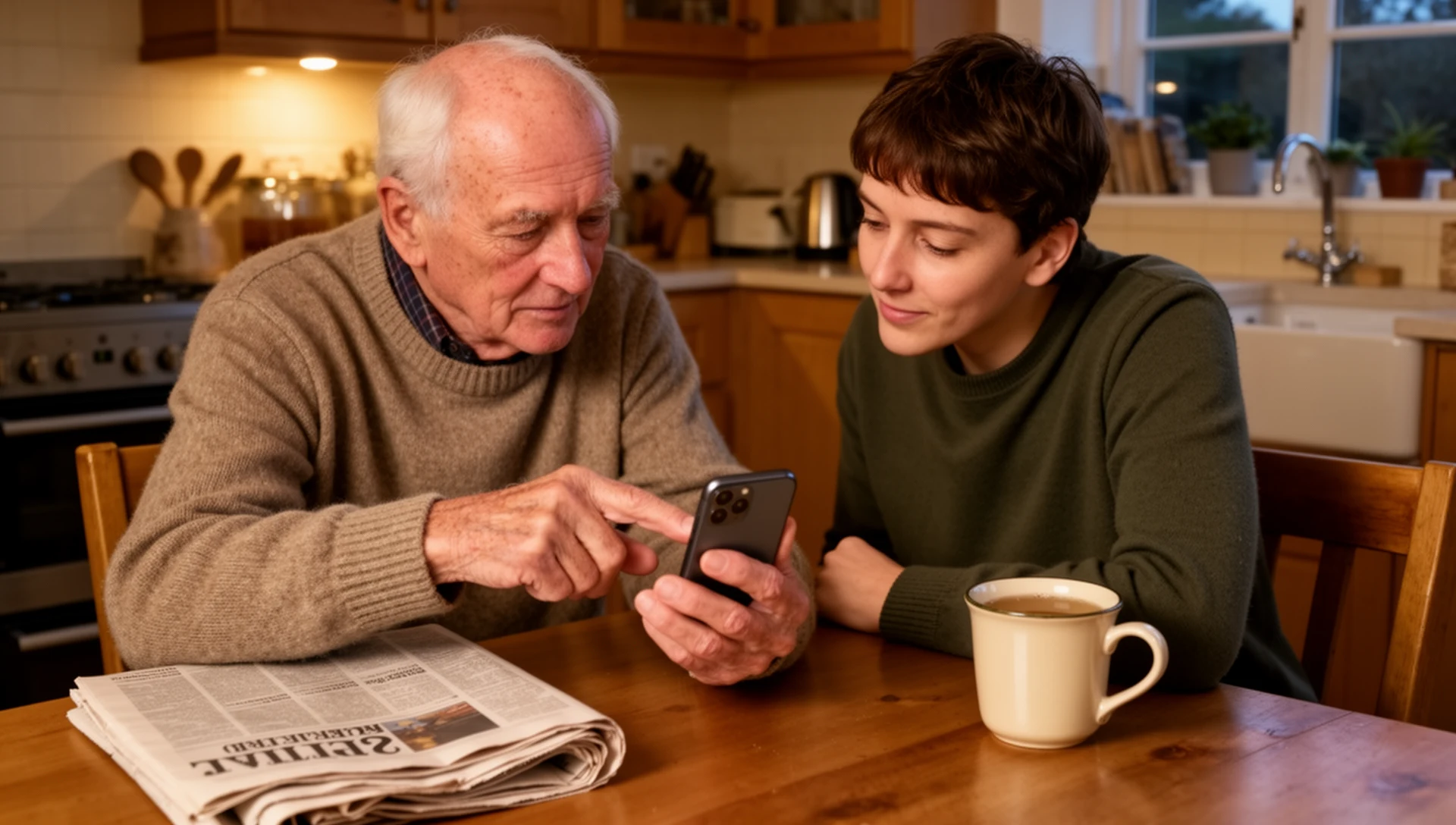
You already know who it is before you even look at the screen.
“I can’t find the messages. Everything is tiny. Which button do I press?”
Sound familiar? If you’re the designated tech support for an ageing parent, you’ve had some version of this conversation more times than you can count. Maybe it’s your dad staring at a wall of small icons, unable to find the one app he actually uses. Maybe it’s your mum accidentally video-calling you because she tapped the wrong thing. Maybe it’s both of them, and you’re mentally calculating the cost of a “senior phone” while simultaneously dreading the setup process.
Here’s what nobody tells you: you don’t need to buy a new mobile. The Android device they already have — yes, even that five-year-old Samsung, Nokia or Motorola that’s been sitting in a drawer — is almost certainly powerful enough. What needs to change is the software , not the hardware. And if you’ve been thinking about upgrading your own Android, don’t trade it in — that’s the perfect phone to set up for a parent.
This guide will show you exactly how to do it.
Why Standard Android Is a Nightmare for Seniors
Modern Android wasn’t designed for people with ageing eyes, stiff fingers, or limited experience with touchscreens. It was designed for 28-year-old software engineers who update their devices every two years.
Think about what your mum or dad actually encounters the moment they unlock their mobile:
- Tiny icons crammed together on a grid, labelled in 8pt font
- Notifications popping up from apps they’ve never heard of
- Accidental swipes that send them to screens they don’t recognise
- Settings menus buried four levels deep
- Multiple steps just to make a phone call — unlock, find app, open, search, tap
For someone with early macular degeneration, arthritis, or simply the kind of vision that no longer reads a restaurant menu without glasses, this is exhausting. It’s not that they’re “bad with technology.” The interface is genuinely hostile to their needs.
The result? They ring you. Every night. And the guilt of not being there compounds.
The Fix: A Simple Android Launcher for Parents
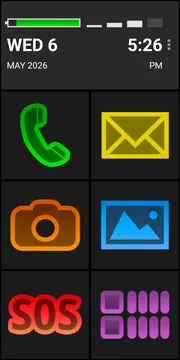
An Android launcher for seniors replaces the entire home screen experience without touching anything else on the mobile. Think of it as a new front door to the same house. All the same phone functions are still there — calls, texts, WhatsApp, the NHS App — they’re just presented in a way that actually makes sense for older eyes and hands.
The best-in-class option, with over 2 million users worldwide and a 4.3-star rating from 7,960+ reviews , is BIG Launcher . The app has also won the Vodafone Smart Accessibility Award — independent recognition that it meets real accessibility standards.
BIG Launcher at a glance
- What it is: a senior-friendly Android home screen replacement.
- Core idea: keep the same Android phone, but replace the confusing home screen with large buttons, readable labels, simple calls/messages, and an optional SOS button.
- Official sources: BIG Launcher website, Google Play listing, BIG Launcher Help.
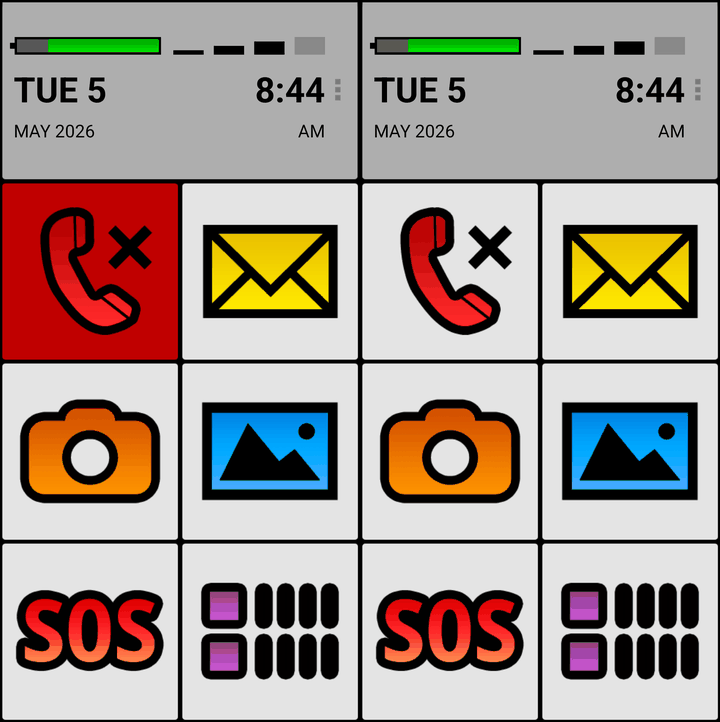
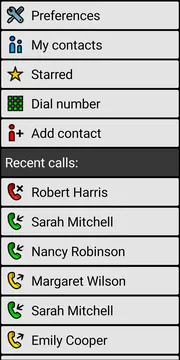
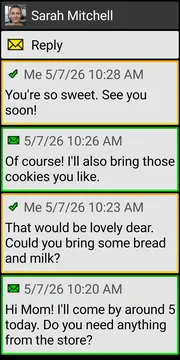
Watch the 2-minute overview video to see exactly what your parent’s screen will look like
BIG Launcher was created in 2011 by two Czech developers — Jan and Daniel — after Jan’s own mother needed a simpler phone. That origin story matters: this isn’t a startup chasing a trend. It’s a 15-year-old product built by someone who had the exact same problem you’re dealing with right now.
What the BIG Launcher Suite Includes
BIG Launcher isn’t just a launcher — it’s a full suite of companion apps designed to work together:
BIG Launcher — the core home screen replacement
- Six different button layout sizes (go as big as four giant buttons per screen)
- High-contrast colours with a choice of built-in themes — additional themes available for download
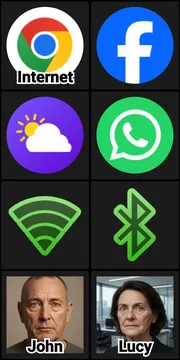
- Unlimited customisable home screens — fill them with shortcuts to apps, contacts, widgets, or quick actions
- Carer PIN lock — you set up the preferences, and your mum or dad can’t accidentally change them
- SOS button with GPS location: when activated, the mobile announces it aloud and starts a safety countdown — cancel it if it was a mistake, or let it run to automatically send GPS location via SMS and call a predefined number on loudspeaker
- WhatsApp-friendly — add direct shortcuts to any WhatsApp contact or group right on the home screen, so the family group chat is just one tap away
- Available in 70 languages worldwide, with a full user manual translated into 70 languages
- Works on any Android device , including phones from any Android onward — that old Samsung, Nokia or Motorola sitting in a drawer qualifies
BIG Phone — a separate companion app that replaces the default dialler
- One tap to ring a contact (no search, no menus) — ideal for calling family, the GP surgery, the pharmacy, or a carer
- When the mobile rings, the caller’s photo fills the screen alongside large Answer and Decline buttons — clear, calm, and impossible to overlook
- Large call log that’s easy to read and navigate
BIG SMS — a companion messaging app
- Extra-large text throughout every conversation
- Massive “Send” button that can’t be missed
- Simple threaded view without visual clutter
Together, these three apps cover everything most seniors actually do with a mobile: calls, texts, and video calls via WhatsApp. The two additional apps — BIG Alarm and BIG Notifications — round out the suite for users who need reminder support or have difficulty seeing standard Android notification banners.
How to Set It Up: Step by Step
The beauty of this process is that you can do most of it yourself, then hand the mobile back. This Android launcher for seniors installs in minutes and you can configure it completely before handing the phone over. Here’s how to make Android easier for elderly parents in under 30 minutes:
Step 1: Download BIG Launcher on Their Phone (Free to Start)
Open the Google Play Store on their Android phone and search for “BIG Launcher.” Install it. For the complete BIG Apps set-up, install all three apps. BIG Launcher simplifies the home screen, BIG Phone handles calls, and BIG SMS handles text messages. They are separate apps, but together they give the phone one consistent, easier-to-use interface for everyday tasks. All three are free to download, so you can try the complete set-up before spending any money.
Alternatively, visit biglauncher.com from the phone’s browser for direct download links.
Step 2: Set BIG Launcher as the Default Home Screen
Once installed, press the Home button. Android will ask which launcher to use. Select BIG Launcher and choose “Always.” The new home screen will appear immediately.
Step 3: Assign the Buttons
This is where you customise the experience for your parent specifically. In BIG Launcher, each button can be assigned to:
- A specific contact (tap button → mobile rings their number, no steps in between)
- An app (WhatsApp, the camera, the NHS App, whatever they actually use)
- A direct WhatsApp conversation with a specific contact
For most elderly parents, five or six buttons cover everything: a button to ring you, a button for their partner or sibling, the WhatsApp family group, the camera, a shortcut to the NHS App for appointment reminders and repeat prescriptions, and SOS. That’s it. That’s the whole phone.
Step 4: Set BIG Phone and BIG SMS as Defaults
Go to Settings → Apps → Default Apps, and set BIG Phone as the default Phone app and BIG SMS as the default Messaging app. BIG Launcher has a tutorial video walking through this exact step.
Step 5: Enable and Configure the SOS Feature
Inside BIG Launcher’s preferences, enable the SOS button and add the phone numbers that should receive the emergency alert. When your parent presses and holds the SOS button, it automatically sends a text with their GPS location to every number you’ve listed.
This one feature alone is worth the entire setup.
Step 6: Set the Carer PIN
In Preferences, set a PIN to lock the settings. This means your mum or dad can use the mobile freely without accidentally resetting everything you just configured. If something needs to change, you enter the PIN and make the adjustment. Peace of mind for everyone — whether you’re a family member or a professional carer.
Step 7: Test the Setup and Unlock the Full Version — When You’re Ready
Once you’ve tested the free version and you’re happy with how it works, you can unlock the full suite with either a subscription or a one-time purchase, depending on what fits you best. That’s still far less than a single trip to the mobile network shop, and a fraction of what a dedicated senior phone would cost. The free version’s main limits are that only the right column of buttons is customisable, and an occasional upgrade prompt appears.
What Real Users Are Saying
These testimonials come directly from BIG Launcher users — people in exactly the same situation you’re in:
“I gave my 85-year-old father-in-law my old Galaxy S7. After BIG Launcher installation, he can now call us without help.”
R Allen
“My father has dementia. This is the only launcher he can still use on his own. It gives him dignity.”
Google Play Review
“My father is almost completely blind due to macular degeneration. After 3 years of BIG Launcher — he can now text and call people again.”
Google Play Review
“I like that you can customise what you want on the screen. My dad only needs calls and texts, so that’s all that’s on his screen now.”
Peter Dowding, Google Play Review
“No need to buy an expensive senior phone. Just use what you already have at home.”
Google Play Review
These are five of the 7,960+ verified reviews on Google Play, where BIG Launcher holds a 4.3-star rating. The pattern is consistent: families in the same situation you’re in, who found a solution that actually worked.
BIG Launcher vs. Buying a Senior Phone: The Maths
When parents struggle with their mobile, the instinct is to buy them a “senior phone” — Doro, Emporia, Jitterbug, and similar devices marketed specifically to older users. Here’s the honest comparison:
| Feature | BIG Launcher Suite | Doro / Emporia / Jitterbug | Samsung Easy Mode |
|---|---|---|---|
| Price | ~£5–10 one-time | £200–500 + monthly plan | Free |
| New phone needed? | No — works on existing Android | Yes | Samsung only |
| WhatsApp support | Yes | No | Limited |
| SOS / GPS | Yes — sends location via SMS | No | No |
| Customisation | Full — any button, any contact | Very limited | Limited |
| Languages | 70 UI languages, 70-language manual | Few | Few |
| Setup time | ~30 minutes | Hours + mobile network shop visit | ~15 minutes |
| Works on old Androids | Yes — even 10-year-old devices | No | No |
The senior phone market exists because people assume software can’t solve a hardware problem. BIG Launcher proves that assumption wrong. Your parent doesn’t need a new device — they need a better interface on the Samsung, Nokia or Motorola Android they already know how to charge and carry. Samsung’s built-in Easy Mode is free, but as the table shows, it only works on Samsung hardware and lacks SOS/GPS and a carer PIN lock — it’s better than nothing, but it wasn’t built for this purpose.
Sources and verification
This guide is based on the official BIG Launcher product pages and Android accessibility documentation. For verification and deeper reading, use these sources:
- BIG Launcher official website – current product overview and download paths.
- BIG Launcher Help – setup help, preferences, themes, and support documentation.
- BIG Launcher on Google Play – current Android availability, reviews, and app details.
- Android Accessibility Help: change text and display settings – official Android guidance for larger text, display size, and related accessibility settings.
Frequently Asked Questions
Does BIG Launcher work on old Android phones? Yes — BIG Launcher is compatible with any Android device running any Android or higher. That includes phones that are a decade old. If it runs Android, it can run BIG Launcher. The old Samsung, Nokia or Motorola in the drawer almost certainly qualifies.
Will installing BIG Launcher delete anything on their phone? No. BIG Launcher replaces the home screen interface — it doesn’t delete contacts, photos, messages, or any apps. Everything is still there. You’re just changing what your parent sees first when they unlock the mobile.
What if my parent gets confused after installation? BIG Launcher sits on top of your existing Android — nothing is deleted or changed underneath. If you ever need to revert to the original Android home screen, go to Settings → Apps → Default Apps → Home App, and select your original launcher. Takes about 10 seconds.
What happens if my parent accidentally presses the SOS button? No problem — the mobile announces the SOS activation out loud and starts a safety countdown. During that window, your parent (or you, if you’re nearby) can simply cancel it. Only if the countdown completes does it send the GPS location and make the automatic call. It’s designed to be safe, not hair-trigger.
Can I set it up remotely, or do I need to have the phone in hand? For initial setup, you really want the mobile in your hands — either during a visit or by having your parent post it to you temporarily. Once it’s configured and the carer PIN is set, you can walk them through minor changes over the phone. The interface is so simple that verbal instructions actually work.
Is there a version for iPhones (iOS)? No. BIG Launcher is Android-only. If your parent uses an iPhone, this particular solution doesn’t apply — but the good news is that iPhones already have relatively large text options and Guided Access features built in for carer control. The challenge described in this article is more common with Android devices.
The Bottom Line
If your parent is struggling with their Android mobile, the problem almost certainly isn’t their phone — it’s the interface. The best Android launcher for seniors like BIG Launcher transforms any Android device into something they can actually use independently, without a £300 purchase, a new phone number to memorise, or a trip to the mobile network shop.
Two million users worldwide have already made this switch. The 4.3-star average across 7,960+ verified reviews reflects what happens when a product actually solves the problem it claims to solve.
You’ll spend 30 minutes setting it up. Then your mobile will ring a little less at 9 PM. That’s worth everything.
Ready to try it? Download BIG Launcher free right now — biglauncher.com . It takes 3 minutes to install. The free version lets you see the difference immediately — no payment, no commitment. If it works (and it will), the full suite is a one-time £5–10. That’s it. No monthly fees, no new phone, no mobile network shop visit.
Your mum or dad gets their independence back. You get your evenings back. Start today.
BIG Launcher is developed by 2BIG s.r.o., founded in Czechia in 2011. It is available in 70 languages.
