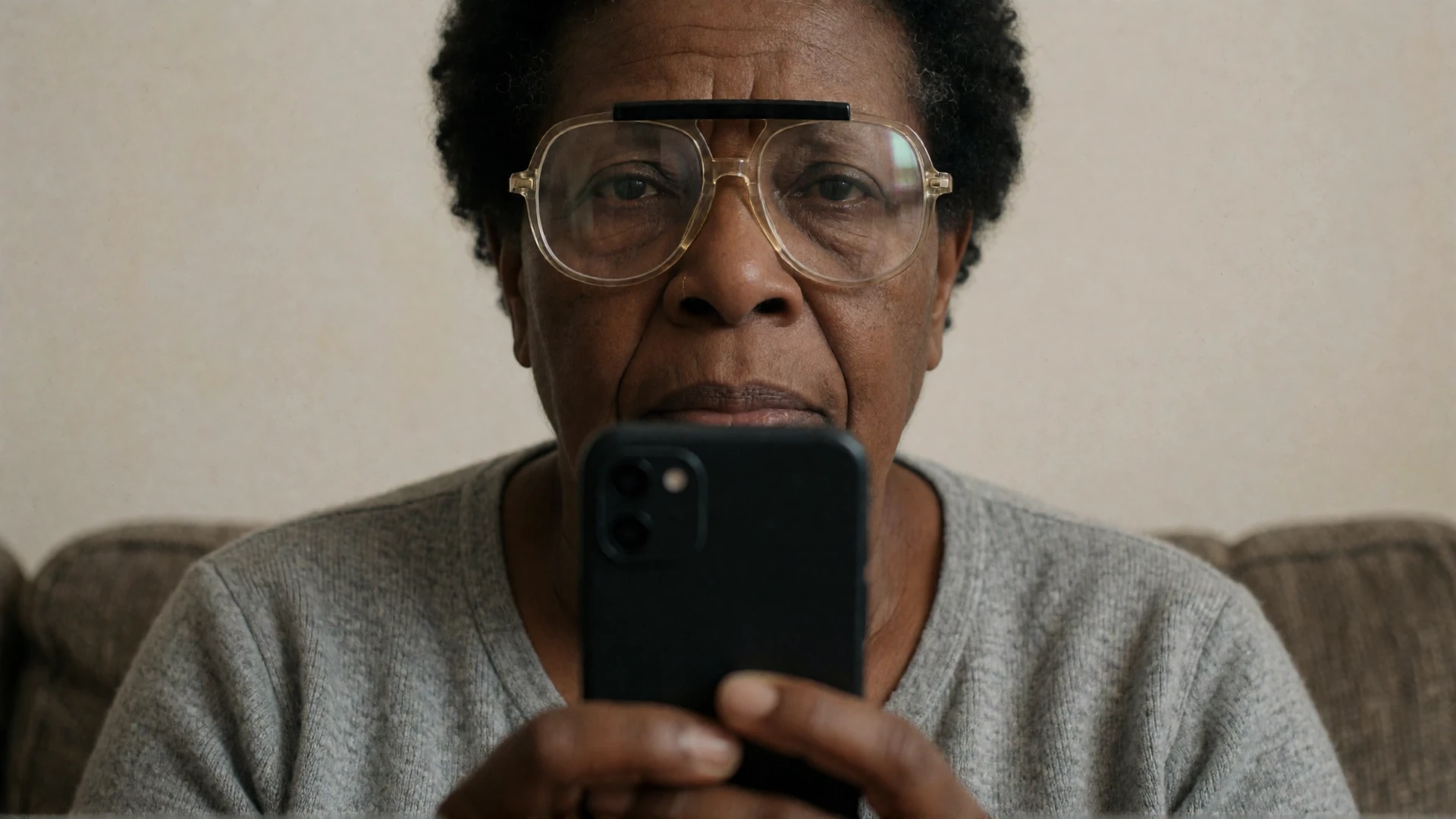
Low vision can make an Android phone difficult to use for more than one reason. Text may be too small, buttons may sit too close together, and the actions a person uses every day may be buried among icons they rarely need. Glare can change what is readable from one room to the next. Some people also use TalkBack and need a screen that makes sense both visually and aloud.
BIG Launcher gives an existing Android phone a calmer, configurable starting screen. It keeps calls, messages, contacts and everyday apps visible, so you can arrange the home screen around the way you use the phone. BIG Phone, BIG SMS and BIG Notifications extend that approach to calls, messages and notifications.
Short answer:
Start with Android accessibility settings, then arrange BIG Launcher around the calls, messages, contacts and notifications you use most. Use TalkBack when a screen reader is part of your routine; use Speak on long press when you want spoken detail without changing a simple one-touch action.
The right setup makes everyday actions easy to find, easy to read and easy to repeat: call a favourite contact, send a message, see what just arrived, get back home.
Start with the Android settings you already have
Android already includes useful accessibility settings. Before changing the home screen, try the settings that affect the whole phone: display and font size, magnification, contrast and colour options, TalkBack, Select to Speak, Switch Access and Voice Access. Google’s Android Accessibility overview is a good starting point; its TalkBack guide explains the screen reader itself.
After adjusting Android-wide accessibility settings, configure BIG Launcher, BIG Phone, BIG SMS and BIG Notifications around the calls, messages, contacts and notifications you use most often.
If someone has new or rapidly changing visual symptoms, seek eye-care advice as well as adjusting the phone.
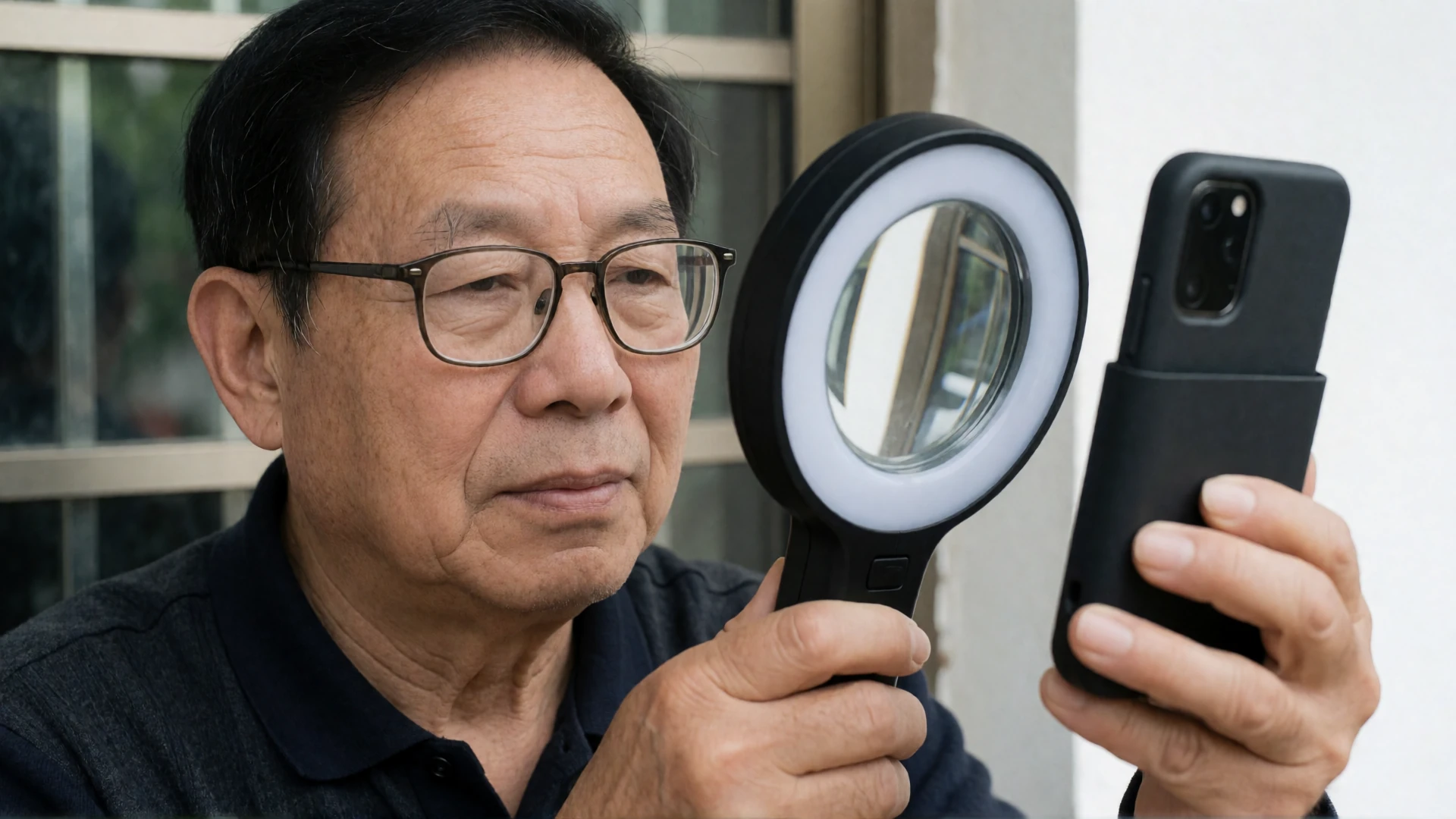
Build the phone around everyday actions
BIG Launcher replaces the standard Android home screen with large text, large buttons and a layout that can stay deliberately sparse. More importantly, you can configure it around your routine: a familiar grid with a few visible choices, a 2×2 screen, or even a one-action screen for a very focused device.
Keep the actions that matter in view—Phone, Messages, Photos, a favourite contact, WhatsApp or another app you genuinely use. BIG Phone and BIG SMS carry the same approach into calls and messages, with a large dialling and contacts interface, large contact photos, a simplified call screen and larger conversation and editor text.
Try one real task yourself: put a frequent contact on the home screen, find it, make a call and return home. If a step feels slow or uncertain, change the layout and run the same test again.
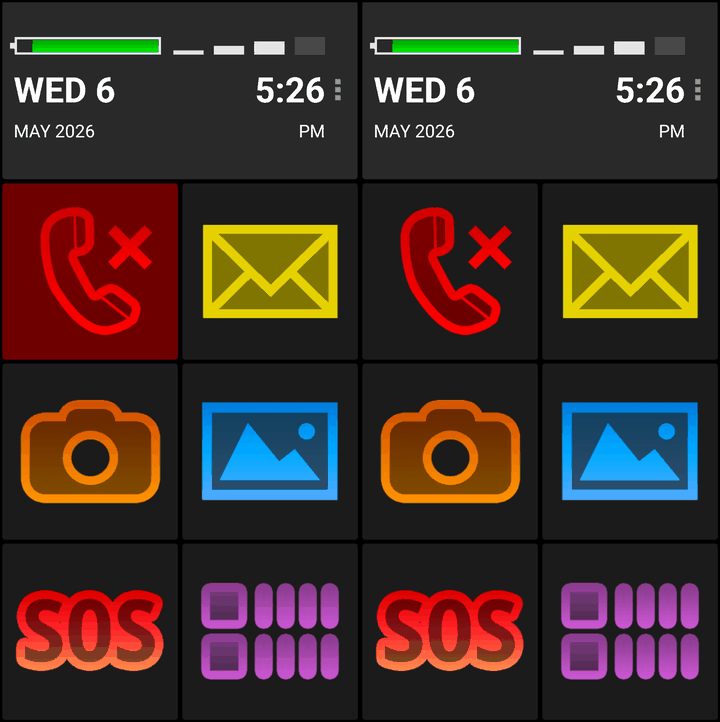
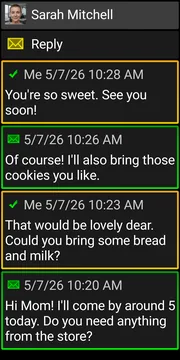
These dark-theme screens show the everyday view: a BIG Launcher missed-call action, a BIG SMS conversation and the BIG Notifications list.
Choose the keyboard that works for you
Android controls the keyboard, so the same choice can be used across apps.
A person can choose a keyboard from Google Play, adjust its own accessibility settings or use voice typing. That choice then works in BIG SMS, email, a browser and other apps. Nothing in BIG Launcher overrides that choice.
For someone who types only short messages, voice typing may be the easiest route. Someone else may prefer a keyboard with a layout, contrast or key size that feels more comfortable. Both can live alongside BIG Launcher.
Use TalkBack with BIG Launcher
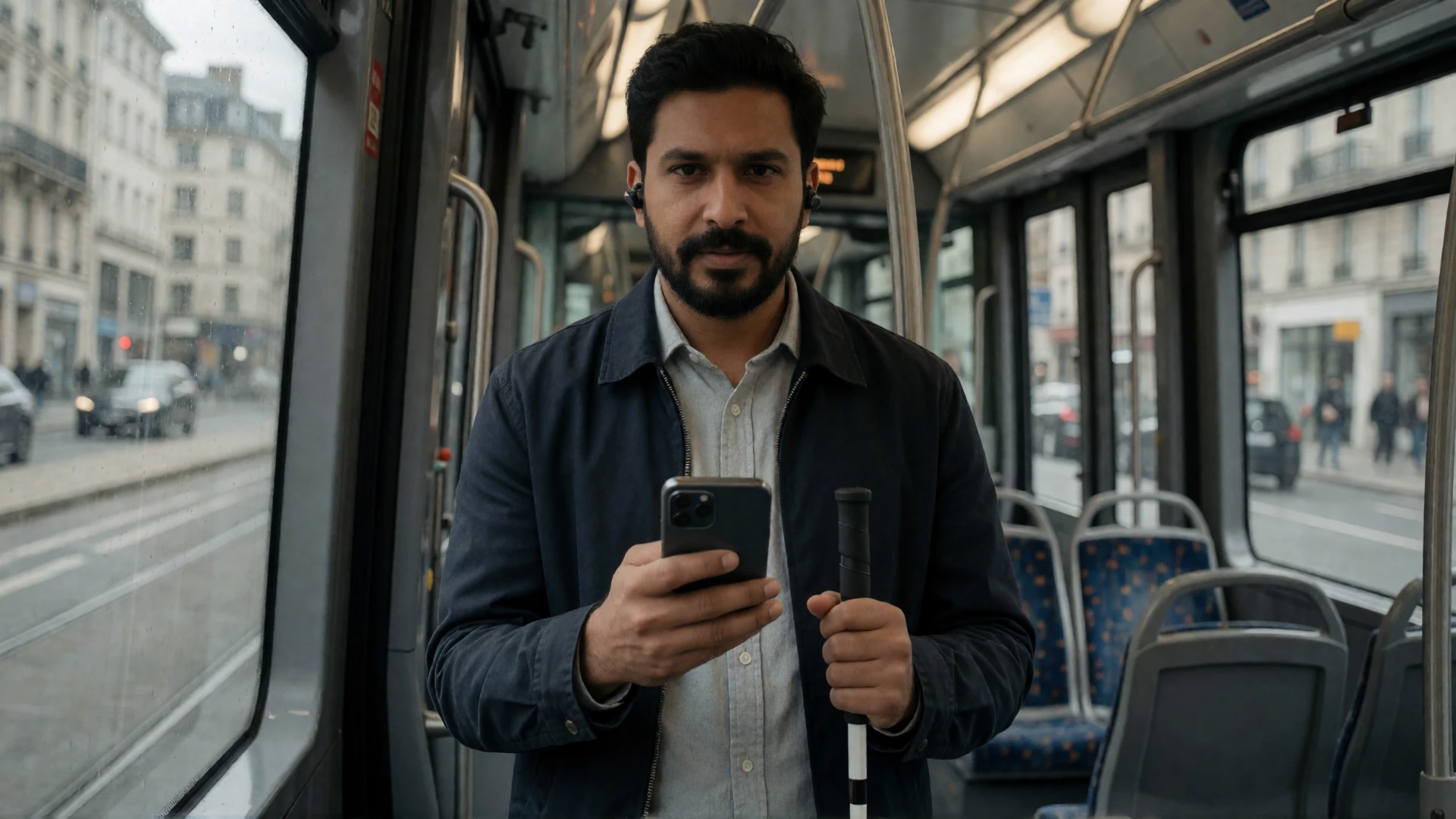
TalkBack is Android’s system screen reader. BIG Launcher works with TalkBack, and the controls and pages in BIG Launcher, BIG Phone, BIG SMS and BIG Notifications can provide prepared spoken information and reading order so essential information is heard earlier with less repetition.
TalkBack can read button names, page titles, contacts and messages in the relevant BIG Launcher apps. The “Talkback: don’t read app name” preference removes the repeated app name when a page title is read aloud. BIG Launcher also supports haptic feedback, a long-press description popup, and use with hardware keyboards and accessibility switches.
TalkBack is not the only way to hear more. With Speak on long press enabled, a long press asks BIG Launcher to read the selected item and its relevant detail—for example, information about a missed call—while an ordinary tap still performs the normal one-touch action. That gives people who retain usable vision spoken help when they ask for it, without making TalkBack navigation part of every tap.
Make notifications easier to read and act on
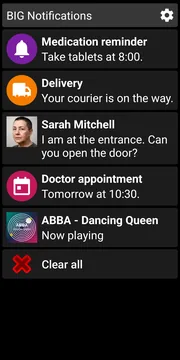
Notifications are where a phone can become busy again. BIG Notifications takes the Android notifications already on the device and presents them in a larger, more readable format.
BIG Notifications shows all Android notifications in a clear, large interface with large text and a high-contrast colour scheme. Open any notification to see its details at a larger size. When the original notification includes an action, BIG Notifications shows that action as a large button. For example, a WhatsApp notification may offer a quick reply directly inside BIG Notifications. A music notification may show playback controls. BIG Notifications presents those existing actions as larger controls.
You can choose light or dark theme, select a larger font and enable automatic display of new notifications. There is also an optional setting that wakes the phone screen and displays a large notification when one arrives. If interruptions are a problem, notifications can be displayed for only a chosen time, temporarily paused or hidden for a selected app.
Test the notifications you receive most often: can you read them and act on them?
Match the setup to the task, not the diagnosis
There is no single Android setup for low vision. Start with the task that is difficult—finding a contact, reading a message, recognising a notification, or navigating by speech—and change one thing at a time.
Detail and central vision
When reading fine detail is difficult, including with central-vision changes such as age-related macular degeneration, start with larger text, large contact photos and a large dialling screen. Test a real task: find a contact and make a call without bringing the phone closer than is comfortable.
Peripheral vision and low-light use
When finding small items at the edge of the screen or using a phone in lower light is harder, try a predictable home screen with fewer visible choices and repeated actions in fixed places. Test TalkBack on the BIG Launcher, BIG Phone, BIG SMS and BIG Notifications pages you use every day. Retinitis pigmentosa can affect night vision and peripheral vision; glaucoma can affect peripheral vision. The useful setup still depends on the person.
Glare and contrast
Test the phone where it is normally used: beside a window, under a kitchen light or in the evening. BIG Launcher includes Light and Dark themes, plus a special high-contrast option with yellow text on a blue background for colour-vision differences. More colour themes can be downloaded free from the BIG Launcher Themes page. Try them where the phone needs to work.
When speech is the main way you use the phone
When you use TalkBack to get through the phone, larger buttons do not solve the main problem. What matters is a short, predictable path to the calls, messages and notifications you use, with useful information read in a sensible order.
Keep those actions on the BIG Launcher home screen, then test the BIG Phone, BIG SMS and BIG Notifications pages you return to every day. Those BIG interfaces provide their own prepared labels and information order; Android and other apps keep their own accessibility behaviour.
How people use BIG Launcher with low vision
A familiar layout on a family tablet
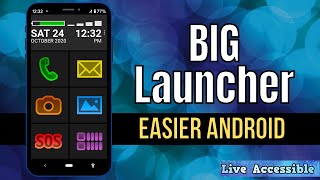
Carrie also describes using BIG Launcher on her visually impaired son’s tablet. Spoken app names help him recognise the buttons, and she keeps the layout he is comfortable with rather than automatically choosing fewer, larger icons. Watch her explain the setup at 3:05 in the same 2020 review.
Sam’s quick-call example
In a 2012 demonstration on MobileTechVideos2, Sam says he would not need his magnifier to make a quick call, take a picture or send an SMS using the interface he shows. His example focuses on a few everyday actions, rather than enlarging every app on the phone.

An occupational therapist’s walkthrough
Beth Daisy’s 2020 demonstration for Future In Sight shows the time, battery and signal, the main home-screen buttons, text sizes and the BIG Phone interface. As an occupational therapist working in low vision, she also points out an important boundary: opening another app takes you into that app’s own interface.
These videos show earlier versions of BIG Launcher. Use them to see the tasks and choices being discussed, then try the current setup on your own phone.
Try BIG Launcher on the phone already in hand
Do not judge BIG Launcher from one screenshot. Set it up around a real day.
- Choose the text size and theme that are easiest to read where you use the phone.
- Put Phone, Messages and a few actions you use often where you can find them immediately.
- Add a favourite contact and try a call.
- Read and reply to a real message with the chosen keyboard or voice typing.
- Open a real notification in BIG Notifications.
- If you use TalkBack, try the BIG Launcher home screen, BIG Phone, BIG SMS and BIG Notifications pages you return to most often.
If the test makes everyday calls, messages and notifications easier to complete, keep the layout and refine it around your routine.
Try BIG Launcher on Google Play.
FAQ
What is BIG Launcher for low vision?
BIG Launcher is an Android home-screen replacement that lets you create a larger, simpler starting screen around your everyday calls, messages, contacts and apps. BIG Phone, BIG SMS and BIG Notifications bring the same configurable approach to calls, text messages and notifications.
Does BIG Launcher work with TalkBack?
Yes. TalkBack remains Android’s system screen reader. In BIG Launcher, BIG Phone, BIG SMS and BIG Notifications, it reads prepared labels and information in a deliberate order.
What does TalkBack read in BIG Launcher?
In BIG Launcher, BIG Phone and BIG SMS, TalkBack can read button names, page titles, contacts and messages. BIG Launcher also includes an option to stop repeating the app name in page titles.
Can I use my own keyboard or voice typing?
Yes. The keyboard is chosen at Android level, so the same keyboard or voice typing choice can be used in BIG SMS and other apps.
Can I reply to WhatsApp messages in BIG Notifications?
When the WhatsApp notification itself offers a quick reply, BIG Notifications can show that reply as a large action. Available actions depend on the original app notification.
Can BIG Launcher make every app larger?
No. BIG Launcher changes the home screen, while BIG Phone, BIG SMS and BIG Notifications change their own interfaces. Other Android apps keep their own interface, although Android-wide display and accessibility settings still apply where those apps support them.
Which settings should I test first?
Start with text size, theme, a small number of home-screen actions, a favourite contact, BIG Phone or BIG SMS, and the notification types the person sees every day.
