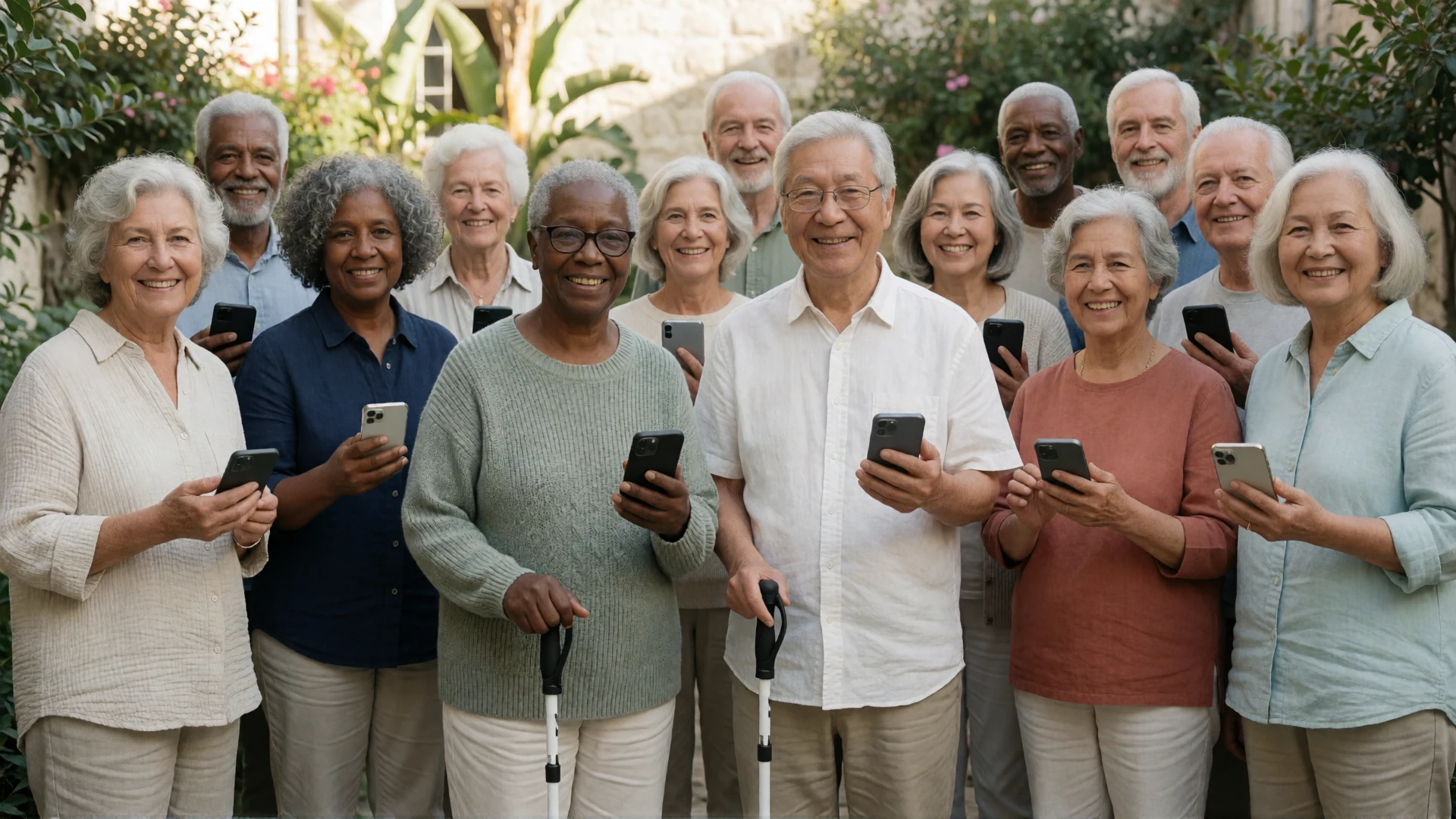
What is BIG Launcher like to use? Watch a low-vision user explain spoken app names, see an occupational therapist walk through the home screen, and read what families say about setting up a phone.
The BIG Launcher team selected the video reviews, published tests and Google Play reviews below. Follow the links for each full review, including the reviewers’ reservations.
Video reviews: see the interface in use
These videos show the versions available when they were recorded. The dates help you distinguish a reviewer’s experience from today’s settings and purchase options.
Carrie: spoken help without leaving TalkBack on
Carrie describes using long-press speech when she wants an item read aloud but does not want TalkBack running all the time. She also explains how she uses BIG Launcher on her visually impaired son’s tablet: familiar apps, spoken button names and a layout he is comfortable with.
Later, in the companion BIG Phone interface, she has a typed phone number read back and notices that she entered it differently than she intended. It is a concrete example of how spoken feedback can help someone check their input.
Watch spoken help at 1:37 · Tablet setup at 3:05 · Number check at 12:31

Beth Daisy: an occupational therapist’s low-vision walkthrough
Beth starts with the time, battery level and signal, then shows the main buttons and text sizes. She also demonstrates the companion BIG Phone and BIG SMS interfaces. Opening another app takes you into that app’s own interface.
Sam: why he would use it for a quick call
In this short demonstration, Sam says he would not need his magnifier if he wanted to make a quick call, take a picture or send an SMS using the interface he shows. The BIG Launcher section is near the beginning; the rest covers other Android tools.

ChicaGeek: configuration matters as much as appearance
In a comparison of launchers for older people, Elena shows BIG Launcher’s large buttons, appearance settings and password protection. She finds its styling less attractive than the preceding launcher, but considers it functional. The BIG Launcher section runs from 2:36 to 4:29.
Published tests: strengths and trade-offs
Orientatech: accessibility and the extra setup steps
Orientatech’s technical review praises the simple visual presentation, customisation and screen-reader support. Its accessibility score is 5/5, while technical specifications receive 3/5.
The reviewer also criticises the need to install companion apps for calls and messages. That is a useful distinction when planning a setup: BIG Launcher changes the home screen; BIG Phone and BIG SMS provide the call and message interfaces.
AFB AccessWorld: simplicity, customisation and visual fit
John Rempel’s evaluation looks closely at how a simple home screen can coexist with detailed preferences. It also examines where text size, the Android keyboard and combining speech with visual navigation may not suit every user.
This is a historical review of version 2.3.1, not a test of the current release. Its practical question still matters: can you comfortably read and operate the parts of the phone you actually use?
CNET: large controls, with configuration that takes attention
CNET’s early review describes a home screen with large, recognisable buttons. Broida likes the everyday interface but finds parts of app and icon customisation confusing. He also notes that a launcher does not enlarge the interfaces inside other apps.
Its prices and navigation details describe the 2012 version. CNET carries a general affiliate disclosure.
Google Play reviews: what users chose and changed
These are selected excerpts from three five-star BIG Launcher reviews, not a summary of every rating. The links open the full reviews, including suggestions and criticisms.
A less crowded home screen
“I also really like how minimal this app looks, because the original Android UI has so much fluff and pointless features but this app makes everything so much more simpler.”
Davie identifies as visually impaired and describes choosing the full version after 24 hours. The review also asks for a mobile-data toggle, app hiding and folders.
Choosing the icons and hearing their names
“Ability to change number of icons from 4 per screen up, and to press and hold to hear the app name spoken out loud is excellent.”
R Allen describes configuring a phone for a father with severe vision loss, highlighting spoken labels, safe borders, password protection and confirmation settings. The icon count in the quote describes that review, not the minimum layout available today.
A setup used across a parent’s phones
“I have installed it on every one of my mom’s phones. The instruction manual is excellently put together: comprehensive, easy to understand, screenshots demonstrating every preference and function.”
The same review asks for a time, date and battery menu bar in the one- and two-button layouts. It is worth looking at the information you want visible as well as the number of buttons.
More reviews and demonstrations
These shorter examples cover spoken button checks, app visibility and TalkBack navigation.
O2 Guru: checking a button by sound
Phil demonstrates holding a button to hear the time and battery information, then checking a contact before calling. His sample-phone demonstration puts spoken feedback alongside the large visual controls.

Area6Demos: a retailer’s hands-on view
Dennis says his shop was using BIG Launcher for visually impaired customers. He demonstrates large controls and spoken feedback for items including messages, the gallery, battery and signal.

Raí: finding apps with a screen reader
Raí explains single-tap use without a screen reader and double-tap activation with one. He also checks the enabled-apps setting when an app is missing from the launcher’s list.

Blind Technology World: navigating with TalkBack
This walkthrough follows BIG Launcher setup with TalkBack, including text size and theme choices. It then shows finding apps by swipe or search and opening them.
Which setup would help you?
If your main difficulty is reading the screen, our low-vision Android setup guide covers text, contrast, TalkBack and speech on demand. If you are preparing a phone for a parent, start with the phone setup and handover checklist.
Start with the task that is difficult. Finding a contact, reading an app name and replying to a message may call for different settings. If your home screen feels crowded or daily actions are hard to find, BIG Launcher is the part to test first. BIG Phone and BIG SMS provide their own call and message interfaces; other apps and your chosen Android keyboard keep their own controls.
See BIG Launcher on Google Play for current availability and purchase options.
