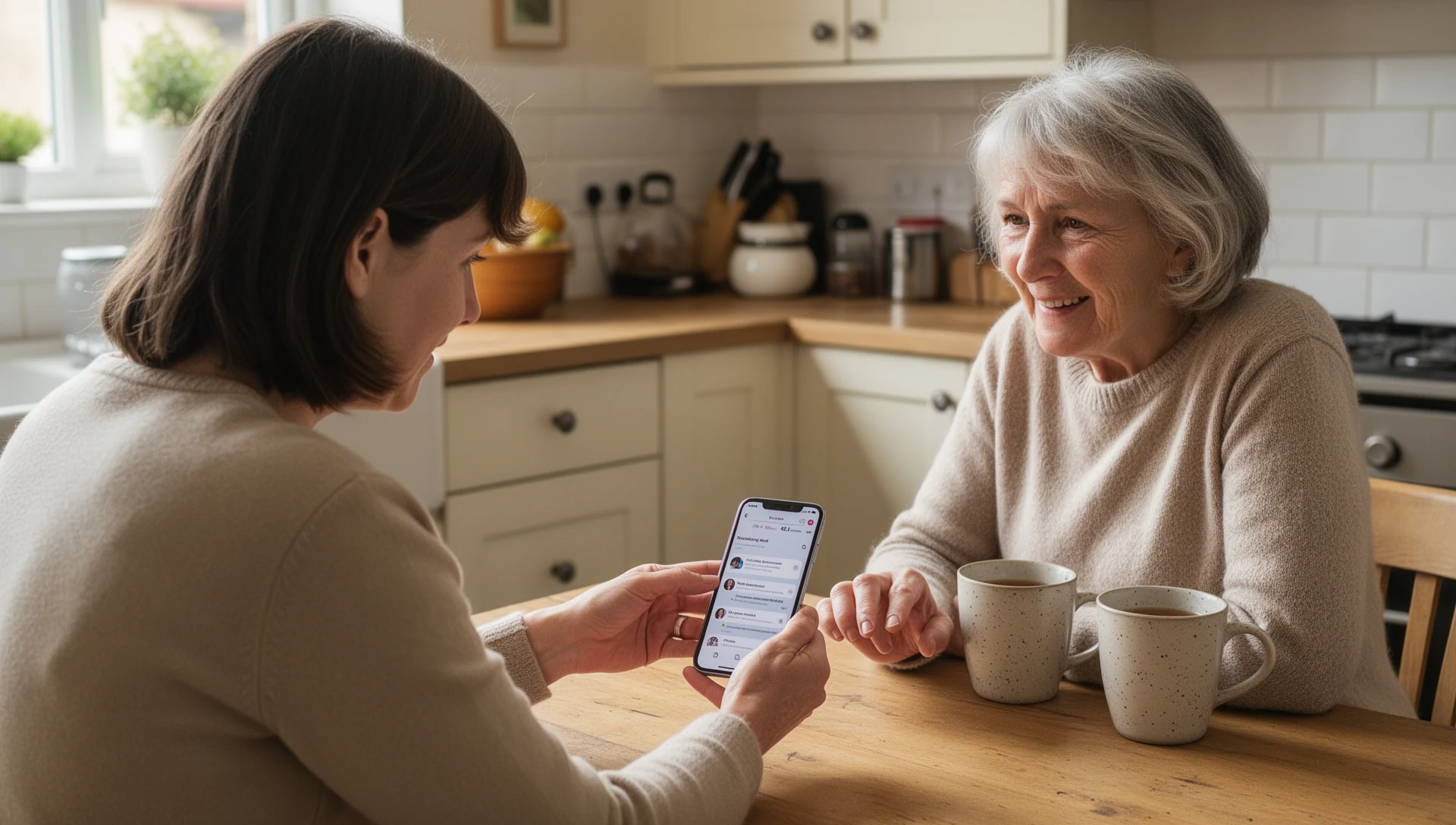
If an older parent struggles with an Android phone, don’t start by buying a new device. First decide what actually needs to change: the settings, the home screen, or the hardware.
Short answer:
Start with the smallest useful change.Keep normal Android if it already enables independent use. Adjust Android if clutter, text size, contacts, permissions, or notifications are the problem. Try Easy Mode if the phone offers it. Try a simplified launcher when everyday tasks still feel confusing. Consider a dedicated senior phone only when hardware or service features matter more than the interface.
On Android, the launcher is the home screen you see after unlocking the phone. A simplified launcher, often called a senior launcher, changes that starting point so that common actions are easier to find.If that option fits, BIG Launcher is a practical way to test a simpler interface on the existing Android phone before buying new hardware.
Its advantage isn’t just larger buttons. BIG Launcher can be configured to suit one person’s actual routine: the people they call, the few apps they need, the accidental actions they are likely to encounter, and the settings that a carer may need to protect. Everyday use is kept separate from configuration, so the person is less likely to accidentally move, remove, or lose the buttons they rely on.
Choose the right setup:
Use this as a decision aid, not as a rule that every older person needs a simpler phone. The best setup is the one this person can use calmly, repeatedly, and with fewer surprises.
1 Keep normal Android
Best when: the person already uses several apps and wants control.
Good fit when:
- They can learn phone steps gradually and want to stay independent.
- They use banking, maps, transport apps, email, health portals, or several messaging apps.
- Hiding too much would make everyday life harder, not easier.
Watch out: don’t simplify the phone just because someone is older.
First test: clean the home screen and run the handover test below.
2 Adjust Android first
Best when: the phone mostly feels noisy, crowded, or poorly configured.
Good fit when:
- The main problem is too many icons, alerts, setup prompts, or confusing permissions.
- The person can use the phone, but is interrupted by clutter.
- You are not yet sure whether a simpler home screen is needed.
Go through before handover:
- Home screen: leave only important icons.
- Screen timeout: set enough time for calm use, but teach them how to turn the screen off deliberately.
- Battery saver: check that it does not delay calls, messages, notifications, or screen timeout.
- Text and display:: enlarge carefully; very large settings can make some apps harder to use.
- Contacts: save important contacts in an account that can be backed up and restored.
- Permissions::open key apps once and dismiss initial prompts.
- Notifications: turn off distracting bubbles, manufacturer prompts, and non-essential alerts.
- Keyboard: consider turning off autocorrect if it changes messages in a confusing way.
- Manufacturer apps: uninstall, disable, or hide unnecessary apps and duplicate tools where possible.
- Emergency details::add emergency contacts where applicable.
First test: use the phone for a few real tasks over several days. If the same confusion repeats, test the next option.
3 Try built-in Easy Mode
Best when: the phone includes a simple manufacturer mode and the person still wants a fairly normal smartphone.
- Look for Easy Mode, Simple Mode, Simple View, or a similar setting.
- Use it when larger icons and a calmer home screen may be enough.
- Treat it as a test: availability and behaviour vary by phone brand and Android version.
First test: turn it on, then test calls, messages, photos, unlock, charging, and volume.
4 Try a simplified launcher
Best when: the person mainly needs a few repeatable actions to work reliably.
Good fit when:
- They mostly need calls, messages, family photos, and a few trusted apps.
- Large buttons and fewer choices would reduce repeated confusion.
- The existing Android phone still works, but the normal home screen gets in the way.
- You want to choose what appears prominently on the home screen instead of relying on a less configurable simple mode.
- You want the daily-use screen to stay stable, without accidental icon dragging, removal, or changes during normal use.
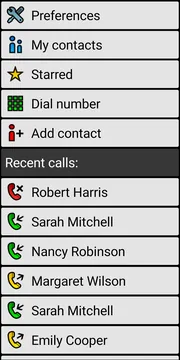
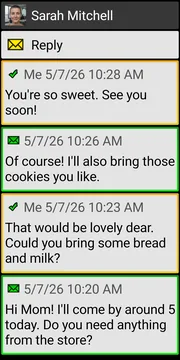
- You need safety options such as protected settings, deletion controls for key communications (messages, call history, etc.), or extra confirmation before risky taps.
Watch out: a launcher can hide parts of normal Android. It is not ideal for someone who actively uses many apps or who would feel that control was taken away.
First test: set up 3–5 essential buttons and run the handover test below.
5 Consider a dedicated senior phone
Best when: the real need is hardware, service, or care support features — not just a crowded Android screen.
- Physical buttons, a very loud speaker, or an easier charging cradle matter more than apps.
- The person needs hardware support for hearing impairment, or support from their network provider or a dedicated support service.
- A dedicated emergency button, medical-alert service, or carer support service is required.
- The person intentionally does not want a smartphone.
Watch out: a new device can create a new learning curve, app limits, mobile network setup, and reliance on support.
First test: check whether the needed feature is truly hardware- or service-specific before buying.
Where BIG Launcher fits
If the simplified-launcher option sounds like the right match, BIG Launcher is a reversible test: install it on the existing Android phone, configure it for this person, and see if they can complete the real tasks below before you buy new hardware.
The setup does not have to be generic. You can make the phone simpler in the places where this senior needs help:
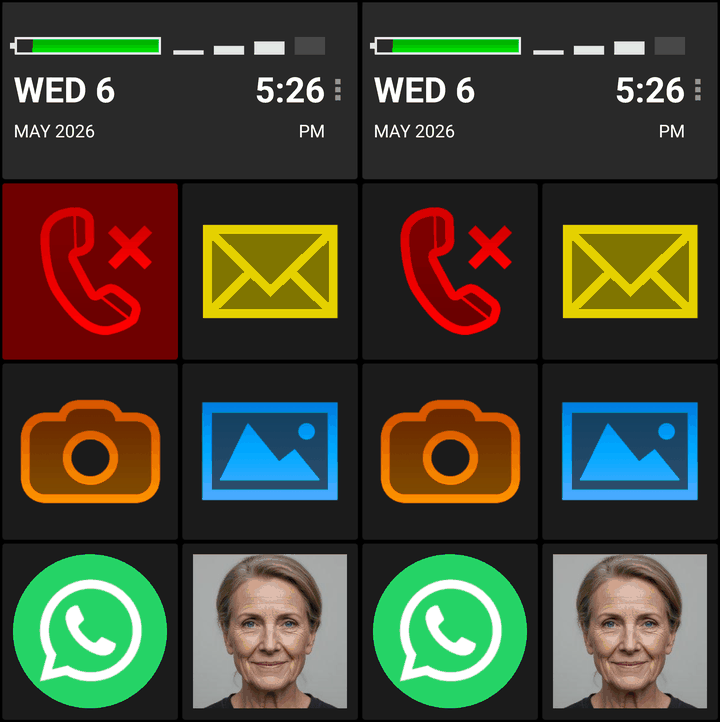
- Make important people easy to recognise: add family contacts as large photo buttons, so that calling starts from a face.
- Keep useful choices visible: show calls, messages, photos, WhatsApp, or trusted apps, and hide distracting apps from the app list.
- Keep the home screen stable: everyday use is separate from configuration, so key buttons are less likely to move or disappear by accident.
- Reduce accidental actions: use call confirmation (on-screen where appropriate), and safe borders if accidental edge touches are a problem.
- Protect the setup: Where available, protect preferences and supported settings, and prevent deletion of contacts, SMS messages, or call history unless specifically enabled.
For many families, this makes BIG Launcher a useful test step: adapt the existing Android phone, try it with the person, and adjust the setup if needed.
The 20-minute handover test
Before you call the setup finished, ask the person to do these things without taking the phone from their hand:
- Call a close person.
- Answer your call.
- Find and open a family contact.
- Open their chosen messaging app or photos.
- Write a short message without confusing autocorrect changes.
- Let the screen turn off and unlock it again.
- Plug in the charger and recognise that the phone is charging.
- Increase and decrease ringtone volume.
- Call an automated line and open the keypad during the call if numerical input is required. If you use a simplified launcher or phone app, check in advance how the in-call keypad opens and whether it is available in that exact setup.
If normal Android passes this test after cleanup, keep it. If built-in Easy Mode passes, that may be enough. If the phone still feels confusing, a simplified launcher is a practical next test before buying another device.
If you test BIG Launcher, include the configured safety choices in the same test: tap a photo contact, confirm a call, return to the home screen, check that the main buttons are still where the person expects them, open the trusted apps you made visible, and confirm that protected settings or deletion controls behave as intended.
When not to use a senior launcher
A senior launcher should solve a specific daily problem. It should not be used just because someone is older.
- Don’t use it if the person actively uses many apps and wants to understand the standard phone interface.
- Don’t use it if banking, digital identity, maps, transport, health portals, or work-related communication require frequent app switching.
- Don’t use it if normal Android works after careful cleanup.
- Don’t use it if the person would experience simplification as a loss of control.
FAQ
Should I buy a senior phone for my parent?
Not necessarily as a first step. If the Android phone still works, test whether settings, Easy Mode, or a simplified launcher solve the daily problem before buying new hardware.
What is an Android launcher?
A launcher is the home screen and app launching interface you see after unlocking an Android phone. A simplified launcher can make common actions easier to find.
Is Easy Mode enough for older users?
Sometimes. It depends on the phone model and on what the person needs to do. Test calls, messages, photos, unlock, charging, and volume before deciding.
When should I not use a senior launcher?
Don’t use one if it would hide important apps, reduce independence, or feel like taking control away from someone who already manages normal Android after cleanup.
Can I try BIG Launcher before buying a new phone?
Yes. If the checklist points towards a simpler interface, try BIG Launcher on the existing Android phone first. Set up photo contacts, a few trusted apps, protected settings, deletion controls, and call-confirmation behaviour, then test real tasks before buying another device.
The practical rule
The best setup is not the most advanced phone, and it is not automatically the most simplified phone. The best setup is the one this particular person can use calmly, repeatedly, and with fewer surprises.
