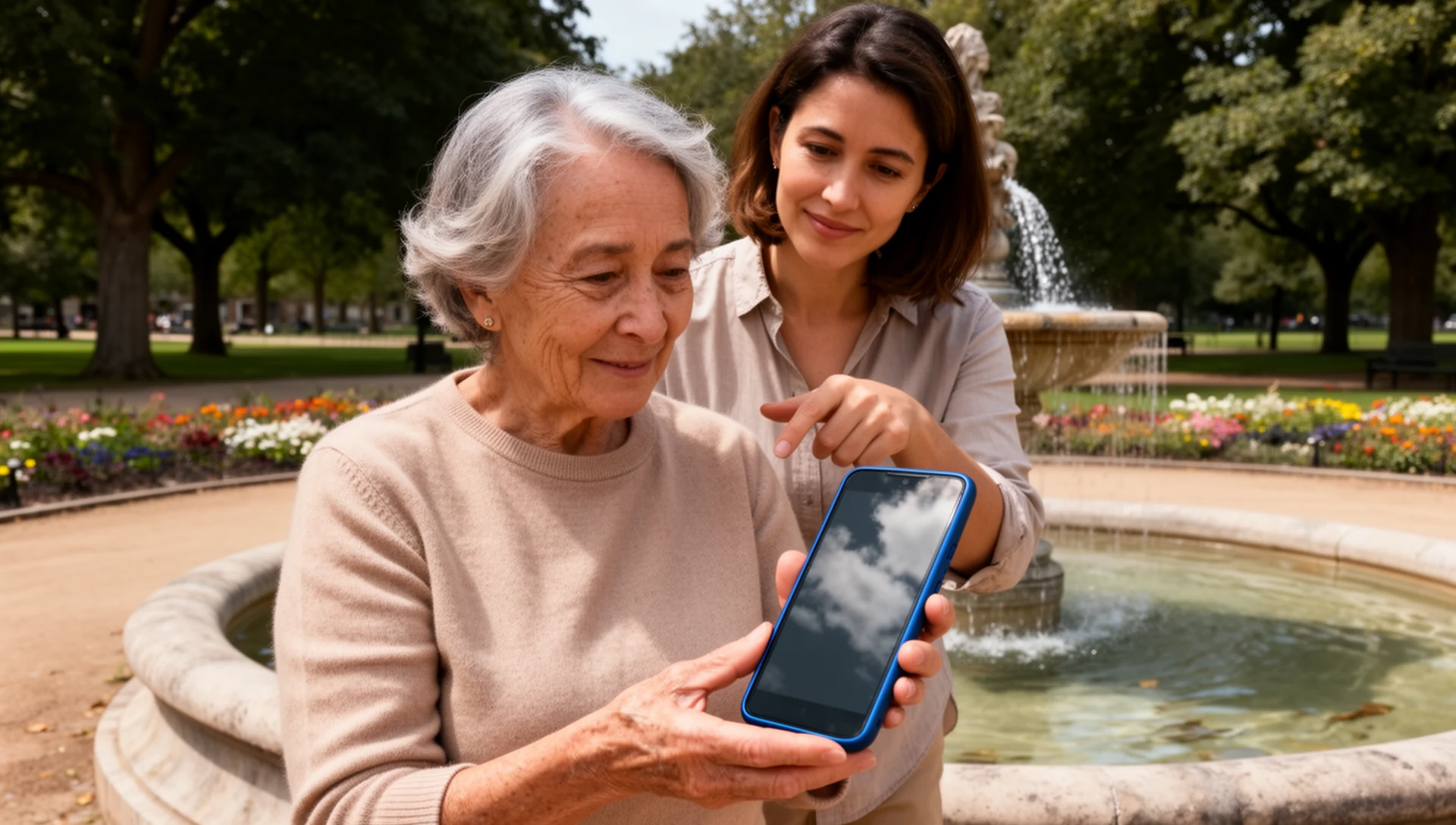
You have chosen BIG Launcher to make the phone easier to use. Now test the real phone with the person who will use it. It passes only when they can unlock it, make and answer calls, exchange messages, recover from a wrong tap, charge it and repeat core tasks after a restart.
If you are still choosing between normal Android, built-in Easy Mode, a simplified launcher or dedicated hardware, read our Android decision guide first.
For the most consistent experience, install BIG Launcher, BIG Phone and BIG SMS together. They share the same large, predictable design across Home, calls, contacts and messages, so each task feels familiar.
Set aside one focused session. Downloads, permissions, SOS and practice may take extra time. The phone is ready only when your parent repeats the chosen tasks without prompting.
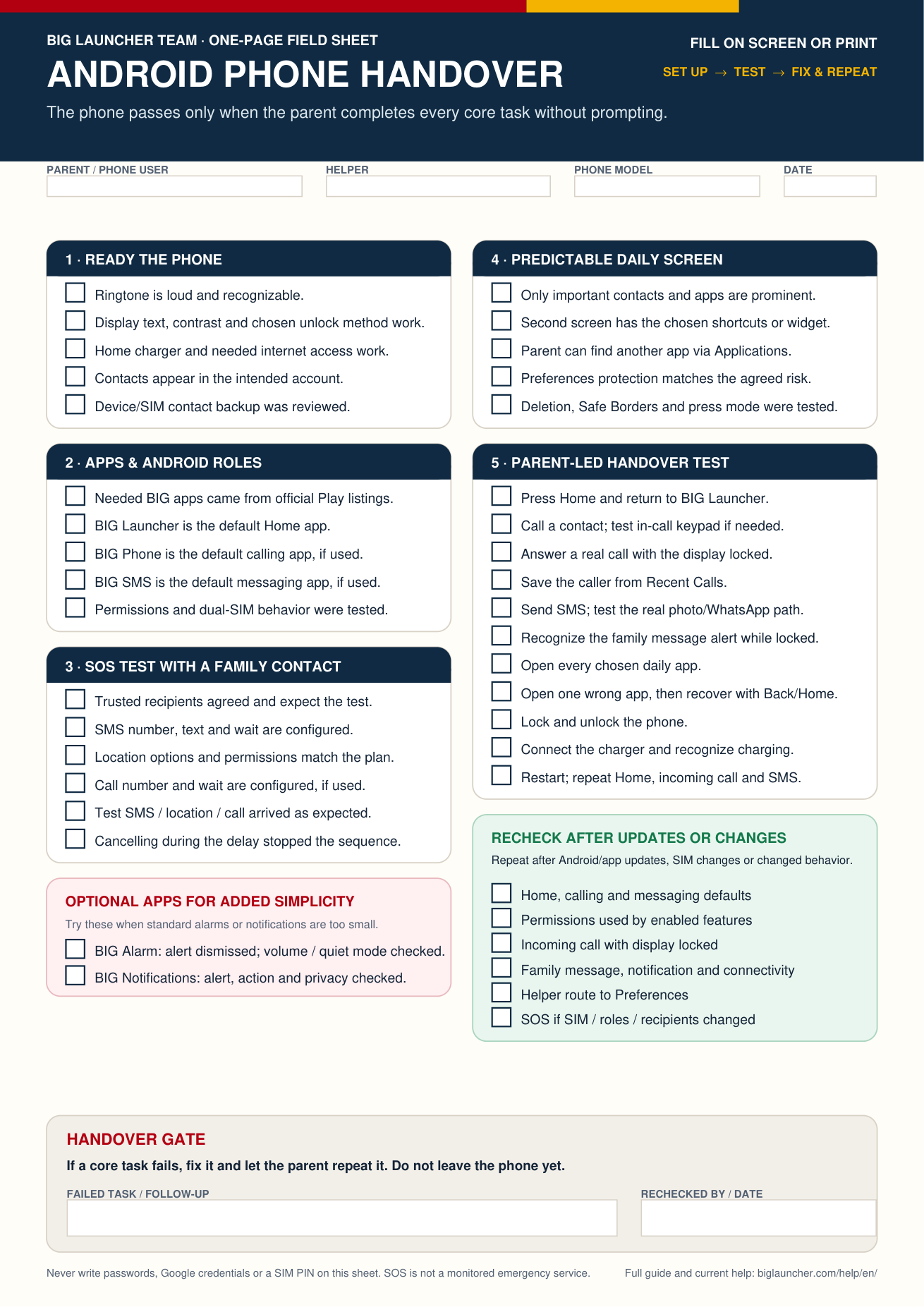
Printable + fillable PDF
Keep the handover test beside you
Use one checklist from setup through the final parent-led test.
Print the same A4 page
Keep follow-up notes
At a glance: pass these eight checks
Your parent can:
- unlock the phone and return Home.
- place a call and answer one with the screen locked.
- send a message and recognize its alert through the family’s chosen messaging path.
- open the three to five apps selected for daily use.
- recover from one deliberate wrong tap.
- connect the charger and recognize that charging has started.
- reach the agreed helper or SOS contact route.
- repeat the core tasks after a restart.
Work through one task at a time. Let your parent try it, fix anything that fails, and move on only when they can repeat it without help.
Before handing over: record the phone and choose 3–5 tasks
Action
Make a private helper record with the phone model and Android version, current Home, calling and messaging apps, contact account, SIM setup, SOS recipients and unlock method. Keep the backup-PIN process secure; never put a Google password, Preferences password or SIM PIN on the sheet beside the phone.
Choose three to five real daily tasks with your parent: call a named person, answer a call, send an SMS, recognize a WhatsApp notification, check the weather or view photos. For internet apps, confirm the intended Wi-Fi or mobile data works.
Take private before-and-after screenshots of the original Home screen and each configured BIG Launcher screen.
Pass
The helper can restore the original defaults, and the selected tasks reflect what the parent actually does—not a generic list of smartphone features.
If it fails
Resolve account ownership, contact backup, unlock access or SIM uncertainty before buying, resetting or handing over the phone.
Set up sound, display, charging and contacts
Action
- Ringtone: choose one your parent can hear and distinguish from other sounds.
- Display and call controls: check call volume, brightness, display size, text size and contrast in the usual lighting.
- Charging: connect the actual cable or charging cradle that will be used at home.
- Google Contacts sync: confirm the intended Google account is signed in and sync is enabled.
- Device and SIM contacts: if contacts exist only there, review Android’s separate option for saving them to the intended Google account, where supported.
A visible contact is not proof that it is backed up. Android uses separate controls for Google contacts and for device/SIM contacts.
Assign the BIG apps Android will actually use
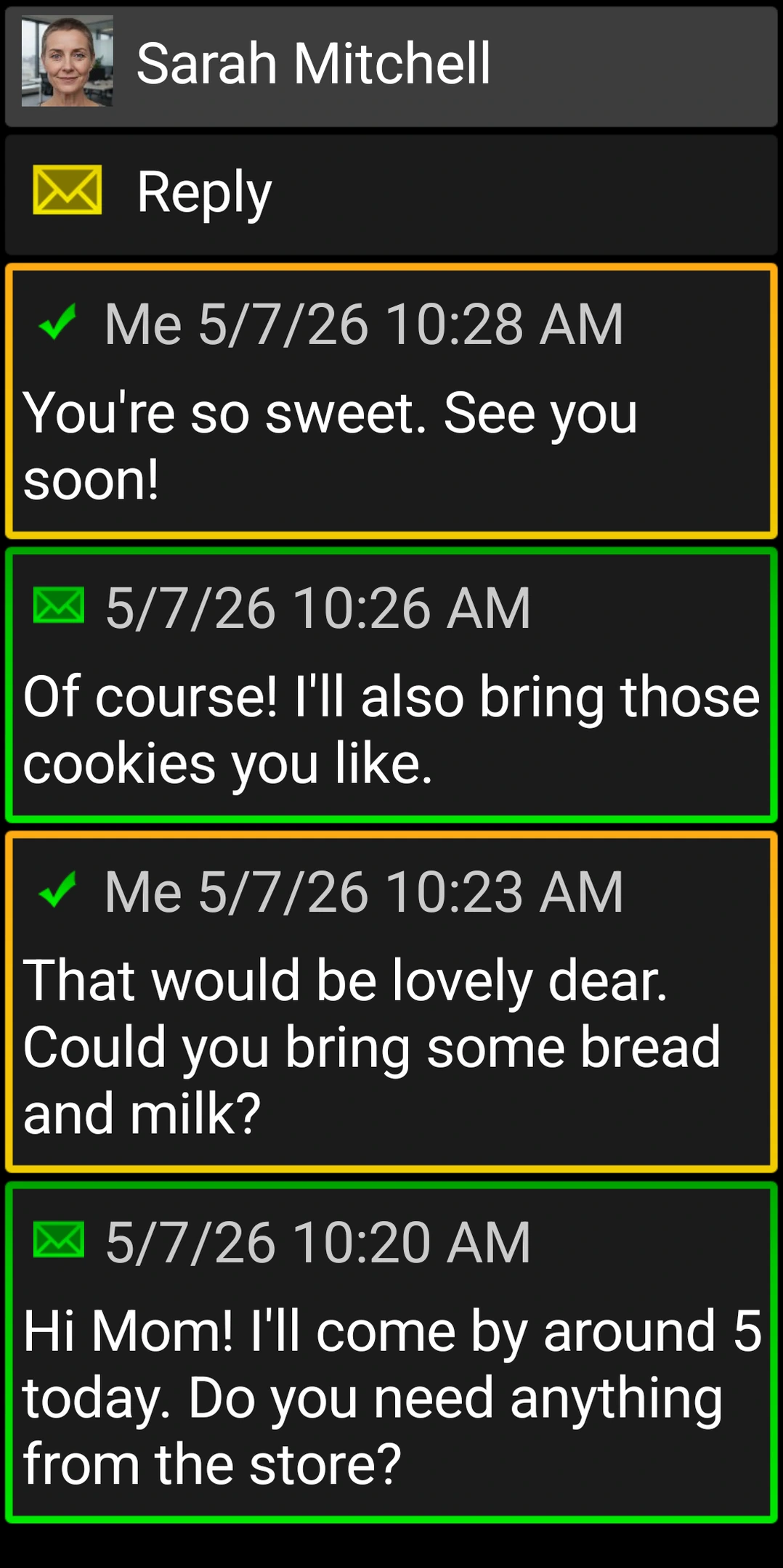
Action
Install the relevant apps from their official Google Play listings:
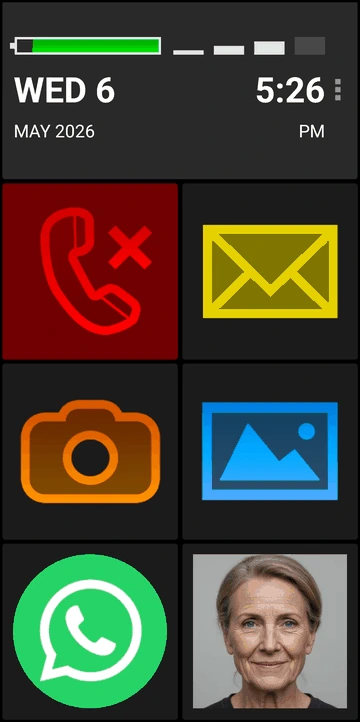
- BIG Launcher for Home;
- BIG Phone for calls and contacts;
- BIG SMS for SMS.
Android may request each default role on first launch. Otherwise open System settings → Apps → Default apps and choose Home screen → BIG Launcher, Calling app → BIG Phone for Seniors and Messaging app → BIG SMS for Seniors. Names and paths vary by device.
If the phone has two SIM cards, select the intended SIM for a real call and SMS. Record whether Android asks each time or uses a default.
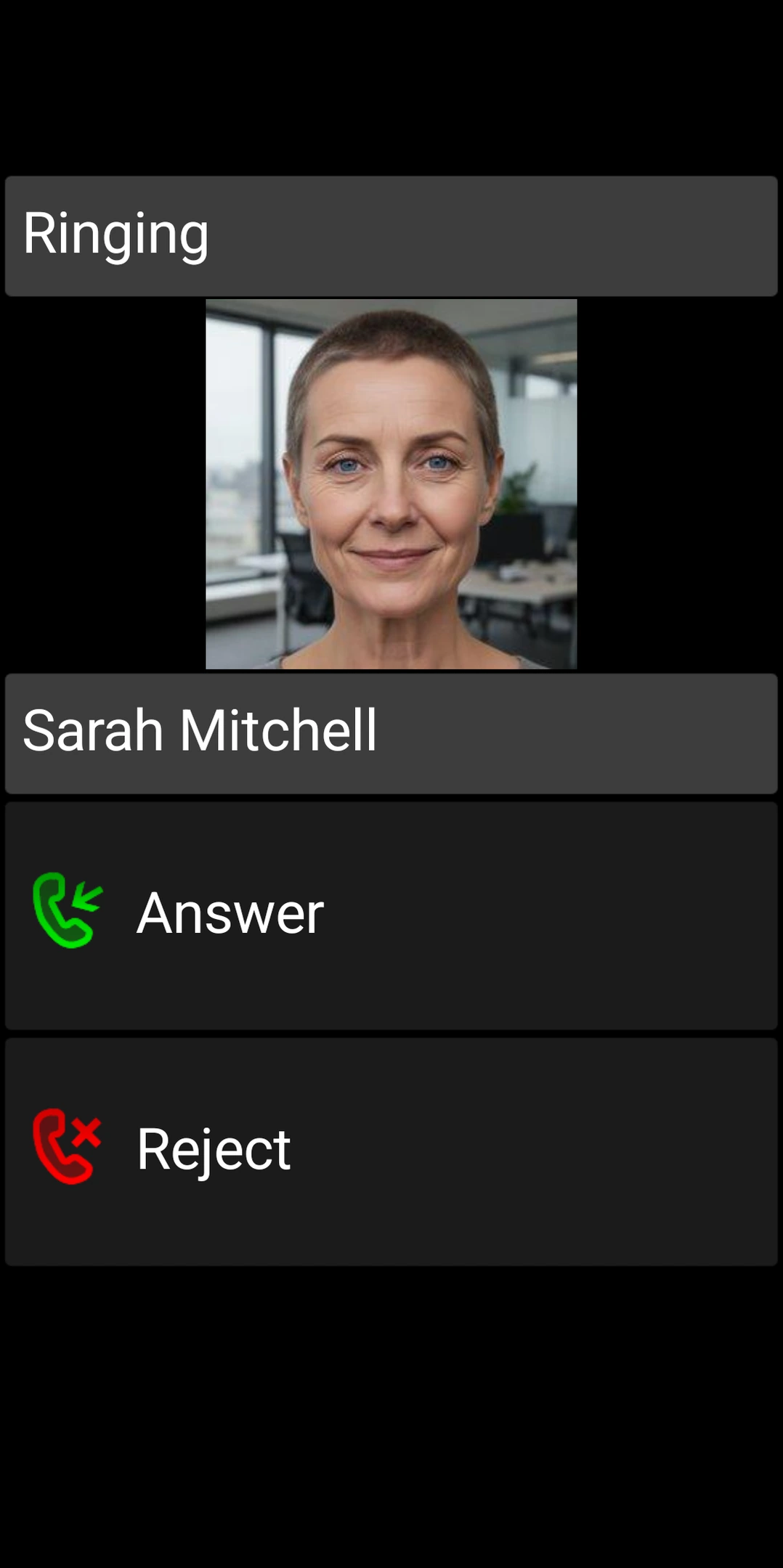
Android can use only one default app for each role. Only the default phone app handles incoming-call screens and call history; only the default SMS app sends and receives SMS.
Configure and test SOS with a family contact
Choose recipients together and warn them before the controlled test.
Action
With BIG SMS installed and set as the default messaging app, open BIG Launcher Preferences → SOS:
- enable Send SMS, add trusted numbers under SMS phone, write the SMS text and set SMS wait;
- enable Add GPS location for the first available location;
- enable Send GPS SMS if a later, more accurate-location update is wanted;
- for the voice path, enable Call, add one trusted number under Call phone, and set Call wait;
- grant the relevant SMS and location permissions;
- choose delays that leave time to cancel an accidental activation.
For automatic SOS sending, BIG SMS must be the default SMS app. Otherwise the text may be copied into another messaging app instead of being sent automatically.
Important SOS boundary: BIG Launcher cannot use emergency numbers such as 911 or 112. Choose a trusted family member, caregiver or another agreed recipient instead. SOS is not a monitored medical alarm or replacement for emergency services. GPS may be less precise indoors; delivery depends on permissions, signal, network and recipient availability. Review the current BIG Launcher manual before testing.
Add a second screen for daily shortcuts
Action
Keep the first Home screen simple, then put useful extras on a second screen:
- tap the three dots (⋮) → Preferences → Customize buttons and screens → Add screen;
- choose Yes if you want BIG Launcher to link the new screen from the last button on the previous screen;
- alternatively, enable Preferences → Screens’ options → Use swipe to navigate screens and choose From home to right or Loop. Swipe navigation uses more memory and makes BIG Launcher buttons inaccessible by keyboard, so keyboard or switch users need a visible screen button instead.
To configure the new screen, open the three-dot menu, choose Set buttons, then tap a button. Useful choices include:
- Direct call for a frequently called contact, followed by the phone number to use;
- Application for Weather, WhatsApp or another familiar app;
- External shortcut for an app-provided shortcut, such as a WhatsApp conversation;
- External widget for a small weather or calendar widget;
- Go to screen if you want another visible route between screens.
Use small widgets so their content remains readable inside a button. Keep Applications available and show your parent how to find another app. If useful, enable Preferences → Applications → Show search on top.
Tapping a contact normally offers Call and SMS. Under Preferences → Contacts, disable Show message option in call dialog to keep only Call as confirmation. No menu when calling the contact starts the call immediately; it is faster but easier to trigger accidentally. Test the choice together. Watch the call-menu tutorial and the screens and buttons tutorial.
Agree on protection choices:
- protect settings through three dots (⋮) → Preferences → Preferences menu → Protect menu → Password; this requires the full version. A forgotten password has no recovery and requires reinstallation;
- deletion is disabled by default. If enabled, decide separately for contacts, call history and SMS; bulk deletion cannot be undone;
- record a safe helper route back to Preferences without writing the password on the handover sheet.
For difficult touch accuracy, test Preferences → Appearance → Safe borders size. Short and long press uses tap for action and hold for description; Short press only treats both as a tap. Larger borders reduce usable button area, so test together.
Run the parent-led handover test
Hand over the phone. Do not complete the steps for your parent.
Ask them to:
- unlock the phone and return to BIG Launcher;
- call a named contact and end the call;
- answer an incoming call while the display is locked;
- open Phone → Recent Calls and confirm that the caller appears; if the number is not saved, use Phone → Add Contact or the phone’s current Add contact action, then confirm that the new contact appears;
- write and send a new SMS;
- recognize an SMS alert while the display is locked;
- open every chosen daily app;
- recover from a wrong app with Back or Home;
- connect the charger and identify that charging has started.
If your parent sometimes reaches automated phone menus, add one more call. If BIG Phone’s full version is unlocked, open its in-call keypad, enter a digit, change the call volume and return to the call screen. If another calling app is being used, test the keypad in that app instead. If the chosen unlock method includes a PIN or pattern, confirm unlocking after a restart and the secure recovery process.
Test the family’s real messaging path separately. BIG SMS does not send MMS picture messages. If the family shares photos through WhatsApp or another app, send a real photo there and verify its notification and recovery path. Review what message text appears on the lock screen so visibility does not create an unwanted privacy problem.
Restart the phone. Repeat Home, one locked-screen incoming call, one received message and the helper route to Preferences. Repeat the controlled SOS test if defaults, SIM behavior or SOS permissions changed.
Handover rule: if a core task fails, the phone is not ready to leave. Fix it and let your parent repeat it without prompting.
Use the same fillable and printable A4 checklist while you run the test.
If calls or messages fail: compact Android health check
Check these three groups in order:
1. Default apps
- BIG Launcher is the Home app;
- BIG Phone is the calling app;
- BIG SMS is the messaging app.
2. Permissions and alerts
- Phone, Contacts, SMS, notification and location permissions match the features you enabled;
- notification access is enabled if BIG Notifications or app-notification blinking is used;
- notification channels and lock-screen privacy are set as agreed.
3. Delivery conditions
- Do Not Disturb, Focus or a scheduled quiet mode is not suppressing the test;
- battery or background restrictions are not blocking the required alert;
- the intended SIM and Wi-Fi or mobile data are available.
After any change, repeat the real incoming-call and message tests. Do not blindly disable every battery safeguard or follow an old manufacturer-specific path. Use the current BIG Launcher help for the exact symptom.
Try BIG Alarm and BIG Notifications for another layer of simplicity
BIG Alarm and BIG Notifications extend the same large, high-contrast design language beyond Home, calls and messages. Try them when the standard alarm or Android notifications are still too small or difficult to act on.
When the standard alarm is too small: BIG Alarm
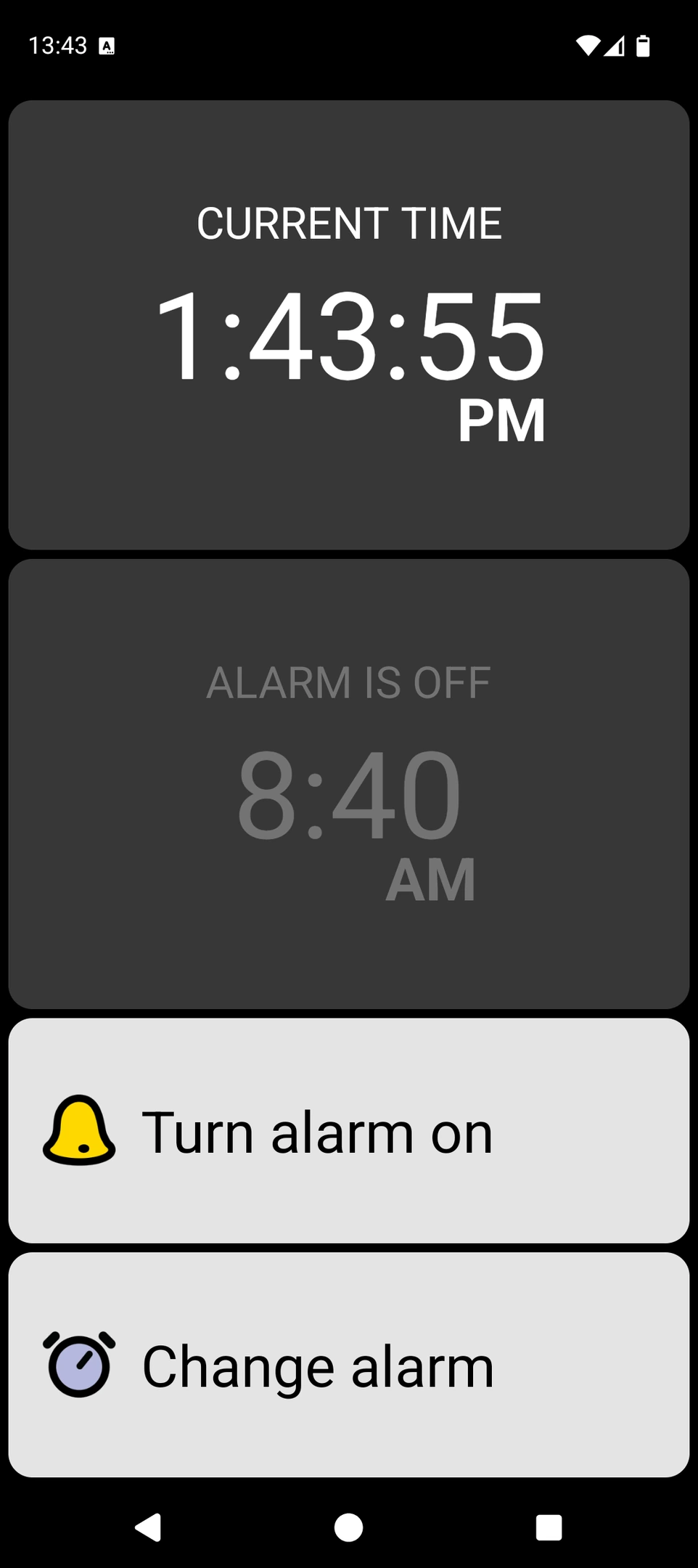
BIG Alarm provides a focused alarm screen with large text, high-contrast colors and large controls. It supports one-time and daily alarms.
Set an alarm for the next few minutes. Let your parent identify it, dismiss or silence it, and check the next-alarm state. Verify the alarm volume and Do Not Disturb behavior on that exact phone. If the test fails, the alarm is not ready for daily use.
When Android notifications are too small: BIG Notifications
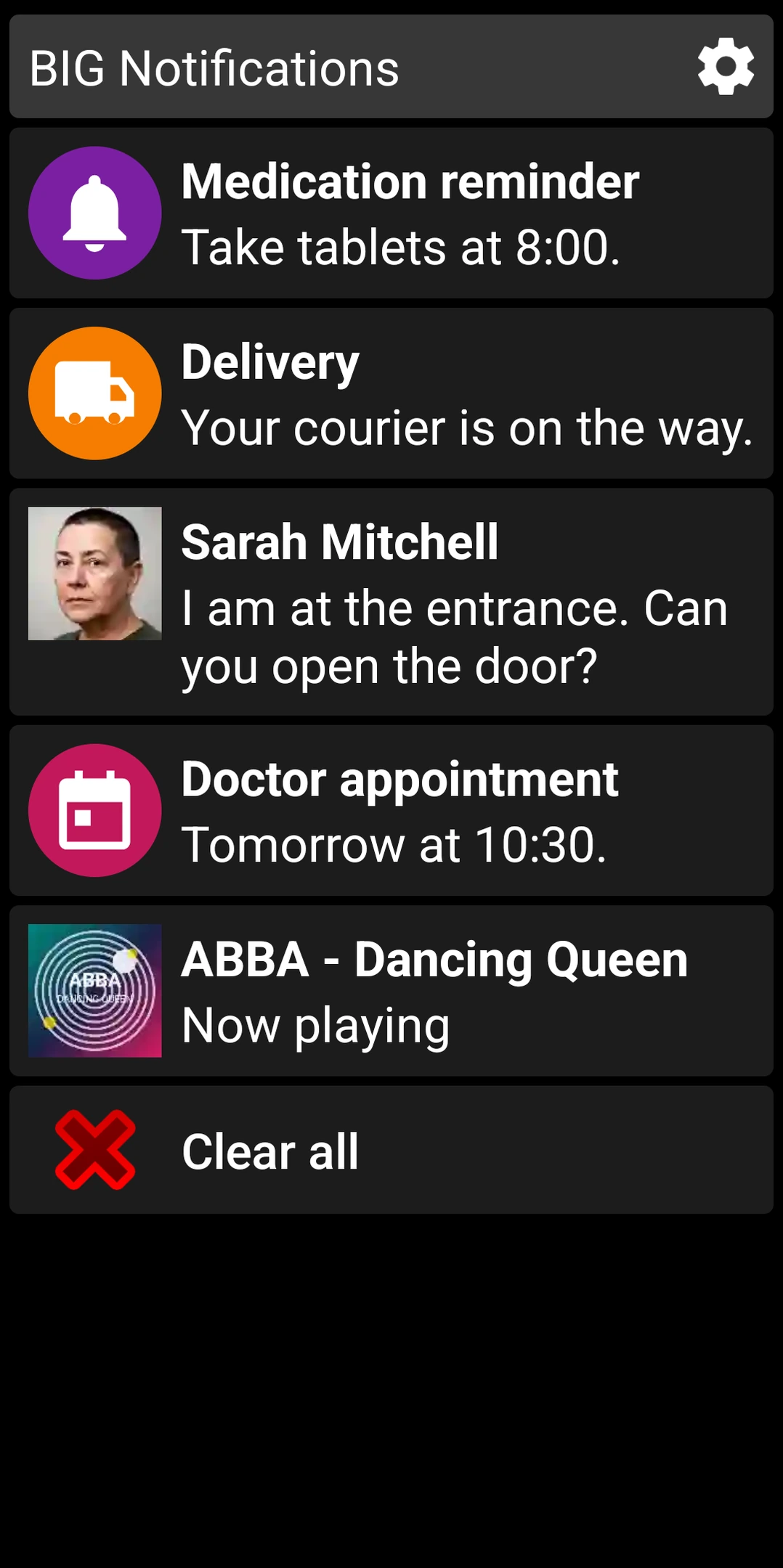
BIG Notifications enlarges Android notifications into a clearer full-screen view with large text and controls. It can be used with BIG Launcher or separately.
Grant the required notification access, then trigger a real alert from an app your parent uses. Confirm that the enlarged view is readable, the expected action works and automatic display behaves as intended. Review both the full-screen view and lock-screen privacy with your parent.
Ask your parent what the alert means and what they would press next. A larger notification still fails the handover if its wording or action is unclear.
What to recheck after an Android update
Repeat this compact check after an Android or BIG app update, SIM change, new phone number, changed SOS recipient or any report that the phone works differently:
- press Home and confirm BIG Launcher opens;
- confirm calling and messaging defaults;
- review permissions required by enabled features;
- place an incoming call with the display locked;
- send a message and verify its notification;
- confirm the helper can reach Preferences;
- repeat Alarm, BIG Notifications or SOS tests when their relevant settings changed;
- record the date and helper name.
Keep private screenshots of the configured BIG Launcher screens, original/current default apps, contact account, SOS recipients and last test date. Store passwords and PINs in an appropriate password manager or secure family process—not on the handover sheet.
When software is not enough
Choose another path when the need is physical keys, a flip-phone form, a charging cradle, particular loudness or hearing hardware, remote monitoring, a physical assistance button or a professional emergency-response service. BIG Launcher simplifies compatible Android software; it cannot add missing hardware or monitored services.
Test the real phone, not the plan
The handover passes when your parent completes the selected tasks without prompting. Keep the helper record and repeat the short check after updates or other changes.
